Last updated: 2025-09-19
E-mail Queue
- Overview
- Navigating the E-mail Queue
- Filtering the Queue List
- Customizing the Columns
- Managing E-mail in the Queue
- Resending Failed E-mail
- Deleting Messages from the Queue
- E-mail Queue Alerts
- E-mail Queue Server-Level Configuration
Overview
When a user sends certain types of e-mail messages through SmartOffice, the messages pass through the E-mail Queue before being sent. The queue does the following:
- Displays a list of e-mail messages sent by the signed-in user. In addition:
- When office security is enabled, the queue displays messages sent by users for whom the signed-in user proxies. If the signed-in user is a Super User, the queue displays all messages sent by all users in the office.
- For Enterprise View users, the queue displays all messages sent by users in child offices.
- Displays select system-generated e-mail messages (SmartOffice administrators only).
- Allows the user to resend previously sent messages.
- Allows the user to requeue messages that were not sent.
- Notifies the user about issues that prevented mail from being delivered.
Navigating the E-mail Queue
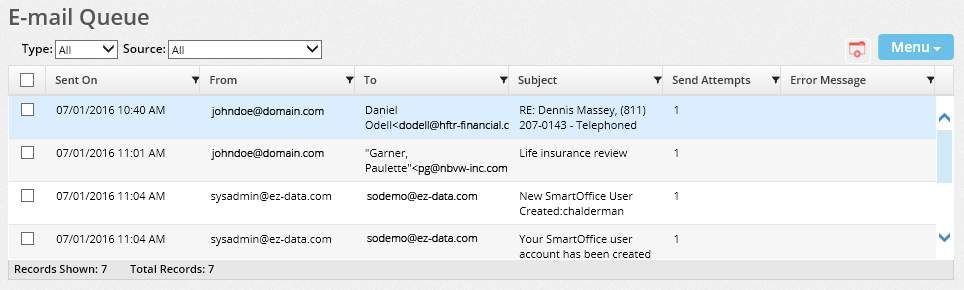
To access the E-mail Queue, select Utilities > E-mail Queue from the SmartOffice side menu.
Filtering the Queue List
To filter the types of messages displayed in the queue, use the Type and Source drop-down lists at the top.
- Failed: Select this option to display only messages that could not be delivered.
- Outbox: Select this option to display only messages that have been queued but have not yet been sent.
- Sent: Select this option to display only messages that have been delivered.
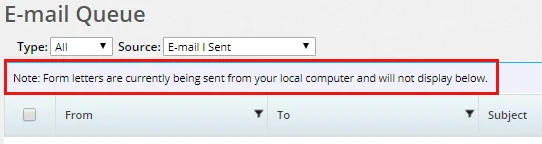
- E-mail I Sent: Select this option to display only those messages sent to other SmartOffice users (through intra-office e-mail) and to clients (i.e., form letters sent as e-mail messages). Enterprise customers should note that form letters do not appear in the E-mail Queue if SmartOffice is configured (in Office Settings - Detail) to send e-mail locally through Outlook/Lotus Notes; if the office is configured in such a way, a message to that effect appears at the top of the E-mail Queue.
- SmartOffice Notifications: Select this option to display only those messages sent as notifications by SmartOffice. This includes messages sent in response to user account creation or password reset actions, unsuccessful sign-in attempts, activity creation and record sharing, as well as messages sent to users who have elected to receive SmartOffice alerts by e-mail. These messages are visible only to users with SmartOffice administrator rights.
- Type: This drop-down list is set to display all e-mail messages by default. The user can select any of the following to narrow down the messages displayed:
- Source: This drop-down list is set to display e-mail messages from all sources by default. Other options are:
Customizing the Columns
Users with the appropriate user rights (see List Layout Customization) can customize the columns that appear in the E-mail Queue. The following columns are available:
- Bcc: All recipients who were blind carbon copied on the message.
- Body: The body of the e-mail message.
- Cc: All recipients who were copied on the message.
- Date: The date and time the e-mail was originally submitted to the queue for sending.
- Error Message: The error message that the system logged (if the e-mail was not sent).
- Mime Type: The type of media encoding on the message (e.g., text/html).
- Send Attempts: The number of attempts SmartOffice made to deliver the e-mail message.
- Sent: A Yes or No indicator of whether the message was successfully sent.
- Sent On: The date and time the e-mail was actually delivered.
Managing E-mail in the Queue
Resending Failed E-mail
When a message in the E-mail Queue cannot be delivered for any reason, SmartOffice attempts to send the message up to 10 times. If the 10th attempt fails, the message is marked as Failed, and SmartOffice notifies the user through the Alert Center.
To resend failed messages:
- Open the E-mail Queue (see Navigating the E-mail Queue).
- Tag one of more failed messages (to find these messages quickly, use the filter drop-down lists; see Navigating the E-mail Queue).
- Select Menu > Resend Failed E-mail.
Deleting Messages from the Queue
- Open the E-mail Queue (see Navigating the E-mail Queue).
- Tag a message entry, and then select Menu > Delete 'E-mail Queue' Record.
E-mail Queue Alerts
The E-mail Queue sends alerts about the status of queued messages to the Alert Center. The following table describes these messages.
| SmartOffice failed to connect to the SMTP server | The message was not sent because of a problem with the SMTP server settings. Possible causes include:- Incorrect SMTP settings configured in Office Settings - Detail.
| Message | Description |
|---|
- Incorrect SMTP settings in the server config.xml file (accessible only to enterprise customers). Once the issue with the SMTP settings has been identified and corrected, any failed messages can be resent (see Resending Failed E-mail). |
| E-mail Server for system is Down | SmartOffice cannot connect to the e-mail server being used to send e-mail. |
|---|---|
| The E-mail Server for your office is back online | The SMTP server is back online and functioning properly. SmartOffice can connect to send e-mail. |
| The daily SmartOffice E-mail limit for the System Office has been reached | No more e-mail can be sent because of the daily limit specified by the SmartOffice server administrator. The administrator can specify a limit of e-mail sent by individual users as well as an overall limit on e-mail that can be sent from the server. E-mail on hold because of these limits will be sent the following day. |
| You have undeliverable e-mail | SmartOffice has unsuccessfully attempted to send a message 10 times. The user can try to resend these messages (see Resending Failed E-mail). |
E-mail Queue Server-Level Configuration
Note: This information applies only to enterprise customers who have their own SmartOffice servers. The following table describes the server-wide settings that a SmartOffice administrator can modify in the server config.xml file to change how the E-mail Queue behaves.
| Setting | Description |
|---|---|
| \ | Under the \ |
| \ | - The \ |