Last updated: 2025-09-19
Pending Cases - Searching in SmartCaseManager
- Pending Case Searches
- Searching from the Side Menu
- Searching from the Search Box
- Searching from Other SmartOffice Modules
- Other Types of Searches
- Pending Case Team Search
- Doctor Search
- Medical Facility Search
- Service Provider Search
Pending Case Searches
SmartCaseManager offers several options for searching for formal and informal pending cases.
Note: An informal case is one that is shopped to multiple carriers. An informal case consists of a parent case and several child cases. SmartCaseManager creates a child case for each carrier that the informal application is being shopped to.

Searching from the Side Menu
- Select Insurance > Pending Cases to open the search dialog box.
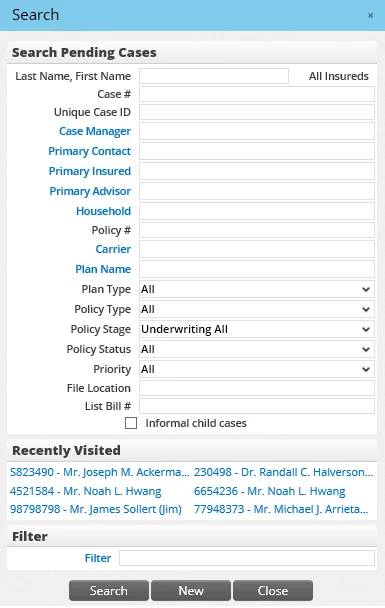
- Select the appropriate search options:
- To find all cases in the Underwriting All policy stage, which is the default Policy Stage option selected, do not set any options. (The default policy stage can be changed in Policy/Case Setup). Underwriting All includes cases that are in the Proposed, Await Approval, Approved, Issued and Underwriting stages.
- To find informal parent cases, select Informal Application from the Policy Stage drop-down list. When this option is selected, the Informal Child Cases option becomes available, enabling the user to search for both parent and child informal cases. - To narrow down the search results, enter a policy number, plan type, insurance type, policy stage or other criteria in the appropriate fields. The default policy stage for pending case searches can be defined in Policy/Case Setup - PCM Workflows.
- Click the Search button.
Searching from the Search Box
- In the Search box, select Insurance > Pending Case from the Search drop-down list.
- Do one of the following:
- - Click the Search button to view all pending cases (this takes the user directly to the Pending Case List).
- Enter the name of the primary contact or business. When entering a contact (i.e., a person's name), use the format last name,first name. Partial first and last names can be used. As text is entered, SmartOffice displays a dynamic menu listing matching records. If the menu displays the name of the contact or business, select the name to immediately open that record. Otherwise, click the Search button to open the Pending Case List and display all matching results.
To open the full Pending Case Search dialog box from the Search box, click the Advanced Search hyperlink.
Searching from Other SmartOffice Modules
Pending cases can be displayed from other modules as follows:
- From the Contact List, select the Pending Cases tab to display cases for the selected contact.
- While viewing a policy, select Menu > Pending Case Management to view cases associated with that policy.
- From the Carrier List, select the Pending Cases tab to display cases associated with the selected carrier.
- From the Product List, select the Pending Cases tab to display cases associated with the selected product.
- From the Advisor or Agency List, select the Pending Cases tab to display cases associated with the selected advisor or agency.
- From the Household List, select the Pending Cases tab to display cases associated with the selected household.
Other Types of Searches
In addition to searching for pending cases, the user can search for teams, doctors, medical facilities and service providers that have been entered in SmartOffice for the purpose of processing pending cases. Detailed information for each can be viewed and/or edited.
Pending Case Team Search
To conduct a team search, select Insurance from the side menu and then select Teams from the expanded list to open the Search Teams dialog box.
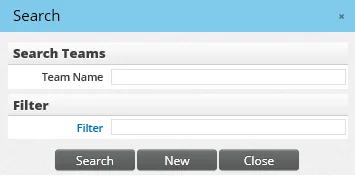
- To display a list of all teams, click the Search button without entering any search criteria.
- To display a list based on specific criteria, enter a team name or filter.
The List content link displays teams that meet the search criteria.
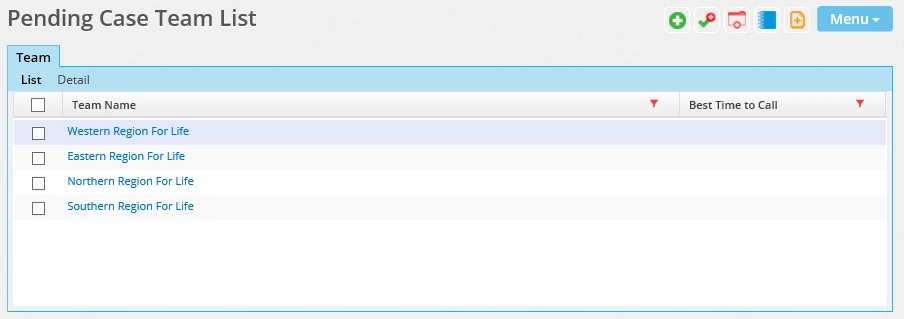
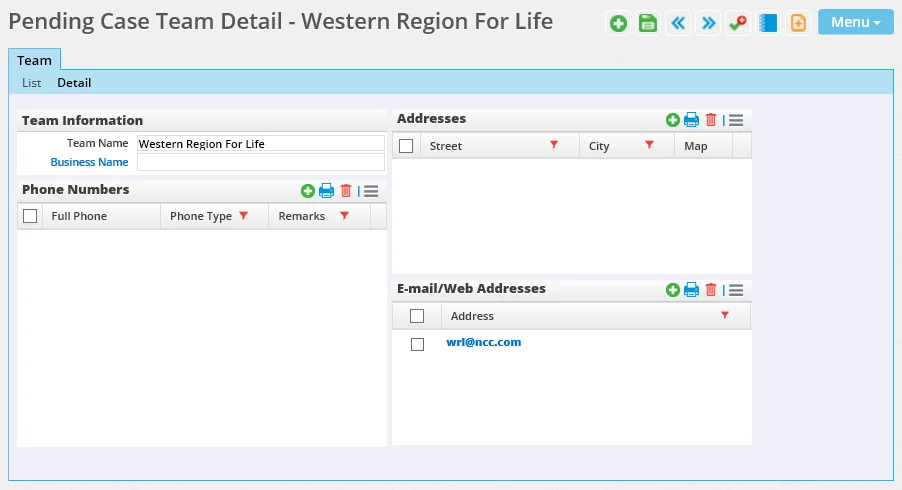
The Detail content link contains basic team information such as name, linked business, multiple phone numbers, addresses, e-mail addresses and Web addresses.
Doctor Search
To search for doctors, select Insurance from the side menu and then select Doctors from the expanded list to open the Search Doctors dialog box.
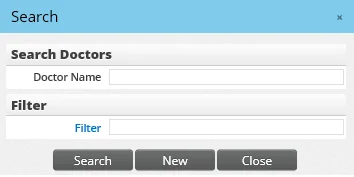
- To display a list for all doctors, click the Search button without entering any search criteria.
- To display a list based on specific criteria, enter a doctor name or filter.
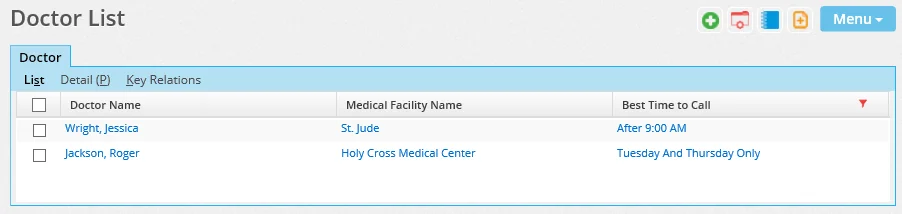
The List content link displays doctors that meet the search criteria.
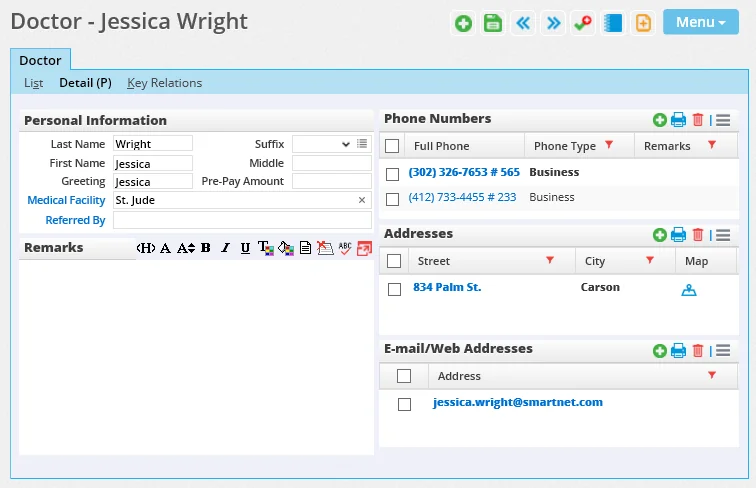
The Detail content link contains basic doctor information, such as name, linked medical facility, remarks, multiple phone numbers addresses, e-mail addresses and Web addresses.
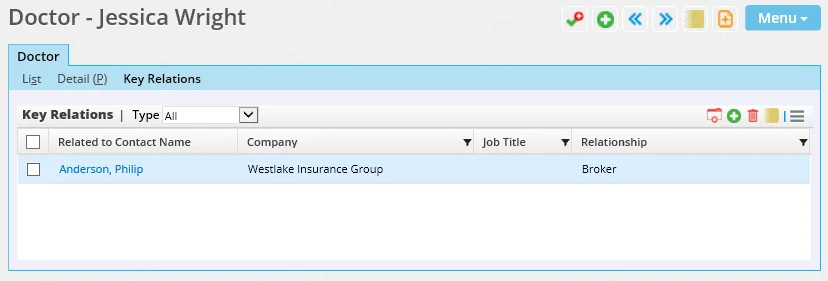
The Key Relations content link tracks any relationships the doctor has with other contacts.
Medical Facility Search
To search medical facilities, select Insurance from the side menu and then select Medical Facilities from the expanded menu to open the Search Medical Facilities dialog box.
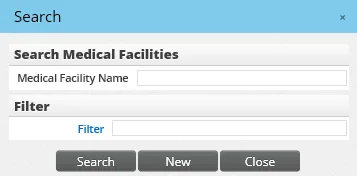
- To display a list for all medical facilities, click the Search button without entering any search criteria.
- To display a list based on specific criteria, enter a medical facility name or filter.
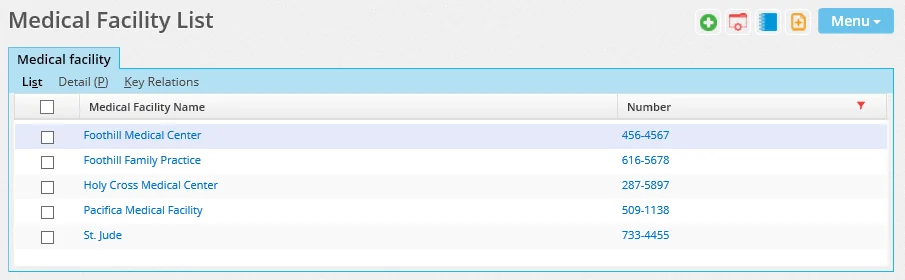
The List content link displays medical facilities that meet the search criteria.
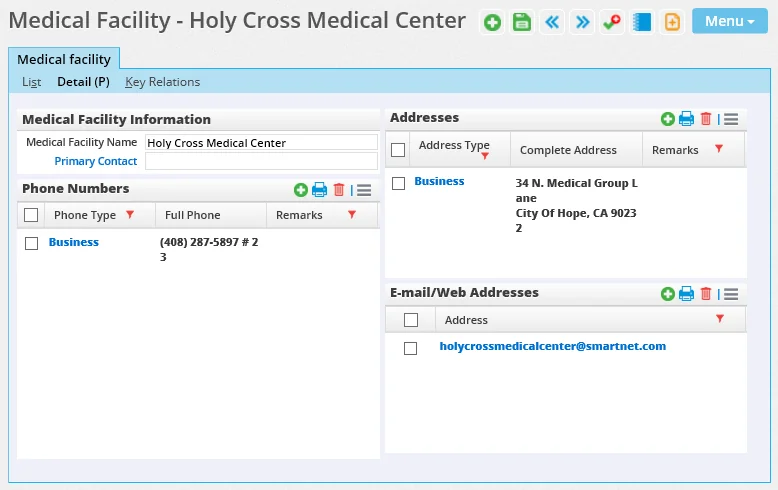
The Detail content link contains basic medical facility information such as name, primary contact, multiple phone numbers, addresses, e-mail addresses and Web addresses.
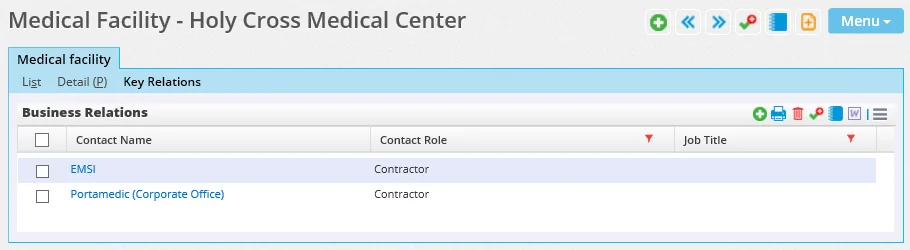
The Key Relations content link tracks any relationships the medical facility has with other contacts.
Service Provider Search
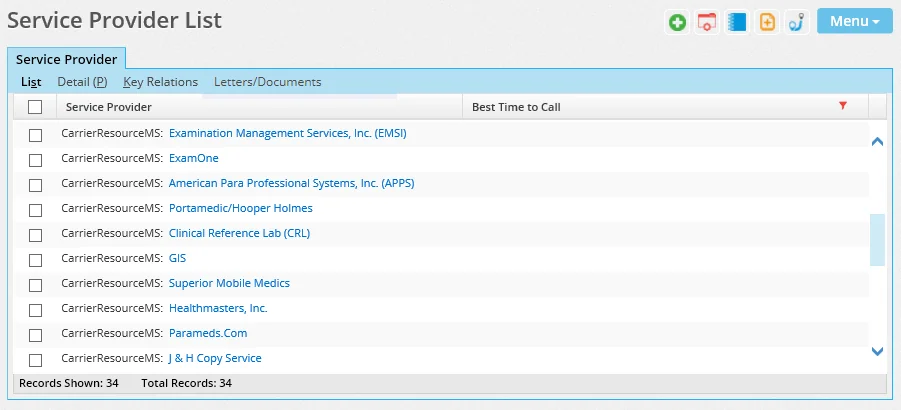
To search service providers, select Insurance from the side menu item and then select Service Providers from the expanded list to open the Service Provider List. The Service Provider List displays all service providers.
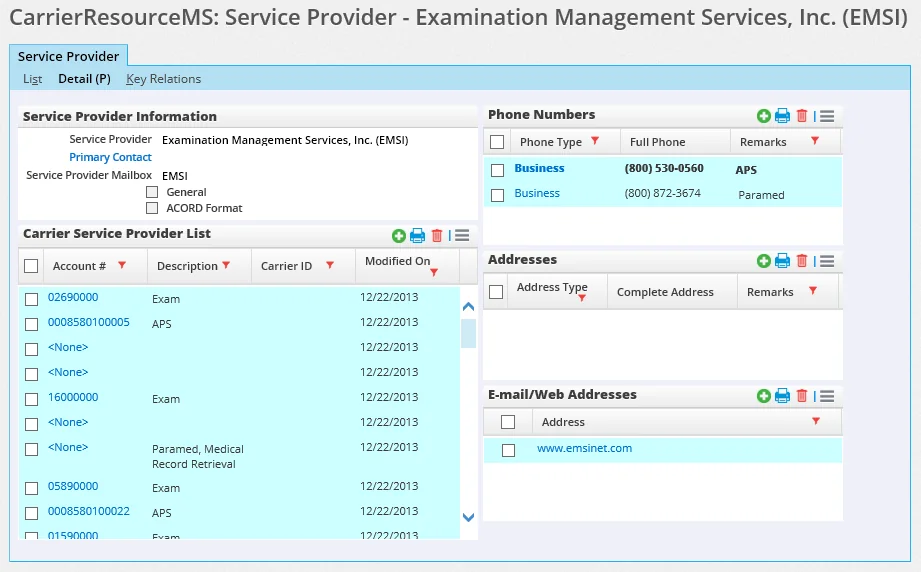
The Detail content link contains basic service provider information such as name, service provider mailbox, primary contact, accounts with carriers, multiple phone numbers, addresses, e-mail addresses and Web addresses.
For information about the Key Relations and Letter/Documents content links, refer to Contacts and Businesses - Key Relations Content Link and Contacts and Businesses - Letters/Documents Content Link.
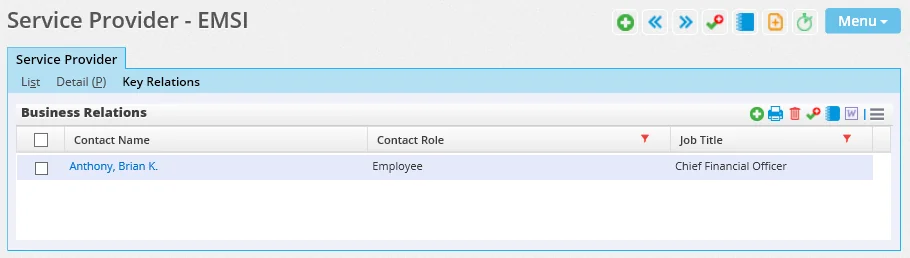
The Key Relations content link tracks any relationships the service provider has with other contacts.