Last updated: 2025-09-19
SmartEvents - Searching for Events
Overview
To access the main features of the SmartEvents module, use the event search feature to display the Event List.
Basic Search
- From the SmartOffice side menu, select Sales & Marketing > Events to open the Search Events dialog box.
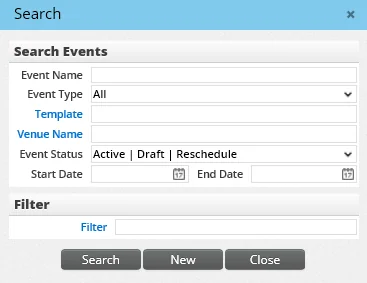
- Do one of the following:
- To display all events in the system (i.e., perform a "blank" search), leave all fields blank.
- To limit the search results, enter search criteria (event name, event type, start date, end date, etc.) into one or more fields. These fields correspond to the fields in event records; for descriptions, see Viewing and Editing Events.
- (Optional) Limit the number of results further by clicking the Filter hyperlink to select a filter.
- Click the Search button.
Event List
All events that meet the search criteria are displayed on the Event List.
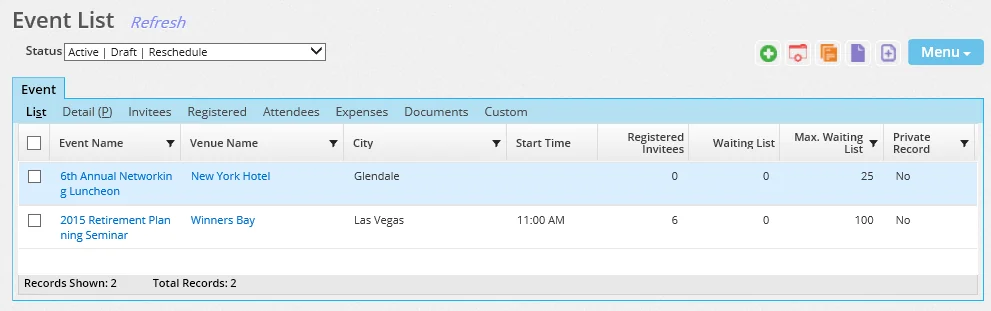
Note: If the search returns only one result, SmartOffice bypasses the list and automatically displays that event's Detail content link.
Click the first-column hyperlink of an event (the event name, by default) to open it, or select an event and then click one of the content links across the top of the list (Invitees, Registered, etc.) to view additional information. The information stored on those content links is described in Viewing and Editing Events.
Use the Status drop-down list at the top to narrow down the events displayed by status. SmartOffice remembers the user's selection from this drop-down list until the user signs out of SmartOffice.
Like other SmartOffice lists, the Event List can be printed, exported and customized. For more information about working with lists in SmartOffice, see Lists - Introduction.