Last updated: 2025-09-19
SmartEvents - Creating an Event
Overview

A SmartEvents user can create an event either by using the basic event creation process or by creating a copy of an existing event.
Basic Event Creation
Note: Events are created based on event templates. For that reason, at least one event template must exist before an event can be created. For more information, see Setup.
- From the SmartOffice side menu, select Sales & Marketing > Events to open the Search Events dialog box.
- Do one of the following:
- Click the New button.
- Click the Search button to display the Event List, and then select Menu > New 'Event' record.
- When the Template List dialog box opens, select the appropriate event template.
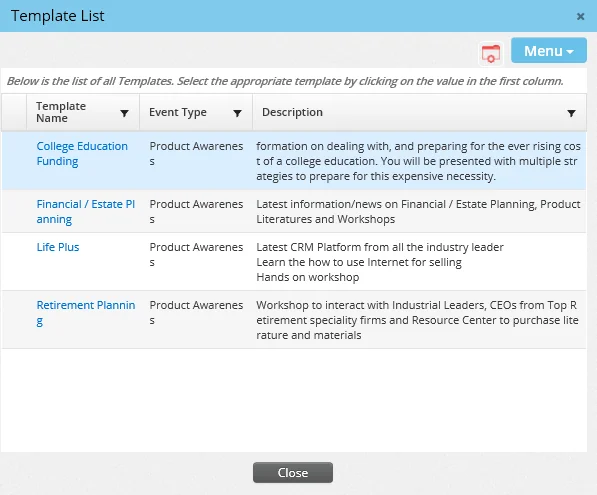
- When the Event Detail content link displays, enter the event details. For information about these fields and options, see Viewing and Editing Events.
- Select Menu > Save.
Note: New events have a default status of Draft. Once all of the event's details have been entered, the event's status can be set to Active. For more information, see Updating Event Status.
Creating a Copy of an Existing Event
To create an event that is similar to an existing event, the user can save time by creating a copy of the existing event and then modifying that copy as required.
- From the Event List, select the event to be copied.
- Select Menu > Copy Event to open the Basic Information dialog box.
- Review the event details and make any changes if necessary. Refer to Viewing and Editing Events.
- Click the OK button.
- When the new event displays, edit it further if necessary.