Last updated: 2025-09-19
SmartEvents - Updating Event Status
When an event is created in SmartEvents, its status is set to Draft. To begin the event-planning process—including the creation of calendar activities based on event tasks—the user must change the event status to Active. SmartEvents also includes other event statuses to indicate event cancellation, completion and so on.
To update an event's status:
- Search for the event if necessary.
- While viewing the event, do one of the following:
- From the Detail content link, click the Event Status hyperlink in the Basic Information section.
- From any content link, select Menu > Activity Options > Status Update.
- When the status dialog box opens, select the appropriate status.
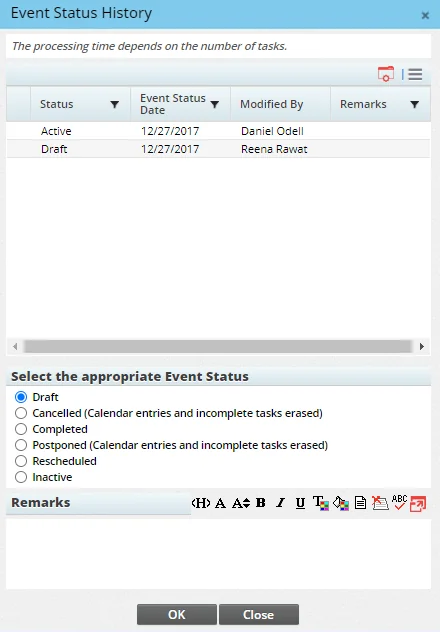
- (Optional) In the Remarks field, enter any comments explaining the status change.
- Click the OK button.
Note the following regarding event status changes:
- When an event is marked Active, any event tasks defined in the event template are added to the appropriate users' calendars. These activities also display on the event's Activities content link.
- When an event is marked Cancelled or Postponed, any tasks added to user's calendars are deleted.
- The amount of time it takes SmartEvents to process an event status update depends on the number of calendar tasks that must be created or deleted.