Last updated: 2025-09-19
SmartWholesaler - Module Setup
- Overview
- Accessing SmartWholesaler Setup
- Territory Setup
- Sales Channel Setup
- Sales Rep Setup
- Customizing Lines of Business for the Production Dashboard
Overview
This topic explains how to set up the SmartWholesaler module with company-specific settings, which identify sales reps, territories and sales channels. These settings affect producer/firm visibility, reporting and other parts of the system.
Note: Only a SmartWholesaler Administrator user can adjust these settings (see SmartWholesaler - User Setup).
Accessing SmartWholesaler Setup
To access SmartWholesaler setup, select Setup > Wholesaler Setup from the SmartOffice side menu.
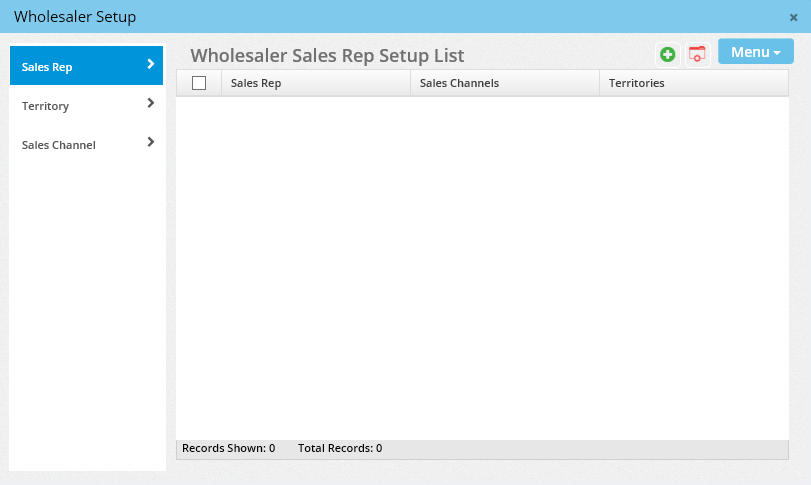
Tip: Create territories and channels before creating sales reps.
Territory Setup
In addition to identifying a territory using a name, the administrator can optionally define the territory's borders, which can include city, state, ZIP Code, or even a firm name.
- In the Wholesaler Sales Rep Setup List dialog box, click Territory in the left menu to open the Territory List.
- Select Menu > New ‘Territory’ Record to open the Territory – New dialog box.
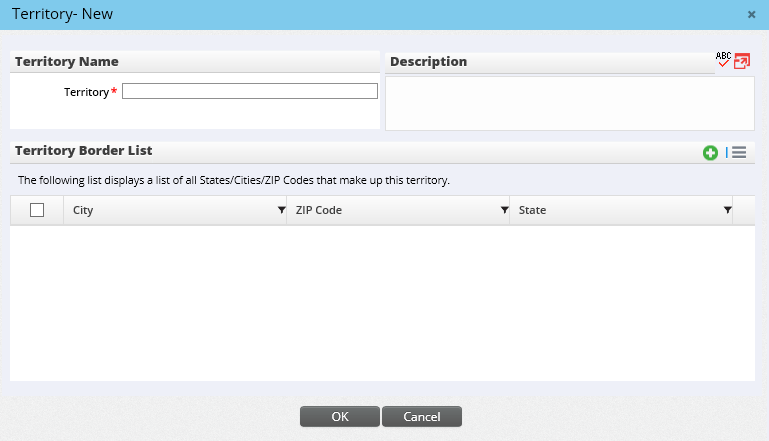
- In the Territory field, type the name of the territory (e.g., Southwest).
- (Optional) In the Description section, type any useful information describing the territory.
- (Optional) Under Territory Border List, click the Options button
 and select New 'Territory Border' Record to open the Territory Border Definition dialog box.
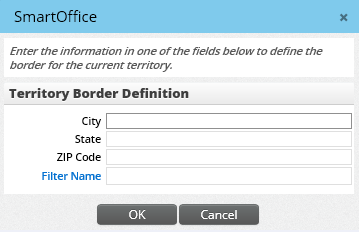
- Define the territory border using the City, State or ZIP Code field, noting the following:
- When data is entered into the City, State or ZIP Code field, the other two fields become unavailable. Only one of these fields can accept data.
- The ZIP Code field accepts a partial or full ZIP Code. For example, entering a “9” effectively identifies the territory as the West Coast. Entering “91” narrows down the territory to Southern California. It is possible to enter multiple ZIP Codes to specifically define the territory.
- A filter can be specified to define a territory border on its own or in combination with a city, state or ZIP Code.
- Click the OK button.
- If necessary, create additional territory border definitions to define the territory.
Sales Channel Setup
The administrator can define the different types of sales channels being served (e.g., banks, life, disability, annuity, etc.).
- In the Wholesaler Sales Rep Setup List dialog box, click Sales Channel in the left menu to open the Sales Channel List.
- Select Menu > New ‘SalesChannel’ Record to open the Sales Channel Information dialog box.
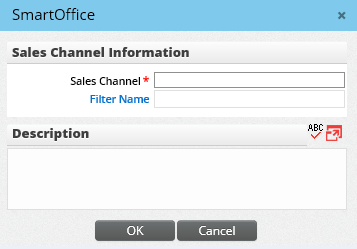
- In the Sales Channel field, type a name for the channel.
- (Optional) In the Filter Name field, enter a filter name to use as the sales channel.
- (Optional) Under Description, type any useful information describing the channel.
- Click the OK button.
Sales Rep Setup
Each sales rep must have a SmartOffice user account. Setting up a SmartOffice user as a sales rep involves assigning the rep to a sales channel and a territory. One or more sales reps can be assigned to a sales channel and/or territory. Territories are not unique to any particular sales channel.
Note: Adding sales reps is faster when territories and sales channels have already been created.
- In the Wholesaler Sales Rep Setup List dialog box, click Sales Reps in the left menu to open the Wholesaler Sales Rep Setup List.
- Select Menu > New ‘Wholesaler’ Record to open the New – Sales Rep dialog box.
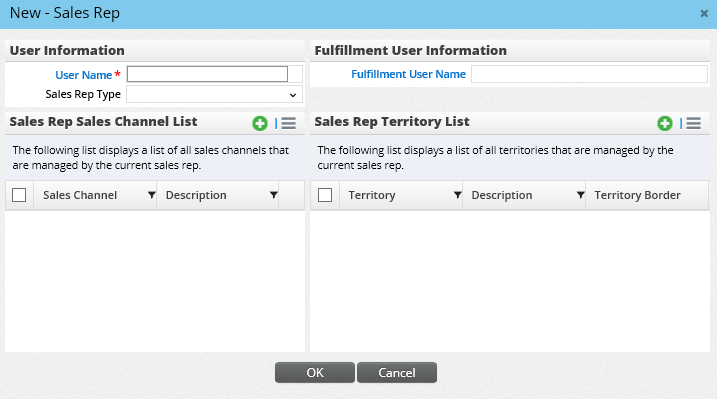
- Click the User Name hyperlink to open a list of SmartOffice users, and then select the appropriate user.
- (Optional) From the Sales Rep Type drop-down list, select External or Internal.
- (Optional) Click the Fulfillment User Name hyperlink to display a list of available users, and then select the SmartOffice user who will handle fulfillment requests for the sales rep.
- (Optional) Assign the rep to one or more sales channels:
- In the Sales Rep Sales Channel section, click the Options button and select New to open the Sales Channel List dialog box.
- Tag one or more sales channels. If a sales channels does not appear in the list, select Menu > New ‘SalesChannel’ Record to create it (for more information, see Sales Channel Setup).
- Click the OK button.
- (Optional) Assign the rep to one or more territories:
- In the Sales Rep Territory List section, click the Options button and select New to open the Territory List dialog box.
- Tag one or more territories. If a territory does not appear in the list, select Menu > New ‘Territory’ Record to create it (for more information, see Territory Setup).
- Click the OK button.
- When all options for the sales rep have been configured, click the OK button.
Customizing Lines of Business for the Production Dashboard
The Production Dashboard displays pending case and inforce summary information for each distributor on the distributor's personal content link. The dashboard is updated each evening and can be customized to display specific lines of business relative to the wholesaler’s business.
Note: Any changes made to lines of business will be reflected throughout the system (including advisor/producer and agency/firm records). For more information, see Production Dashboard.