Last updated: 2025-09-19
Job Agents Setup
When a user with the rights to Job Agent Maintenance accesses this area of the system and selects the New button, a dialog box displays enabling them to select a job agent type.
Data Validation is available only from the System Office. DataXchange Request and SmartOffice Printer Queue job agents can be added from all offices in the system. The status field for all Job Agents should be set to Waiting so that they can begin processing data when their workflow is accessed by the Job Scanner.

Data Validation)
In the System Office, a default Data Validation job agent is automatically created and can be set up to process user initiated Local Office level validations. It is generally recommended that the Start and Stop times be established during off-peak server usage times. If users are to be restricted from processing Office Level validations, it is recommended that the status of the Data Validation job agent be set to Offline and that no users in the system be assigned the Access to Data Validation right.
DataXchange Request)
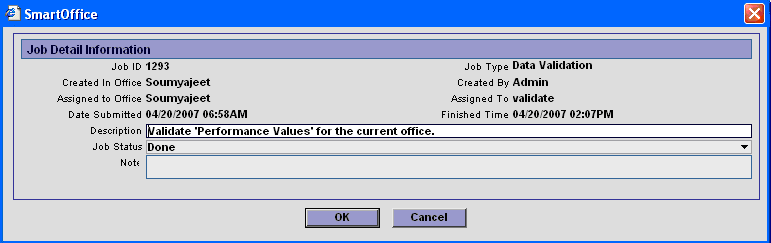
This job agent is used in conjunction with Pending Case Service Provider requests for electronically downloaded data. The image below depicts the results of a successful data download.
SmartOffice Printer Queue)
A SmartOffice Printer Queue is automatically created whenever an office is created. The primary reason for utilizing the SmartOffice Printer Queue is to provide the ability to print correspondence when a user is remote and not connected to a printer. This includes the ability to print Form Letters from any of the SmartOffice Mobile solutions. The SmartOffice Printer Queue can also be used to send large print jobs to the queue for printing at a later time.
If no user is to be assigned the task of maintaining the queue and packaging the requests, then the printer queue for this office should be deleted. Some offices have multiple printer queues with one being assigned to each of their specialized printers. Only one user can be assigned to each printer queue.
An Alert is sent to the user assigned to perform printer queue maintenance when a new job is added. Only one line for printer queue maintenance can be active in the alerts system, so no new items will be added if an existing item is present and is not marked as Done. The image below depicts both an Alert and information regarding initial details of an Active Print Job in the SmartOffice Printer Queue.
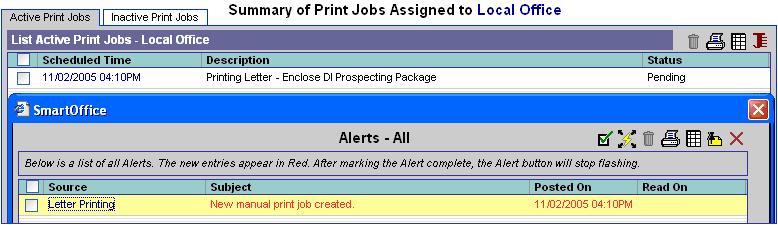
Further details of the requested print job are provided when the hyperlink for the job is selected. Any notations or special handling instructions can be reviewed. The user responsible for the specific SmartOffice Printer Queue can print one or all of the Pending jobs. When the jobs are completed, they are moved to the Inactive Print Jobs tab.