Last updated: 2025-09-19
SmartInvestments - Asset Allocation
- Overview
- Requirements
- Security and Position Setup
- Asset Allocation Model Setup
- Creating an Asset Allocation Model
- Viewing or Editing an Asset Allocation Model
- Assigning an Asset Allocation Model
- Customizing an Asset Allocation Model
- Validating Asset Allocation
- On-Access Validation
- Manual Validation
- Viewing Validation Results
- Viewing Positions within an Asset Class
- Asset Allocation Exception Report
Overview
With its ability to track asset allocations, SmartInvestments helps advisors determine whether their clients' actual allocations deviate from their target allocations. Using this data, advisors can develop rebalancing and other strategies to best serve their clients.

Requirements
To use asset allocation features, the SmartInvestments user must have the Asset Allocation license enabled in User Accounts - User Rights.
Security and Position Setup
For asset allocation data to be accurate, the securities that make up clients' investments must contain sector and asset class information in SmartOffice. This information is entered on a security's Detail content link.
The advisor can exclude a specific position from asset allocation calculations by clearing the Asset Allocation Member option on the Position Detail content link.
Asset Allocation Model Setup
Asset allocation models are used to determine whether a client's investments are properly balanced based on the client's risk tolerance.
Creating an Asset Allocation Model
- From the SmartOffice side menu, select Investments > Asset Allocation Models to open the Search Asset Allocation Models dialog box.
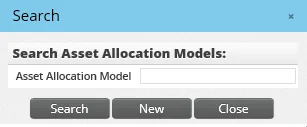
- Click the New button to open the New Asset Allocation Risk Level dialog box.
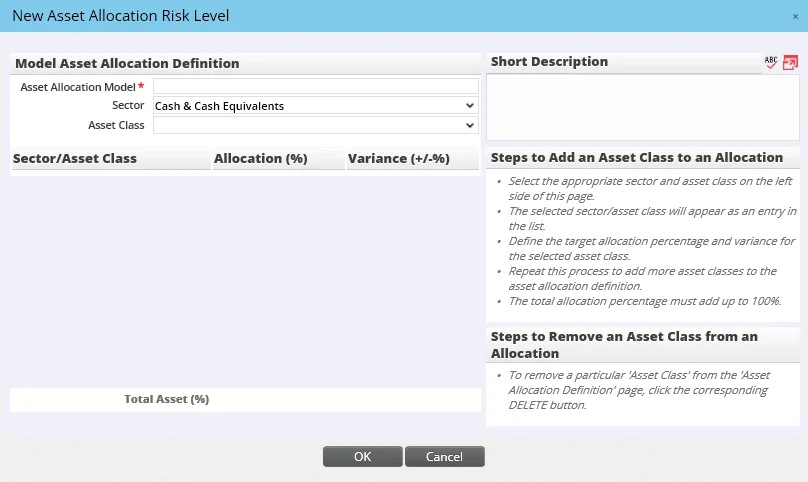
- In the Asset Allocation Model field, type a name for the model. Typically, the name corresponds to the risk level of the type of investor for whom the model is intended (e.g., Conservative or Aggressive).
- Add entries to the Sector/Class section as follows:
- From the Sector drop-down list, select a sector: Cash & Cash Equivalents, Equity or Fixed Income. 2. From the Asset Class drop-down list, select an asset class. The entry appears in the Sector/Asset Class section. 3. In the Allocation column, enter the allocation percentage for the sector/asset class. 4. In the Variance column, enter the maximum percentage amount that clients' allocations in that sector/asset class can deviate from the model without being considered out of range. 5. Repeat these steps to add more entries. The Total Asset % field must equal 100%.
- To remove a sector/asset class, click the Remove button next to the sector/asset class listing.
- When all appropriate sectors and asset classes have been added, select Menu > Save.
Viewing or Editing an Asset Allocation Model
- From the SmartOffice side menu, select Investments > Asset Allocation Models to open the Search Asset Allocation Models dialog box.
- Do one of the following:
- Enter a full or partial name of an asset allocation model.
- Leave the field blank to display all models in the system.
- Click the Search button. If only one asset allocation model matches the search criteria, that model's Detail content link opens. If the Asset Allocation Models list displays, click the name of a model to open it.
- If necessary, add or remove sectors/asset classes or make other changes, and then select Menu > Save to save any changes.
- If the asset allocation model has already been assigned to a contact, household or investment account, a warning message informs the user that those records will be updated accordingly. Click the Yes button to proceed or click the No button to discard changes to the model.
Note: An asset allocation model can be customized for a specific contact, household or investment account. See Customizing an Asset Allocation Model.
Assigning an Asset Allocation Model
Once asset allocation models are created, they can be assigned to contact, household, investment account and investment account group records.
Watch the Training Class: Model Allocation Assignment
Different asset allocation models can be assigned to related contacts, households, accounts and account groups. For example, a contact may be assigned a conservative model, but one of that contact's investment accounts may be assigned an aggressive model. Furthermore, the contact's household can be assigned a moderate model. SmartInvestments can calculate asset allocation at all of these levels.
This can be useful in several ways. For example, an investor whose overall risk tolerance is moderate might feel comfortable enough financially to open an aggressively invested account in pursuit of higher returns. Along similar lines, if that moderate-risk investor belongs to a household that is assigned a conservative asset allocation model, the advisor can see whether that investor's risk tolerance is causing the household's overall asset allocation to move too far away from the conservative model.
To assign an asset allocation model:
- Open a contact, household, investment account or account group record.
- Click the Asset Allocation content link (for account groups, click the Group Asset Allocation content link).
- In the Risk Management section, click the Asset Allocation Model hyperlink to open the Search Asset Allocation Models dialog box.
- Enter the name of the model in the Asset Allocation Model or leave the field blank to display all available models.
- Click the Search button. If only one asset allocation model matches the search criteria, that model's name in automatically inserted into the Asset Allocation Model field on the Asset Allocation content link. If the Asset Allocation Models dialog box opens, click the name of a model to select it, or select Menu > New 'New Asset Allocation Models' record to create a model.
- (Optional) From the Objective drop-down list, select the investment objective for this contact, household or investment account. This field is for informational purposes only; it does not affect asset allocation calculations. Users with the appropriate user rights can customize the options in this drop-down list by clicking the Customize Choice button
 (see Customizing Drop-Down Lists).
 - (Optional) Enter a default percentage value in the Risk Variance field. If a sector/asset class defined in the asset allocation model does not have a variance percentage, SmartInvestments uses this value as the variance percentage to determine whether a sector/asset class is out of range.
- Select Menu > Save.
Tip: To see a list of contacts, accounts and other records that are linked to a particular asset allocation model, open the model and click the Contact, Household, Investment Accounts and Account Groups tabs.
Customizing an Asset Allocation Model
In some cases, the advisor may find it necessary to modify the asset allocation model assigned to a contact, household, investment account or account group. This can be done without changing the model itself; the customizations apply to the model only as it relates to that specific contact, household, account or account group. Other records assigned to that same model are not affected.
- Open a contact, household, investment account or account group record.
- Click the Asset Allocation content link (for account groups, click the Group Asset Allocation content link).
- In the Investment Asset Allocation section, click the Options button
 and select Customize Asset Allocation.
 - Modify the asset allocation.
- Click the OK button.
Once the model is customized, the message This model is customized displays in the Risk Management section of the Asset Allocation content link.
Validating Asset Allocation
Asset allocation validation is the process of calculating actual versus target asset allocation.
After changes are made to investment positions or asset allocation models, it is through the validation process that positions are included or excluded, position values are recalculated and positions are re-linked from one sector or asset class to another. Validation can occur automatically (known as on-access validation) or manually.
On-Access Validation
In offices with on-access validation enabled (see Office Settings - Detail), changes made to investment positions or to asset allocation models are reflected automatically in all associated contacts, households, investment accounts and account groups.
Manual Validation
In offices without on-access validation (see Office Settings - Detail), asset allocation validation must be run manually to reflect changes in the allocation of assets. Validation can be run for individual contacts, households, investment accounts or account groups, or it can be run for all records in the system.
Individual Record
- Open a contact, household, investment account or account group record.
- Click the Asset Allocation content link (for account groups, click the Group Asset Allocation content link).
- Click the Menu button and select the appropriate option from the expanded list:
- If viewing a contact record, select Advanced Options > Validate Current Contact.
- If viewing a household record, select Validate Current Household. - If viewing an investment account record, select Validate Current Account. - If viewing an investment account record, select Validate Current Account Group.
- In the Investment Asset Allocation section, click the Options button and select Validate Asset Allocation to update the allocation information in the list.
All Records
Note: Validating the asset allocation of all records is resource-intensive. For this reason, SmartOffice submits these requests to the Job Queue for processing during off-peak hours.
- From the SmartOffice side menu, select Investments > Asset Allocation Validation.
- When the confirmation message displays, click the OK button.
Viewing Validation Results
When asset allocation validation is complete, the results display on the Asset Allocation content link of a contact, household or investment account (for account groups, the results are displayed on the Group Asset Allocation content link).
In the Investment Asset Allocation section, the account's positions are organized by sector and asset class. Positions whose allocation percentages exceed the variances defined in the asset allocation model are displayed in red.
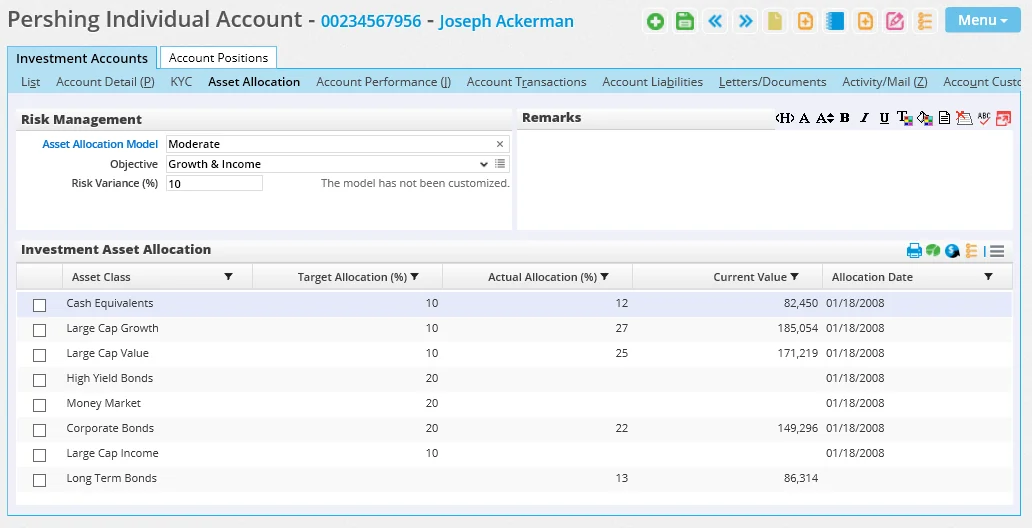
The list can be enhanced by selecting Options > List Options > Display Chart to display pie charts of the account's actual allocation compared to the target allocation.
and select Print List.
Viewing Positions within an Asset Class
From the Investment Asset Allocation list, the user can display a list of positions that fall within a particular asset class.
- Select a record that falls within the asset class.
- Click the Options button and select Display Positions with the Asset Class to open the Position History List.
The positions displayed depend on whether the user selects the option from the contact, household, account or account group level. For example, when run from the account level, only positions within that account are displayed.
Asset Allocation Exception Report
The Asset Allocation Exception Report lists all clients who have asset allocations that are out of balance, as well as the out-of-balance assets themselves.
One the report has been generated, the user can:
- Switch between account, account group, contact or household views by selecting an option from the Asset Allocation By drop-down list at the top of the report.
- Tag an asset allocation and then click the Investment Positions content link to view the associated positions.
- Print the report or export it to Excel. These options are available from the Menu button. For more information, see Printing or Exporting a List.