Last updated: 2025-09-19
SmartOpportunities - Searching for Opportunities
- Overview
- Quick Search
- Advanced Search
- Contact, Business or Household Search
- Opportunity List
- Basic Navigation
- Special Columns
Overview
The primary way to access the SmartOpportunities module is to use the opportunity search feature. The results of an opportunity search are displayed in the Opportunity List, from which the user can view and otherwise work with opportunity records.
Quick Search
The quick search method is preferable when the user knows the name of the opportunity, or when the user simply wants to list all opportunities quickly.
- In the SmartOffice search box, select Sales & Marketing > Opportunity from the drop-down.
- Do one of the following:
- To display all opportunities, click the Search button.
- To find a specific opportunity, begin typing the opportunity’s name in the search field. A menu dynamically displays the opportunities that most closely match the characters entered. Select an opportunity from the menu, or click the Search button for a complete list of results based on the search terms entered.
Advanced Search
An advanced search is recommended when the user wants to find opportunities matching specific criteria, such as process, contact name or status.
- Do one of the following:
- From the SmartOffice side menu, select Sales & Marketing > Opportunities.
- In the Search box, select Sales & Marketing > Opportunity from the drop-down list, and then click the Advanced hyperlink.
- When the Search Opportunities dialog box opens, complete one or more fields.
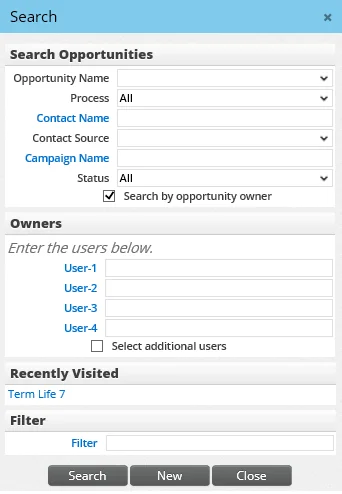
The fields in the Search Opportunities dialog box correspond to fields found in opportunity records (see Viewing and Editing Opportunities). Note the following:
- Leave all fields blank to display all opportunities in the system.
- If the user has the Reporting on Multiple Users' Data user right enabled, the Search by Owners option is also available. Selecting that option displays the Owners section in the Search Opportunities dialog box. In that section the user can specify up to four opportunity owners. To enter more users, select the Select additional users option.
- To minimize the need to reselect search criteria in the Search Opportunities dialog box, the system remembers the user's most recent selections from the Process and Status drop-down lists.
- (Optional) To limit the search results further, click the Filter hyperlink to select a filter.
- Click the Search button.
Contact, Business or Household Search
To limit a search to those opportunities linked to a particular contact, business or household:
- Perform a contact/business search or a household search.
- Open the contact, business or household record, or select one or more records in the search results list.
- Click the Opportunities tab to view the opportunities that are linked to all selected contacts, businesses or households.
For businesses, the Opportunities tab displays all of the opportunities for the business as well as for the contacts associated with the business. For households, the Opportunities tab displays all opportunities associated with all members of that household.
Note: If the contact is linked to the signed-in user's user account (see User Accounts - Detail Content Link), the contact's Opportunities tab displays only those opportunities for which the user is designated as the owner.
Opportunity List
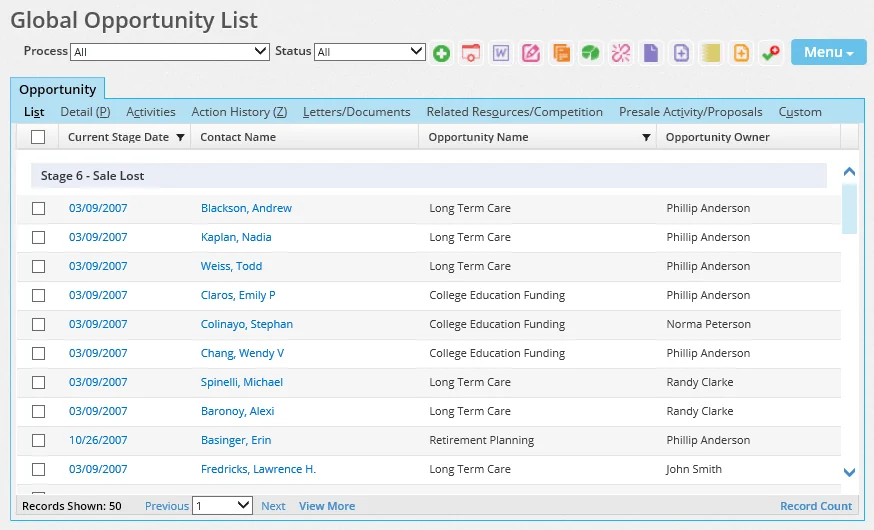
When a user searches for opportunities, the results are displayed in the Opportunity List.
Basic Navigation
From the Opportunity List, the user can click a hyperlink in the first column (by default, the current stage date) to view the opportunity.
To quickly view basic details about an opportunity without opening it, position the mouse pointer over the first-column hyperlink without clicking it. The opportunity's information card will display.
To narrow down the list, use the Process and Status drop-down lists at the top. SmartOffice remembers these selections and makes them the default options when the user searches for opportunities.
The data in an opportunity record is organized into content links (Details, Activities, Action History, etc.), which the user can click to view more information about the selected opportunity. For more information, see Viewing and Editing Opportunities.
Like all lists in SmartOffice, the Opportunity List can be customized, printed, exported, and so on. For more information, see Lists.
Special Columns
Generally speaking, the columns in the Opportunity List correspond to fields in opportunity records (see Viewing and Editing Opportunities). However, the list includes special columns that enable the user to perform certain tasks directly from the list:
- Actions – Communicate: This column displays icons for making/receive a phone call and creating correspondence directly from the Opportunity List.
- Actions – Update: This column displays icons for modifying the opportunity stage and updating the opportunity status.
If these columns are not visible, add them to the Opportunity List using list layout customization.