Last updated: 2025-09-19
SmartOpportunities - Creating and Deleting Opportunities
Creating an Opportunity

Follow these steps to create an opportunity in the SmartOpportunities module.
- Do one of the following:
- Click the Add New button and select Opportunity.
- From the SmartOffice side menu, select Sales & Marketing > Opportunities to open the Search Opportunities dialog box. Then click the New button.
- From the Opportunity List, select Menu > New 'Opportunity' record.
- From the Contact/Business List or Household List, select a record and click the Opportunity tab. Then select Menu > New 'Opportunity' record.
Any of these methods opens the New - Opportunity dialog box.
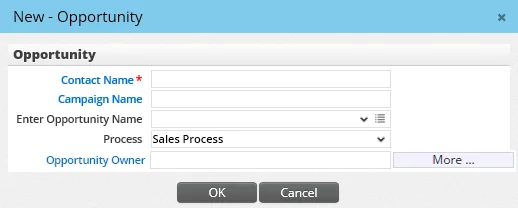
- Click the Contact Name hyperlink to search for and select a contact. This field is required.
Tip: Whenever possible, SmartOffice automatically fills in the contact name. However, the user can select a different contact.
- (Optional) Click the Campaign Name hyperlink to search for and select a marketing campaign to associate with the opportunity.
- If no campaign is selected, enter a name for the opportunity in the Enter Opportunity Name field.
Note: If a campaign name is selected, the opportunity is created and the campaign name is displayed in the Opportunity Name field on the Opportunity Detail content link. If there are handling options associated with the campaign, then the handling options are run. In addition, if the Opportunity Name field is blank and there is no campaign selected, the opportunity is created and the contact name is displayed in the Opportunity Name field on the Opportunity Detail content link.
- The Process field is mandatory. The default choice is the process marked as the Default Process in Opportunity Setup (or, if the user has selected a default process in User Preferences - Basic Info, that process is selected by default).
- A default opportunity owner is automatically selected from the Opportunity Owner drop-down list, but the user can select a different producer/manager. The default opportunity owner is determined as follows:
- If the opportunity is being created from any list (e.g., Opportunity List, Contact List):
- The default owner/role user of the process selected from the Process drop-down list is set as the default opportunity owner.
- If no default owner/role user information is entered for the process, then the signed-in user is designated as the opportunity owner.
- If the opportunity is being created from the contact Personal or opportunity Detail content link (i.e., the contact name is already filled in):
- The default owner/role user of the process selected from the Process drop-down list is set as the default opportunity owner.
- If no default owner/role user information is entered for the process, the contact's first user assignment is selected. If none of the assigned users is a Producer/Manager user type, then one of their proxies is selected.
- If no assigned/proxy user is designated, then the signed-in user is designated as the opportunity owner.
- Click the More button to add additional opportunities to the contact. If the user types an opportunity name or selects a campaign name in any of these additional Enter Opportunity Name fields, the respective Process fields must also be specified.
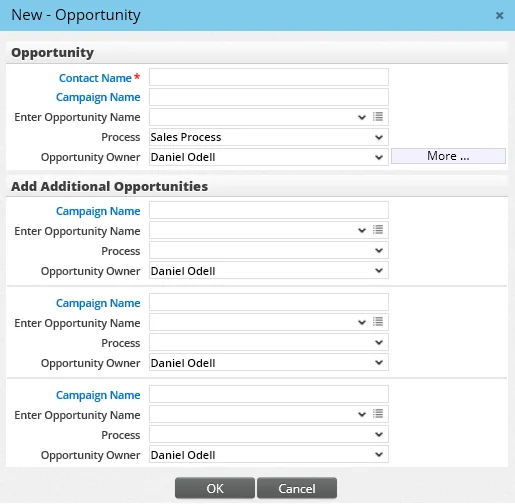
- Click the OK button to display the opportunity Detail content link.
- Enter the opportunity details (see Viewing and Editing Opportunities).
- Select Menu > Save.
Tip: Use the Marketing Options feature of SmartOffice to create opportunities for multiple contacts at once.
Deleting an Opportunity
In SmartOpportunities, an opportunity can be deleted by the creator, owner or opportunity administrator.
- From the Opportunity List, select an opportunity.
- Select Menu > Delete 'Opportunity' record.
If a SmartOffice administrator has enabled the Changes to Opportunity option for the office on the SmartPad/New Contact/E-mail Posting content link, an entry recording the deletion is posted automatically to the linked contact's SmartPad.
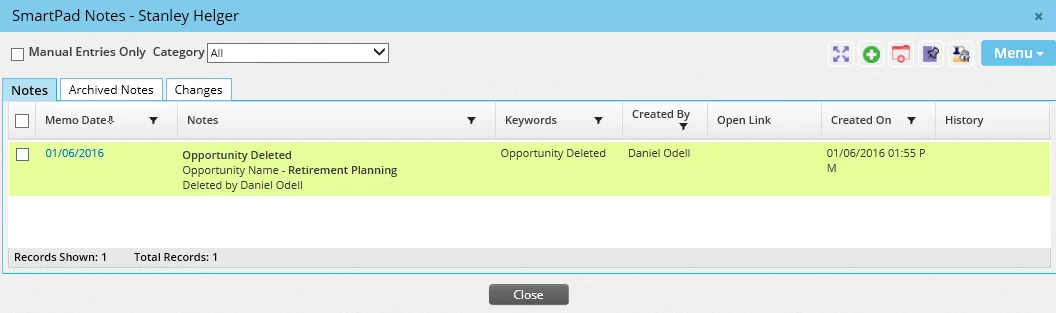
Note: If an opportunity is not linked to a contact and the associated process is deleted in Opportunity Setup, SmartOffice deletes the opportunity automatically.