Last updated: 2025-09-19
Alert Center
- Overview
- Requirements
- Alert Types
- New Alert Notifications
- Opening the Alert Center
- Working with Alerts
- Reading an Alert
- Deleting an Alert
- Dismissing an Alert
- Sending an Alert
- Replying to an Alert
- Forwarding an Alert
- Viewing an Alert's Recipients
- Alert Center Preferences
Overview
The Alert Center is where SmartOffice users receive notifications about various SmartOffice events. Examples of such events include:
- Activity creation (alerts are sent to all participants)
- Overdue projects
- Completion or failure of validation
- Outlook E-mail Posting errors
- Manual print job creation (alert sent to printer queue manager)
- Accessibility of contacts from a different office for specialists (applies to record sharing)
- Client message to advisor (SmartView for Clients users)
- Assigned or revoked leads
- License, contract, appointment or E&O insurance expiration (for agency managers)
The Alert Center also serves as a messaging system. Users can send alerts to other users in the office, and those users in turn can reply. Note: Proxy relationships do not apply to alerts. Alerts sent to a user are not also sent to users who proxy for the recipient.
Requirements
All SmartOffice users can receive alerts, view alerts and send private alerts without any special user rights. To send broadcast alerts and limited broadcast alerts (see Alert Types), a user must have the Alerts user right.
Alert Types
- Broadcast Alerts: Broadcast alerts are sent to all users and can be sent only by users with administrator rights. An office administrator can send broadcast alerts to all users in the office. An administrator signed in to the System office can send a broadcast alert to all users in all offices on the server (this scenario typically applies to enterprise customers only).
- Limited Broadcast Alerts: These are like broadcast alerts except that they can be sent to limited lists of recipients. An administrator creates a recipient list using a special Dynamic Report and then sends the alerts directly from that list.
- Private Alerts: Private alerts are sent to one or more users in the same office.
- System Alerts: This is a general category of alerts that includes all messages generated automatically by SmartOffice in response to certain events.
New Alert Notifications
 at the top of any page displays the number of alerts.
The user can also opt to receive SmartOffice alerts outside of SmartOffice by e-mail or text message. To configure those settings, go to User Preferences - Basic Info.
Opening the Alert Center
 at the top of any page in SmartOffice, and then select See All.
When the Alert Center opens, the user is presented with a list of all alerts by default.
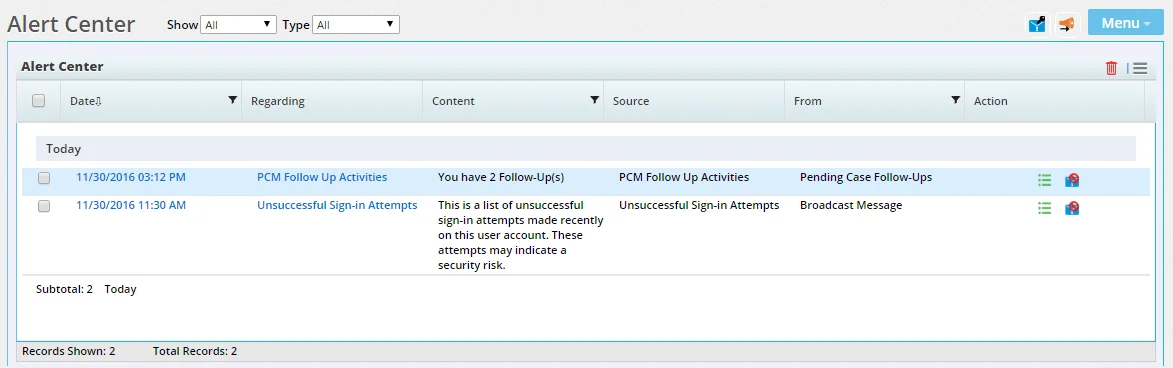
For each message, the Alert Center displays:
- The date and time the message was sent.
- A navigation link pointing to the relevant page in SmartOffice.
- The text of the message.
- The sender/source of the alert.
- The alert type.
- A set of buttons that users can click to manage the alert.
To narrow down the alert list:
- Use the Show drop-down list at the top to select Messages (which displays only broadcast and private alerts from other users) or Dismissed (to display only dismissed alerts).
- Use the Type drop-down list at the top to display only alerts, broadcast messages or reminders.
Working with Alerts
This section describes the actions a user can perform on alerts.
Reading an Alert
Use any of these methods to read an alert:
- Click the click Alert Center button at the top of any page, and then click the alert in the menu that opens (this works only for recently received alerts).
- Open the Alert Center, and then click the alert's hyperlink in the first column.
- In the alerts list, refer to the Content column.
Deleting an Alert
Note: Once an alert is deleted, no record of the alert remains in the system. For that reason, alerts by themselves should not be used for any communication that must be archived.
- Open the Alert Center.
- Find the message in the alert list, and do one of the following:
- Click its Delete Message button
 .
. - Tag the alert, click the Options button
 , and then select Delete 'MessageCenter' Record.
Dismissing an Alert
To prevent system alerts from crowding the alert list, users can dismiss them. Dismissed alerts are removed from the main Alert Center list but can still be viewed and/or deleted by selecting Dismissed from the Show drop-down list.
- Open the Alert Center.
- Find the message in the alert list, and then click its Dismiss Message button
 .
.
Sending an Alert
Private and Broadcast Alerts
- Open the Alert Center.
- Decide on the alert type, and then do one of the following:
- Click the Send Broadcast Alert button
 .
. - Click the Send Private Message button
 .
.
- When the New Alert dialog box opens, type the subject and body of the alert.
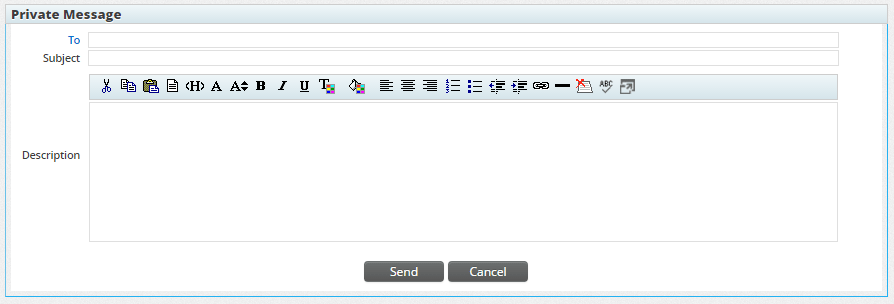
- If sending a private message:
1. Click the To hyperlink to open the Recipient User List.
2. Select Menu > Add 'Recipient User' record.
3. Tag one or more recipients, and then click the OK button.
4. Close the Recipient User List.
- (Optional) If sending a broadcast alert, select the Do not allow replies option to prevent recipients from sending replies.
- Click the Send button.
Tip: Another way to send an alert is to select the Send this note as an alert to other user(s) option when creating a SmartPad note.
Limited Broadcast Alerts
- Create a Dynamic Report listing your recipients. Use the Limited Broadcast Alerts report category (in the Other family of Dynamic Reports reports).
- Run the report.
- When the list of results appears, select the recipients you want to send the alert to, and then select Menu > Send Alerts.
- When the alert dialog box opens, type the subject and body of the alert.
- (Optional) Select the Do not allow replies option to prevent recipients from sending replies.
- Click the Send button.
Replying to an Alert
- Open the Alert Center.
- Find the message in the alert list, and then click its Reply to Message button
 . Note that this button may not be available for a broadcast alert message if the sender disabled replies.
 - Type a reply.
- Click the Send button.
Forwarding an Alert
- Open the Alert Center.
- Find the message in the alert list, and then click its Forward Message button
 .
. - Follow the steps in Sending an Alert to address and send the message.
- Click the Send button.
Viewing an Alert's Recipients
Note: These steps apply only to limited broadcast alerts and only to users in the office from which an alert was sent.
- Open the Alert Center.
- Find the message in the alert list, and then click its Recipients button
 .
.
Alert Center Preferences
To set options for the Alert Center, go to User Preferences - Alert Center.