Last updated: 2025-09-19
Data Validation
Data Validation is a tool that checks the accuracy of data in SmartOffice. Validation is applied to the contact, household, set, policy, and investment areas of the system.
The information below focuses on contacts, households and sets. For additional information on policies, refer to the SmartPolicies User Guide. For information about investment validation, refer to the SmartInvestments User Guide.

Types of Data Validation) There are four types of Data Validation: Record Validation, Set Validation, Office Validation, and On Access validation.
Record Validation Record Validation updates open or tagged records.
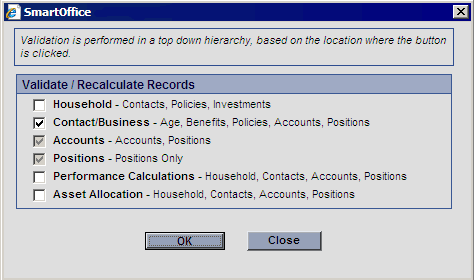
Set Validation Set Validation is used to recalculate the number of members in a set.
Data Validation by Office
Data Validation by Office validates all records within the current office and can be scheduled to run at a specific time based on the Job Agent setting; refer to the Job Queue User Guide for more information. There are two types of Data Validation by Office: Age and Contact Holding Data (also calculates Age).
On Access Validation
On Access Validation validates the record that is currently open (the same principle is applied when Dynamic Reports™ are run). This validation will roll up policy and investment information; the values are updated once every 12 hours. The date and time that is used to check for the last validation date for a particular area is GMT, in consideration of multiple Time Zones.
What Triggers On Access Validation)
On Access Validation is an office-level option that is enabled from the office Detail content link. On Access Validation is triggered from any lists, Dynamic Reports, or the various content links in the system if one or more columns that are part of the validation calculation process are present.
Some columns from the following content links are part of the validation calculation process:
- Contact Benefits
- Business Benefits
- Group Policy Detail
- Group Policy List
- Household Detail
- Investment Account List
- Investment Position List
- Pending Case Detail
- Pending Case List
- Policy Detail
- Policy List
Dynamic Reports
As long as any of the created Dynamic Reports have the necessary columns as part of the list, once the Dynamic Report is run it will start the On Access Validation process. For example, a user logs into SmartOffice around 8:00AM and runs Dynamic Reports for all Clients with Birthdays coming up in the next 15 days; On Access Validation will first check if any columns related to the Contact Benefits content link are available and then check for the Validated As Of Date for all of these records. If they were validated more than 12 hours ago, the validation process will proceed. Later at 4:00PM, the user again runs the same report; On Access Validation checks for the columns required and then the Validated As Of date. Since it has not been 12 hours since the records were validated, the validation process will not proceed. If it is necessary to validate again, run a manual Record Validation from either the Contact Personal content link or Contact List.
Contact
From the Contact List, the application will check if any columns from the Benefits content link are available; then it checks for the Validated as of Date on the Benefits content link. If the criteria are met, On Access Validation will start for all of the contacts on the Contact List. If the Contact List does not have any columns related to Benefits, the next option is to access the Benefits content link. It will then check for the Validated as of Date; if it meets the criteria, On Access Validation will begin. Once the process is complete, the Age, Benefits content link, Policy, and Investment information will be updated.
Business
From the Business List, the application will check if any columns from the Benefits content link are available. It then checks for the Validated as of Date on the Benefits content link. If the criteria are met, On Access Validation will start for all records on the Business List. If the list does not have any columns related to Benefits, the Benefits content link is accessed where the program checks the Validated as of Date. If the criteria are met, On Access Validation begins. Once the process is complete, the Benefits content link, Policy, and Investment information is updated.
Household
From the Household List, the application will check if any columns from the Household Detail’s Benefits section are available and then checks for the Validated as of Date in the Household Detail’s Benefits section. If the criteria are met, On Access Validation starts for all records on the Household List. If the list does not have any columns related to the Household Detail’s Benefits section, the Household Detail content link is accessed where the program checks the Validated as of Date. On Access Validation begins if the criteria are met. Once the process is complete, the Benefits content link, Policy, and Investment information is updated.
Investment Accounts From the Investment Accounts List, the application will check if any columns from the Accounts table are available. SmartOffice will then check the Account’s Date Validated field.
If the criteria are met, On Access Validation will start for all accounts on the Investment Accounts List. If the List does not have any columns related to the Accounts table, if will then proceed to the Account Detail content link where it will check for the Date Validated. On Access Validation begins if the criteria are met. Once the process is complete, the Investments will be updated.
Investment Positions
From the Investment Positions List, the application will check if any columns from the Investment Positions table are available. SmartOffice will then check the Position’s Date Validated field. If the criteria are met, On Access Validation will start for all records on the Investment Positions List. If the list does not have any columns related to the Positions table, it will then proceed to the Position Detail content link where it will check for the Date Validated. On Access Validation begins if the criteria are met. Once the process is complete, the Investments will be updated.
When to Run Data Validation) Data Validation should be run under the following circumstances:
- If there are any data irregularities or incorrect values related to Age, Policy, and Investment data
- After adding, modifying, or deleting large amounts of data
- Validation needs to be run at the client level when changes are made to the Policy or Investment product information and the user prefers not to update the entire database at the time the changes are made
- After running the Data Source Interface (DSI)
- After running a Contact Data Import
- After running a Contact Merge, the target must be validated
Accessing Data Validation)
Data Validation can be accessed from the Contact, Business, Household, Set, Account, Position, or Variable Life Subaccounts areas from the expanded Menu list under Advanced Options. Office-level Validation is accessed by selecting Data Validation from the expanded Utilities menu.
It is important to remember that if Data Validation is run from Variable Life Subaccounts, only the selected subaccounts are validated. If Data Validation is run from the contact, all of the holdings for that contact are validated.
Note: If the user selects 400 or more records to validate, the system submits the job to the Job Queue and displays a message notifying the user to that effect.
Results of Data Validation) Contact Detail/Personal Content Link
The Age field is validated based on Birth Date. Contact Benefits
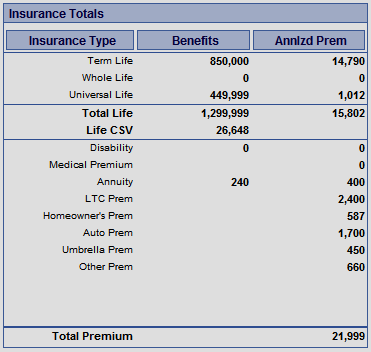
Insurance Totals
This section displays an overview of the benefits and premiums belonging to the current contact. The values are only pulled from active policies. The Benefit values are carried over if the interested party is the insured or co-insured and the Premium values are carried over if the interested party is the owner or co-owner.
Criteria
The Policy values are written from the SmartPolicies module to the Contact Benefits content link – Insurance Totals section. The values are only pulled from policies with an Active status. The Benefit values are carried over if the interested party is the Primary Insured or Insured and the Premium values are carried over if the interested party is the Owner or Co-owner.
Calculations
- Benefits
- Term Life, Whole Life, and Universal Life: The values rolled up to the Benefits content link are the sum of the Net Death Benefits fields and the Total Death Benefits for each policy
- Total Life: The sum of the column amounts
- Life CSV: The sum of the Cash Surrender Value fields in Whole Life and Universal Life policies
- Disability: The sum of the Accident Benefit Amount fields
- Annuity: The sum of the Current Value fields for Annuity
Annual Premium This section displays the total Annualized Premiums for each of the following Insurance Types:
| - Term Life - Whole Life - Universal Life - Total Life - Medical Premium - Annuity | - LTC - Homeowners - Auto - Umbrella - Other |
|---|
Investment Totals
Investment validation will recalculate the Cost and Current Value columns on the Contact Benefits content link for each investment holding type (e.g., mutual funds, stocks, and bonds, regardless of the roll up options on the Investment Account level). The cost and current value of each holding type are then totaled in the Total Assets columns. For detailed information on Investment Validation, refer to the SmartInvestments User Guide.
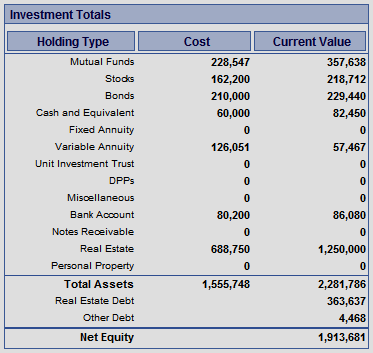
Other Debt includes any debt other than Real Estate; it can be debt from the contact, account, or position levels. The business rules:
- From the Contact Level, all unsecured liabilities are rolled up to the Contact Benefits – Other Debt area.
- From the Account Level, the Loan Balance is rolled up from the Account Detail content link. It does not matter whether the Account Detail Loan Balance was manually entered or rolled up from the Account Liabilities content link. As long as there is a value in the Account Detail Loan Balance field, that value is rolled up to the Contact Benefits - Other Debt area.
- From the Position Level, the Loan Balance is rolled up from the Position Detail content link for all personal holdings (Bank Accounts, Notes Receivable, and Personal Property).
- If there are multiple contacts associated with an Investment Account, SmartOffice will only post the investment information on the Contact Benefits content link of the primary contact.
Cost This section displays the total of Purchase Costs for each of the following Holding Types:
| - Mutual Funds - Stock - Bonds - Cash and Equivalent - Fixed Annuity - Variable Annuity - Unit Investment Trust | - DPP - Miscellaneous - Bank Account - Notes Receivable - Real Estate - Personal Property |
|---|
Current Value This section displays the total of Current Values for each of the following Holding Types:
| - Mutual Funds - Stocks - Bonds - Cash and Equivalents - Fixed Annuities - Variable Annuities - Unit Investment Trusts - DPPs | - Miscellaneous - Bank Accounts - Notes Receivable - Real Estate - Personal Property - Real Estate Debt - Other Debt |
|---|
Household) Household validation can be performed from the Household List, Household Detail content link, and Contact Personal content link.
- From the Household List, tag one or more household(s) and then select Validate Tagged Households from the expanded Menu list.
- From the Household Detail content link, select Validate Current Household from the expanded Menu list to begin the validation.
- From the Contact Personal content link, click the Household tab and then click select Validate Current Household from the expanded Menu list.
Household Calculations Business Logic
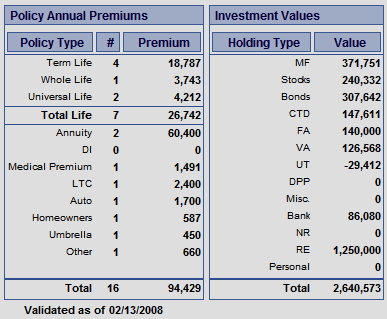
Household calculations are the same as contact calculations except that the total is for the entire household. When Household validation is run, SmartOffice will run validation for each member of the household and summarize the total number of, and premium amounts for policies and investment values.
- The \# (No. Of Policies) column is the total number of different Insurance policies in the household
- The Premium column amounts are equal to the sum of the Annualized Premium fields in the applicable policies - The Value column amounts are equal to the sum of the Current Value fields in the applicable holdings
Data Validation by Office) Select Data Validation from the expanded Utilities menu to open the Data Validation by Office dialog box.
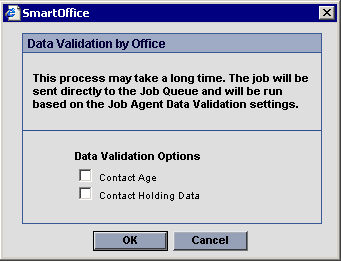
- Contact Age: Validates the Age
- Contact Holding Data: Validates the Age and Holding Data as described in the previous sections for Policies and Investments
When an option is selected, the validation request is added to the Job Queue; refer to the Job Queue User Guide for more information.
Validation Calculation Columns) Contact Benefits and Business Benefits
| - Term Life - Whole Life - Universal Life - Total Life - Life CSV - Disability - Medical Premium - Annuity - LTC Prem - Homeowner's Prem - Auto Prem - Umbrella Prem - Other Prem - Total Premium - Investment Totals - Holding Type - Cost - Current Value | - Mutual Funds - Stocks - Bonds - Cash and Equivalent - Fixed Annuity - Variable Annuity - Unit Investment Trust - DPPs - Miscellaneous - Bank Account - Notes Receivable - Real Estate - Personal Property - Total Assets - Real Estate Debt - Other Debt - Net Equity |
|---|
Household Benefits
| - Term Life - Whole Life - Universal Life - Total Life - Annuity - Disability - Medical Premium - Long Term Care - Auto - Umbrella - Other - Total Premiums - Holding Type - Value - Mutual Funds - Stocks - Bonds - CTD - Fixed Annuities - Variable Annuities - Unit Investment Trusts - Direct Participation Programs | - Misc. - Bank - Notes Receivable - Real Estate - Personal - Fixed Annuities - Total Values - Number of Term Life - Number of Whole Life - Number of Universal Life - Number of Total Life - Number of Annuity - Number of DI - Number of Medical Premium - Number of LTC - Number of Auto - Number of Homeowners - Number of Umbrella - Number of Other - Number of Total Values |
|---|
Accounts
| - Total Value - Loan Balance | - Net Value |
|---|
Positions
| - Cost - Tax - Shares - Share Date - Price - Value - Liquidated Date - Withdrawal | - Initial Cost - Total Value - Loan Amount - Maturity Date - Maturity Value - Price Date |
|---|