Last updated: 2025-09-19
Duplicate Records
- Overview
- Requirements
- Running a Duplicate Check
- Automatic Duplicate Check
- Manual Duplicate Check
- Duplicate Detection Methods
- SmartOffice Default Method
- Custom Detection Methods
- Mass Merging Duplicate Records
Overview
The Duplicate Records feature in SmartOffice checks for duplicate contacts, businesses, advisors, agencies and tax IDs, enabling the user to modify, delete or merge any duplicates found.
SmartOffice can check for duplicates automatically when any of these record types are created. The user can also run a manual check for duplicates anytime.
Video not available: Checking for Duplicate Records
Requirements
Before a user can check for duplicate records, a SmartOffice administrator must do the following:
- To enable automatic duplicate checks, select the Check for Duplicate Contacts/Businesses option on the SmartPad/New Contact/E-mail Posting content link in Office Settings. This setting applies to all users in the office.
- To enable a user to perform manual duplicate checks and create custom duplicate detection methods, enable the Duplicate Records Report – Side Menu user right on the user's account.
Running a Duplicate Check
Automatic Duplicate Check
If the office is configured to check for duplicates automatically (see Office Settings - SmartPad/New Contact/E-mail Posting) and a user tries to create a record that matches an existing record, SmartOffice displays an alert.
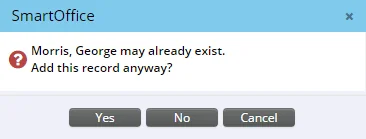
Click the Yes button to create the record anyway. Click the No button to modify the record. Automatic duplicate checks use SmartOffice's default duplicate detection method.
Manual Duplicate Check
When checking for duplicates manually, a user can choose SmartOffice's default duplicate detection method or a custom detection method. For more information, see Duplicate Detection Methods.
- Select Utilities > Duplicate Records from the SmartOffice side menu to open the Duplicate Records dialog box.
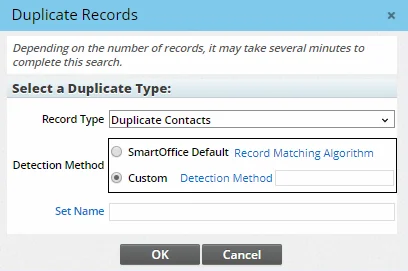
- From the Record Type drop-down list, select the appropriate record type for the search (contacts, advisors, etc.).
- Select either the SmartOffice Default duplicate detection option or the Custom option (note that the Custom option is not available for duplicate Tax ID searches).
If you select the Custom option:
- Click the Detection Method hyperlink to open the Duplicate Detection Method dialog box. This dialog box displays a list of custom duplicate detection methods created by all users in the office for the selected record type.
- Select a custom method from the list. If the appropriate method is not listed, create one by selecting Menu > New 'Duplicate Detection Method' Record. For more information, see Creating a Custom Duplicate Detection Method.
- (Optional) To restrict the search to a particular set of records, type the set name in the Set Name field, or click the Set Name hyperlink to search for the set. Learn more about sets.
- Click the OK button to display a list of duplicates for the selected type.
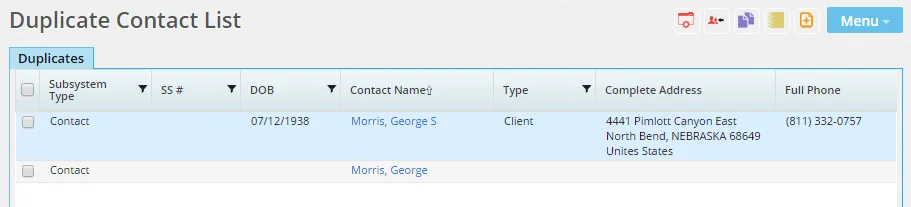
Note: The Duplicate Records feature compares only those records that the signed-in user can view. If the user cannot see a potential duplicate record because or record privacy or office security settings (e.g., user assignment), that record will not display in the list.
From the list, the user can do any of the following:
- Click a record's name to open and modify the record.
- Delete a record.
- Run the Record Merge tool.
Duplicate Detection Methods
SmartOffice Default Method
This section describes the system-default detection method that SmartOffice uses to determine whether duplicates exist in the office. Users can also create custom detection methods.
Contacts/Advisors
Step 1 – Primary Match
- If the Last Name, First Name and Type fields are an exact match, go to Step 2\.
- If any of those fields are blank, or if there is no exact match, go to the next contact/advisor record.
Step 2 – Birth Date
- If the Birth Date field is an exact match, go to Step 3\.
- If the Birth Date field is blank, it remains a possible duplicate. Go to Step 3\.
- If the Birth Date field does not match, it is not a duplicate. Go to the next contact/advisor record.
Step 3 – Social Security Number
- If the SS \# field is an exact match, it is a duplicate.
- If the SS \# field is blank, it remains a possible duplicate.
- If the SS \# field does not match, it is not a duplicate. Go to the next contact/advisor record.
Businesses/Agencies
- If the Business/Agency Name and Type fields are exact matches, a duplicate was found.
- If the Business/Agency Name and/or Type fields are blank or do not match, go to the next business/agency.
Custom Detection Methods
Creating a Custom Detection Method
Users can create custom duplicate detection methods that apply to contacts, business, advisors, or agencies. Custom detection methods can be used for manual duplicate checks only. When a custom detection method is created, it becomes available to other users in the office who have the necessary user rights to run manual duplicate checks.
- Select Utilities > Duplicate Records from the SmartOffice side menu to open the Duplicate Records dialog box.
- Select the appropriate duplicate record type for the search.
- Selecting the Custom detection method option, and then click the Detection Method hyperlink to open the Duplicate Detection Method dialog box.
- Select Menu > New 'Duplicate Detection Method' Record to open the Detection Method Details dialog box.
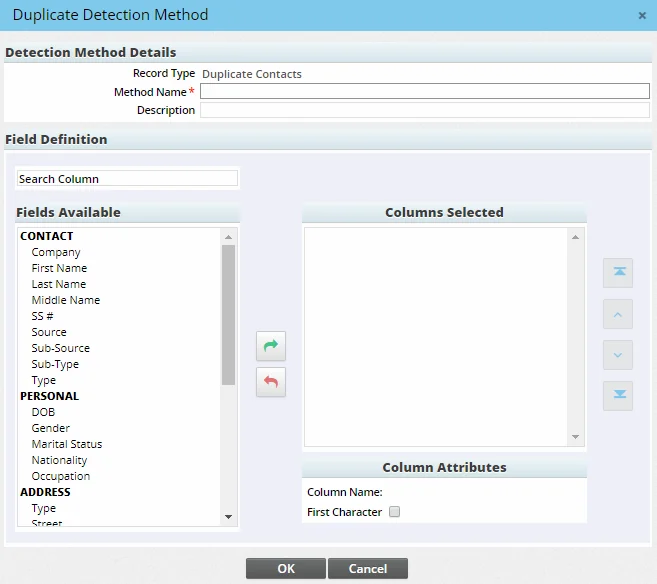
- Enter a name and, optionally, a description for the new detection method.
- Select the fields that SmartOffice should consider during manual duplicate record searches:
- To add a field, select it from the Fields Available list and click the right-arrow button to add it to the Columns Selected list.
- To remove a field, select it from the Columns Selected list and click the left-arrow button.
Tip: To find fields quickly, use the Search Column box.
- To specify that only the first character of a field should be considered when determining whether a match exists, select the field in the Columns Selected list, and then select the First Character option.
- Click the OK button.
Note the following when creating a custom duplicate detection method:
- All of the fields must match in order for two records to be considered duplicates. If some fields match but others do not, the records are not considered duplicates.
- Blank field values in records are not treated as matches. For example, consider a duplicate contact detection method that looks at first and last name. If two records have the same last name but one record has a blank first name, SmartOffice does not consider them duplicates. Similarly, if two records have the same last name but both records have blank first names, SmartOffice still does not consider them duplicates.
- If a custom detection method compares phone numbers, SmartOffice ignores the phone number type (mobile, residence, etc.). For example, if the same phone number (including area code) is listed as a mobile number in one record and a residence number in another record, SmartOffice treats them as a match.
Viewing/Editing a Custom Detection Method
A user can view and/or edit a custom duplicate detection method while running a manual duplicate check.
- Select Utilities > Duplicate Records from the SmartOffice side menu to open the Duplicate Records dialog box.
- Select the appropriate duplicate record type for the search.
- Select the Custom detection method option, and then click the Detection Method hyperlink to open the Duplicate Detection Method dialog box.
- Check the box next to a custom detection method, and then select Menu > Switch to Edit Mode.
- If necessary, edit the detection method (refer to Creating a Custom Detection Method).
Deleting a Custom Detection Method
A user can delete a custom duplicate detection method while running a manual duplicate check.
- Select Utilities > Duplicate Records from the SmartOffice side menu to open the Duplicate Records dialog box.
- Select the appropriate duplicate record type for the search.
- Select the Custom detection method option, and then click the Detection Method hyperlink to open the Duplicate Detection Method dialog box.
- Check the box next to the custom detection method, and then select Menu > Delete.
Mass Merging Duplicate Records
While viewing the list of duplicate records, the user can mass merge duplicates. For more information, see Record Merge.