Last updated: 2025-09-19
SmartCommissions - House, Supervisor and Advisor Setup for the Commission Hierarchy
- Overview
- Commission Hierarchy Structure
- Setting Up the House Account
- Designating the House Record
- Linking Contracts to the House Record
- Setting up a Supervisor Record
- Designating a Supervisor Record
- Linking Contracts to a Supervisor Record
- Setting Up an Advisor Record
- Designating an Advisor Record
- Linking Contracts to an Advisor Record
- Other Advisor Contract Management Features
- Viewing the Advisor Hierarchy
- Viewing the Contract Hierarchy
- From the Advisor Personal or Agency Detail Content Link
- From the Advisor or Agency Cont./Appt. Content Link
- From a Policy or Pending Case Record
Overview
Note: House, supervisor and advisor setup is necessary only for the contract/rate-based module configuration in SmartCommissions.
In SmartCommissions, a commission hierarchy specifies the house, supervisors (if any) and advisors receiving commission payments on policies. This section describes the elements of that hierarchy and how contracts are used to define how the commissions are paid.
Before setting up a commission hierarchy, ensure that the appropriate commission contracts and rates have been established in the system.
Commission Hierarchy Structure
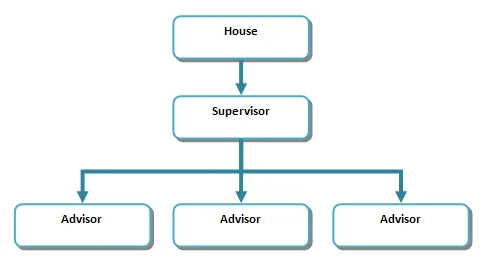
The key levels of a commission hierarchy in SmartOffice are:
- House: The house account represents the gross commission amount received from the carrier. This amount is the starting point on which all commission calculations are based. The managing general agency (MGA) or brokerage general agency (BGA) typically receives the gross commission amount from the carrier and pays the appropriate amounts to managers and agents. In SmartOffice, an agency record is typically set up as the house record (an advisor record can be designated as the house record, but that advisor cannot also be designated as the writing advisor on a policy). When commission hierarchies are displayed in SmartOffice, the name of the advisor or agency representing the house account is at the top.
- Supervisor: For the purposes of commission tracking in SmartOffice, a supervisor is any person who is not one of the advisors who signed the application but who will receive commission on a policy. A supervisor is not required to have signed a formal contract with the carrier and may instead have a commission agreement with the office (i.e., the house). A supervisor can be an individual other than the writing advisor. A supervisor can also be the writing advisor who will receive an additional percentage of commission paid by the house. Like the house, a supervisor is represented in SmartOffice by an advisor or agency record. An unlimited number of supervisors can be defined, and multiple supervisors can be linked to each other to create a complex hierarchy chain. The top-level supervisor is linked to the appropriate house account.
- Advisor: At the advisor level of the commission hierarchy is the individual who finds clients and directly sells them insurance. An advisor is any broker/producer/agent who finds clients and submits applications to the carrier. This is the writing advisor on the case, i.e., the person who signs the application. An advisor can have an agreement with the house or with the carrier.
The following diagram illustrates a basic SmartOffice commission hierarchy.
Setting Up the House Account
Setting up a house account is the first step in creating a commission hierarchy. Typically, an organization needs to establish only one house record and related hierarchy. However, SmartCommissions allows for multiple house records and hierarchies to be created if an organization requires them.
Designating the House Record
- Search for the advisor or agency record that will serve as the house record.
- In the list of search results, tag the record or open it.
- Click the Personal or Detail content link.
- From the Type drop-down list, select the appropriate house account type. The option selected here does not affect commission calculations; it simply helps users identify the record more easily when viewing the contract hierarchy.
- Select Menu > Save.
- Click the Add'l Detail content link and select the House Account option.
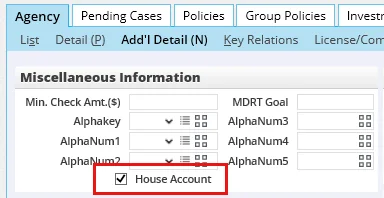
- Select Menu > Save.
Linking Contracts to the House Record
After designating the house record, the user must specify a house contract for each carrier that the house has contracted. Multiple contracts can be specified for a carrier as long as the lines of business in the contracts are unique.
- If the house record is not already open, search for the advisor or agency record that serves as the house record. Then, from the list of search results, tag the record or open it.
- Click the Cont./Appt. content link.
- In the Advisor Contract List section, click the Options button
 and select New 'Advisor Contract' record to open the Contract Information dialog box.
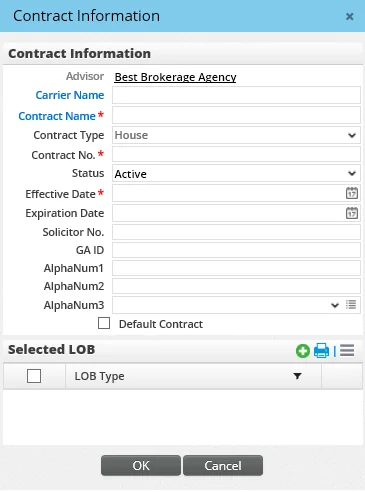
- In the Contract Information section, complete the fields:
- Carrier Name: Enter the name of a carrier or click the Carrier Name hyperlink to search for and select a carrier. Once a carrier is specified, SmartOffice presents a list of House-type contracts linked to that carrier for selection. If only one contract exists, the name of that contract is automatically entered in the Contact Name field. - Contract Name: If this field is not already completed, enter the name of a contract or click the Contract Name hyperlink to search for and select a contract. Only House-type contracts linked to the selected carrier are available for selection. - Contract Type: Because only House-type contracts can be selected, this field specifies House and cannot be modified. - Contract No.: Any unique identification number for this contract. The contract number is mandatory unless the Status field is set to Pending. - Status: Selecting a status for the contract is optional, but it can be helpful to select the Pending option if the contract is pending and the contract number and effective date are not yet available. When the status is set to Pending, the Contract No. and Effective Date fields, which are normally mandatory, become optional. - Effective Date and Expiration Date: Enter the dates that the contract remains in effect either by typing the dates or using the Pick Date buttons. The effective date is mandatory unless the Status field is set to Pending. - Solicitor No.: The solicitor number referenced by the carrier, if any. - GA ID: The general agency number referenced at that carrier. - AlphaNum fields: These are custom fields that can be used to track any other data that SmartOffice does not track. - Default Contract: Select this option to have this contract automatically linked to every newly created policy or pending case associated with this house account, regardless of carrier.
- In the Selected LOB section, specify the lines of business that the contract covers (if this section is left blank, the system assumes that all lines of business are valid for this contract):
- Click the Options button and select New 'LOB Type' record to open the LOB dialog box.
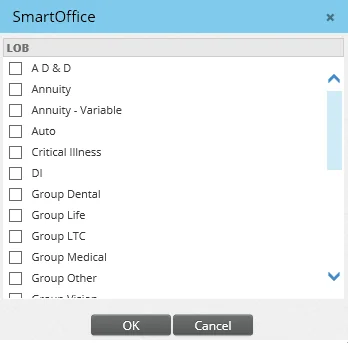
2. Tag one or more lines of business. 3. Click the OK button.
- In the Contract Information dialog box, click the OK button.
- Repeat these instructions to add additional contracts. Note that multiple contracts can exist for the same carrier as long as the lines of business are unique.
Setting up a Supervisor Record
SmartOffice does not require the supervisor to be licensed or appointed with a carrier; however, a contract must be defined to identify the amount of compensation to be paid at this level.
Even if an organization does not have supervisors, the organization might want to establish supervisor records for these reasons:
- To pay the writing advisor additional commission from the house (i.e., an amount in addition to the commission from the carrier).
- To pay management override payments on business produced by other advisors.
- For any other need that requires breaking up commissions paid to the advisor or house on a given policy.
Designating a Supervisor Record
- Search for the advisor or agency record.
- In the list of search results, tag the record or open it.
- Click the Personal content link.
- From the Type drop-down list, select the appropriate supervisor type. This choice is not used for commission calculations; it simply helps users identify the record more easily when viewing the contract hierarchy.
- In the Supervisor field, enter one of the following:
- The name of the advisor/agency record that serves as the house account (if this supervisor is the top-level supervisor in the hierarchy) - The name of the supervisor's supervisor (if this supervisor reports to another supervisor)
- Select Menu > Save.
Linking Contracts to a Supervisor Record
After designating a supervisor record, the user must specify supervisor contracts for each carrier the house has contracted.
- If the supervisor record is not already open, search for the advisor or agency record.. Then, from the list of search results, tag the record or open it.
- Click the Cont./Appt. content link.
- In the Advisor Contract List section, click the Options button and select New 'Advisor Contract' record to open the Contract Information dialog box.
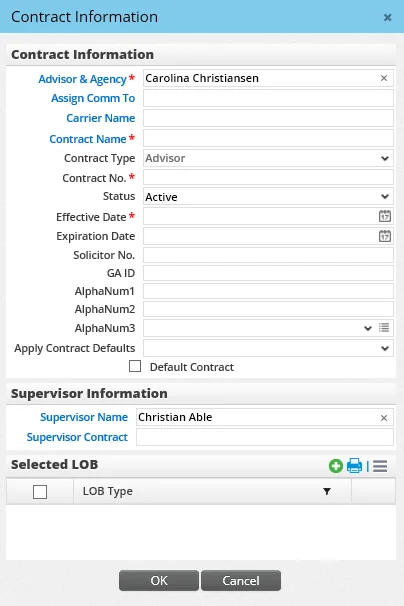
- In the Contract Information section, complete the fields. Most of the fields are the same as those used when linking a contract to a house record. The fields that are different are:
- Assign Comm To: This is normally the supervisor.
- In the Supervisor Information section, complete the following fields:
- Supervisor Name: Identify the person above this supervisor in the hierarchy. This may be the house or another supervisor.
- Supervisor Contract: Specify the contract that will be paid to the party identified in the Supervisor Name field. For blanket contracts, this field must be blank.
- In the Selected LOB section, specify the lines of business that the contract covers (if this section is left blank, the system assumes that all lines of business are valid for this contract).
- Click the OK button.
- In the Contract Information dialog box, click the OK button.
- Repeat these instructions to add additional contracts. Note that multiple contracts can exist for the same carrier as long as the lines of business are unique.
Setting Up an Advisor Record
Designating an Advisor Record
- Search for the advisor or agency record.
- In the list of search results, tag the record or open it.
- Click the Personal content link.
- From the Type drop-down list, select the appropriate advisor type. This choice is not used for commission calculations; it simply helps users identify the record more easily when viewing the contract hierarchy.
- In the Supervisor field, type the name of the advisor's first-line manager, or click the Supervisor hyperlink to search for that person.
- Select Menu > Save.
Linking Contracts to an Advisor Record
After designating an advisor record, the user must specify advisor contracts.
- If the advisor record is not already open, search for the advisor or agency record.. Then, from the list of search results, tag the record or open it.
- Click the Cont./Appt. content link.
- In the Advisor Contact List section, click the Options button and select New 'Advisor Contract' record to open the Contract Information dialog box.
- In the Contract Information section, complete the fields. Most of the fields are the same as those used when linking a contract to a house record. The fields that are different are:
- Contract No.: This is the contract number assigned to the writing advisor by the carrier.
- Assign Comm To: This is normally the advisor.
- In the Supervisor Information section, complete the following fields:
- Supervisor Name: Identify the person above this party in the hierarchy. This may be the house or another supervisor.
- Supervisor Contract: Specify the contract that will be paid to the party identified in the Supervisor Name field. For blanket contracts, this field must be blank.
- In the Selected LOB section, specify the lines of business that the contract covers (if this section is left blank, the system assumes that all lines of business are valid for this contract).
- Click the OK button.
- In the Contract Information dialog box, click the OK button.
- Repeat these instructions to add additional contracts. Note that multiple contracts can exist for the same carrier as long as the lines of business are unique.
Other Advisor Contract Management Features
The features described below are not part of initial advisor setup but can be useful later when managing contracts.
Changing an Advisor Contract (Contract Change Utility)
Once an advisor contract has been referenced by an advisor hierarchy or in a policy, some of the contract's fields become read-only. This occurs because changes to those fields can affect existing hierarchies and policies. The Contract Change Utility, available from the advisor Cont./Appt. content link, enables the user to modify those fields. The user can change a contract for any level in the hierarchy and reproject commissions for all policies linked to the contract being changed.
- In the Advisor Contract List, select a contract.
- Click the Options button and select Contract Change Utility.
- Change the necessary fields, and then click the OK button.
Viewing Policies and Cases Linked to an Advisor Contract
To display a list of all policies/pending cases linked to a specific advisor contract from the advisor Cont./Appt. content link:
- In the Advisor Contract List, select a contract.
- Click the Options button and select Related Policies.
Viewing Commission Rates Related to an Advisor Contract
From the advisor Cont./Appt. content link:
- In the Advisor Contract List, select a contract.
- Click the Options button and select Advanced Options > Related Commission Rates.
For more information about rates, see Rates.
Viewing the Advisor Hierarchy
To view the advisor or agency hierarchy:
- Open the advisor or agency record.
- Select Menu > Advisor Hierarchy.
When used from an advisor record, this command displays both the advisor and agency hierarchies. When used from an agency record, the command displays the agency hierarchies.
The structure of an agency hierarchy is based on the entity specified in the Agency field on the advisor's Personal content link or in the Parent Office field on the agency's Detail content link.
The structure of an advisor hierarchy is based on the entity specified in the Supervisor field on the advisor's Personal content link.
Viewing the Contract Hierarchy
SmartCommissions enables users to view the contract hierarchy to verify that contracts have been defined correctly or simply to get an overview of the hierarchy and its members.
Access to this information is available from the Personal/Detail and Cont./Appt. content links of any advisor or agency record that belongs to a hierarchy.
From the Advisor Personal or Agency Detail Content Link
Select Menu > Contract Hierarchy to open the Contract Hierarchy dialog box.
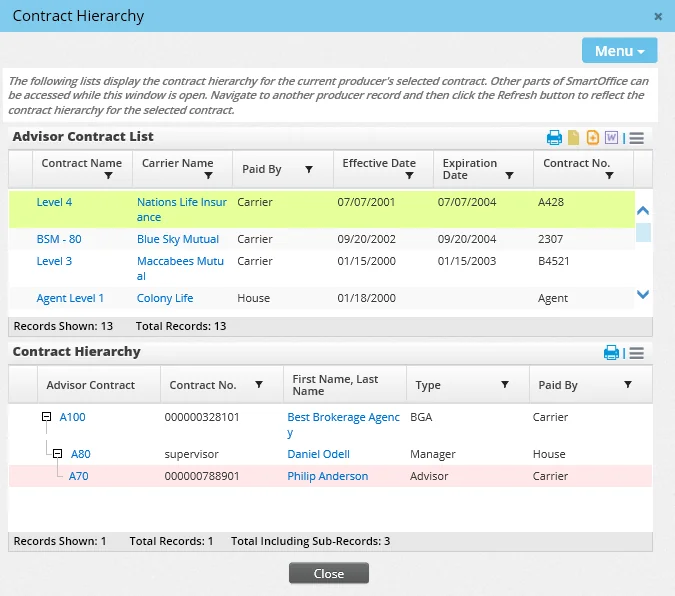
From here, the user can:
- View details about a record in the hierarchy by clicking a column that is not a hyperlink (clicking a hyperlink will open the appropriate row of data). The details display in the main SmartOffice window.
- Navigate to another advisor record in the main SmartOffice window and view the contract hierarchy for that advisor. When the user navigates to another advisor record in SmartOffice, the Contract Hierarchy window remains open. The user can select Menu > Reload in the Contract Hierarchy window (or click the Options button and select Reload in the Contract Hierarchy section) to display contract hierarchy details for that advisor.
From the Advisor or Agency Cont./Appt. Content Link
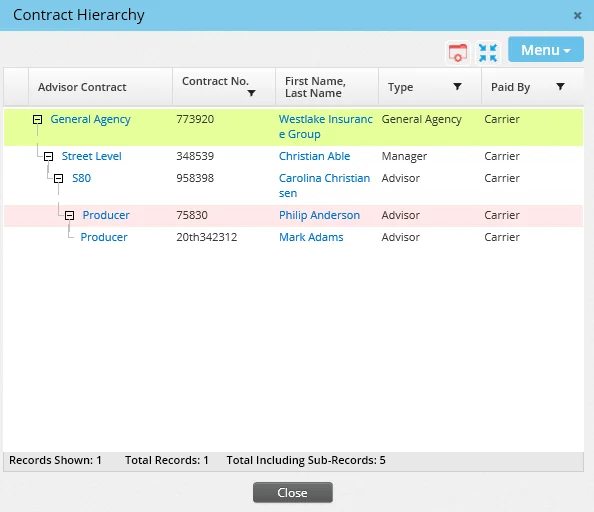
To access the hierarchy from the advisor or agency Cont./Appt. content link:
- In the Advisor Contract List, select a contract.
- Click the Options button and select View Contract Hierarchy to display the hierarchy for the selected contract.
From a Policy or Pending Case Record
and select Show Hierarchy in the Policy Advisor List.