Last updated: 2025-09-19
SmartCommissions - Contracts
- Overview
- Contract Categories
- Carrier vs. Blanket Contracts
- Knowing Which Category of Contract You Need to Create
- Initial Contract Setup
- Working with Contracts
- Searching for Contracts
- Creating a Contract
- Deleting a Contract
- Viewing/Editing a Contract
- Contract Templates
- Searching for Contract Templates
- Creating Contract Templates
- Deleting Contract Templates
- Assigning Contract Templates
Overview
Note: Contracts are used only for the contract/rate-based configuration in SmartCommissions. For more information about the different configurations, see Module Setup.
A contract is an agreement between two parties that outlines the commission payment rates to be used when a specific type of insurance product is sold. In SmartCommissions, contracts must be set up for each level of payment in the commission hierarchy. To set up contracts, a user must have the Advisor Contract/License Management license (see User Setup).
After setting up contracts, the user must:
Link contracts to advisors, supervisors and the house account.

Contract Categories
Before setting up a contract, the administrator must decide which category of contract is most appropriate for the organization's needs.
Carrier vs. Blanket Contracts
- Carrier contract: A carrier contract is associated with a specific carrier. It defines a set of rates for every product that the carrier sells. One rate is established for each carrier/product/contract combination. Each advisor has a minimum of one contract for each carrier, with each contract containing an effective date and an expiration date.
- Blanket contract: A blanket contract can cover payment over multiple carriers. It establishes a default rate covering a large number of different insurance products. One rate exists for each contract, and each advisor has one blanket contract identified. Blanket contracts reduce the number of contracts that must be established for each advisor. If needed, multiple blanket contracts can be identified by line of business (life, annuity, DI, LTC, etc.). For example, a contract could specify that the house pays 50% of gross compensation on life business but only 40% of gross compensation on annuity business. Because one blanket rate for the contract is established instead of different rates per carrier and product, blanket contracts reduce the number of rates that must be set up.
Knowing Which Category of Contract You Need to Create
Note: Because the choice of contract category affects key aspects of the commission tracking system, administrators who are new to SmartCommissions should use the following information only as a starting point. It is recommended that administrators discuss their commission tracking needs with a SmartOffice commissions specialist before making final decisions about contract categories.
Use the guidelines summarized in the following table to decide which contract category is most appropriate for a particular situation:
| Commission Hierarchy Level | When to Use a Carrier Contract | When to Use a Blanket Contract |
|---|---|---|
| House | Always | Never |
| Supervisor or Advisor | In any of the following situations:- The rates for the supervisor or advisor will differ as defined by a schedule established at the carrier level. - The organization needs to track the advisor's contract number with the carrier. | In any of the following situations:- The advisor is signing a generic contract with the house. - The only factor that differentiates the rate to be paid is the line of business. - The house (not the carrier) is paying the advisor or supervisor, and the structure being used is something standard, e.g., 50% of gross compensation. |
Initial Contract Setup
This section describes the steps that users must complete when first establishing contracts. After this initial setup, refer to Working with Contracts for information about how to view, edit and delete existing contracts.
- Do one of the following:
- From the Contracts tab of a carrier record, select Menu > New 'Contract' record.
- From the SmartOffice side menu, select Insurance > Contracts to open the Search Contracts dialog box. Then click the New button.Either action opens the New - Contract dialog box.
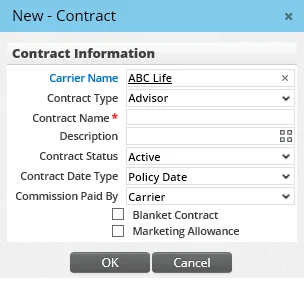
- Complete the fields:
- Carrier Name: If the carrier's name is not already specified, type the carrier's name, or click the Carrier Name hyperlink to search for and select the carrier. (For blanket contracts, this field is blank.) - Contract Type: Select the option that identifies the party being paid the commission (see Key Terms and Concepts for more information): - - Advisor: This is a contract between a writing advisor on a policy and either the house or carrier. If an advisor is being paid commission by both the carrier and the house, create an Advisor-type contract for the amount paid by the carrier and a Supervisor-type contract for the additional amount. - Supervisor: This is a contract between the house and a supervisor or manager. - House: This is a contract between the house and the carrier. This contract represents the gross commission paid to the house. - Contract Name: The contract name is a reference to the contract at the carrier. The carrier schedule name or an internal identifier can be used. This is the name by which the contract is identified throughout SmartOffice.
This field is required. - Description: Use this field to record any details about the contract that will help users identify it in the system. - Contract Status: Select the appropriate option: - - Active: Advisors can be actively placed on this contract. - No New Cases: This contract is no longer in use. However, old policies may be linked to it for historical purposes. - Pending: Advisors cannot be placed on this contract yet. With this status, the user can create the contract and not have to worry that an advisor will be placed on the contract before all contract details have been properly entered and rates have been established. - Contract Date Type: Select the policy date that the system should use to determine which contract should be used for rate identification: - - Active Status Date: The date the case went paid in SmartOffice. - Date Entered: The date the case was first created in SmartOffice. - Policy Date: The policy effective date. This is the most commonly used option. - Application Signed Date: The date the application was signed by the insured. This date is pulled from the case's Policy Status History List (see Pending Cases - Detail Content Link). If this date is missing from the status history, the earliest date in the history list is used. - Commission Paid By: Select the appropriate option: - - Carrier: This contract is identified as being paid directly by the carrier. Projections are performed and history transactions are generated with the house part of the transaction validated. - House: This contract identifies that the house (specifically, the SmartCommissions user) is responsible for the payment of this level. - Blanket Contract: Select this option if the contract is a blanket contract (see Contract Categories for more information).
- Marketing Allowance: This option specifies how data will display on a customized commission statement. If this option is selected and the commission statement format is Generic Statement \#2, the commission being paid will be listed in a special column called Marketing Allowance.
- Click the OK button.
- Repeat these steps for all other contracts that must be created.
When finished creating all necessary contracts, the administrator can proceed to establishing commission rates.
Working with Contracts
After initial contract setup, users can search, view, edit and delete contracts whenever necessary, as described in the following sections.
Searching for Contracts
There are several ways to find contracts in the system. The user can perform a general search from the side menu or from the carrier or advisor/agency modules.
From the Side Menu
- From the SmartOffice side menu, select Insurance > Contracts to open the Search Contracts dialog box.
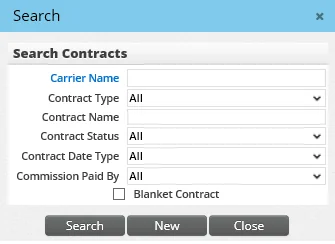
- To narrow down the search, complete one or more of the fields (for descriptions of these fields, see Creating a Contract). Otherwise, leave the fields at their default values to display all contracts.
- Click the Search button to display the Contract List.
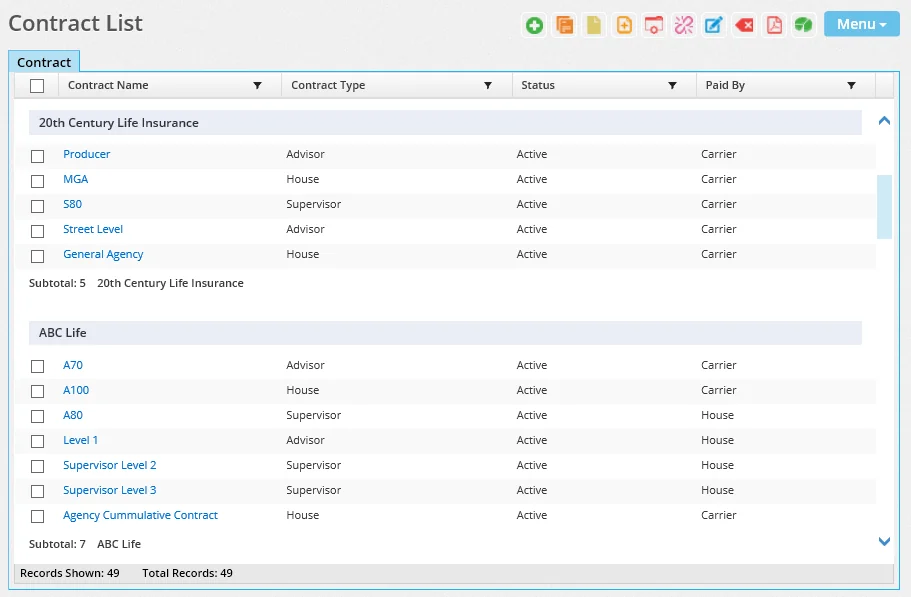
From the Carrier List
- Perform a carrier search.
- Tag one or more carriers in the Carrier List, or open a carrier record.
- Click the Contracts tab.
From the Advisors/Agencies List
- Perform an advisor/agency search.
- Tag one or more records in the Advisor & Agency List, or open an advisor/agency record.
- Click the Cont./Appt. content link.
Creating a Contract
There are several ways to create a contract in the system. The user can create a contract from the side menu or from the carrier or advisor/agency modules.
From the Side Menu
- From the SmartOffice side menu, select Insurance > Contracts to open the Search Contracts dialog box.
- Click the New button to open the New - Contract dialog box.
- Complete the appropriate fields. For details about these fields, see Initial Contract Setup.
- If the contract is a blanket contract, select the Blanket Contract option.
- Click the OK button.
Deleting a Contract
- Perform a contract search.
- In the list of search results, tag the contract to be deleted.
- Select Menu > Delete 'Contract' record.
Viewing/Editing a Contract
- Perform a contract search.
- When the list of results displays, click the first-column hyperlink of the appropriate contract (by default, the contract name) to view the details of the contract.
- If necessary, make any changes to the contract. For information about the fields, see Creating a Contract.
- Click the OK button.
Contract Templates
A contract template is a collection of contracts that an organization frequently adds to advisor or agency records. Instead of adding the contracts individually to each record, a user can apply a contract template to the record to add all of the necessary contracts at once.
A template can contain contracts with different carriers as well as blanket contracts (see Contract Categories).
Note: This feature is available only to users who have the Advisor Contract/License Management user right.
Searching for Contract Templates
In the SmartOffice side menu, select Insurance > Contract Templates to open the Advisor Contract Templates list.
Creating Contract Templates
- Perform a contract template search to open the Advisor Contract Templates list.
- Select Menu > New 'Contract Template' Record to open the Advisor Contract Template dialog box.
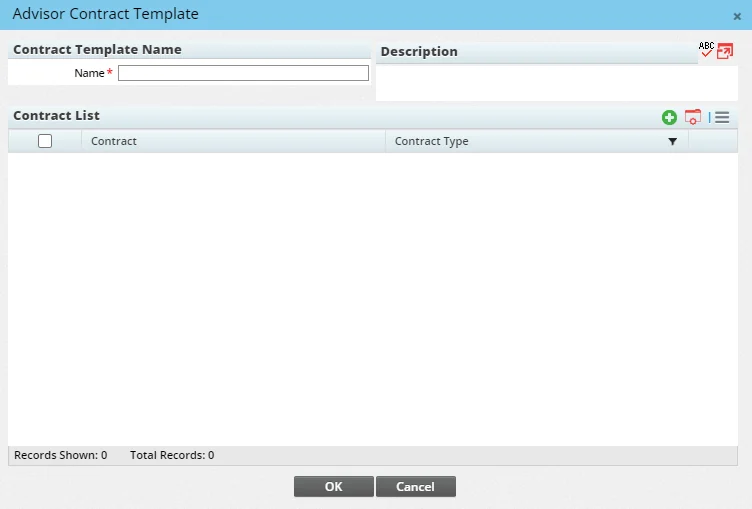
- Enter a name (required) and a description (optional) for the template.
- In the Contract List, select the Options
 button, and then select New 'Contract' Record.
 - When the list of available contracts opens, select one or more contracts, and then select OK.
- Once all contracts have been added to the template, select OK.
Deleting Contract Templates
- Perform a contract template search to open the Advisor Contract Templates list.
- Select the templates to be deleted, and then select Menu > Delete 'Contract Template' Record.
Assigning Contract Templates
To learn how to assign a contract template to an advisor or agency record, see Advisors/Agencies - Cont./Appt. Content Link.