Last updated: 2025-09-19
SmartCommissions - Carrier and Product Setup
Overview
As part of the module setup process for SmartCommissions, the administrator can specify default commission settings in individual carrier and product records. These settings apply to both contract/rate-based and advanced commission split module configurations.
Note: To configure carrier- and product-level settings, a user must have the CTM Administrator or CTM Processing license. For more information, see User Setup.
During commission processing, any settings configured at the carrier level take precedence over the correspondeing office-level settings defined in Commissions Setup. Similarly, any product-level settings take precedence over both carrier- and office-level settings.
Configuring Carrier-Level Defaults
- Search for the carrier record and open it for editing.
- Click the CTM Options content link.
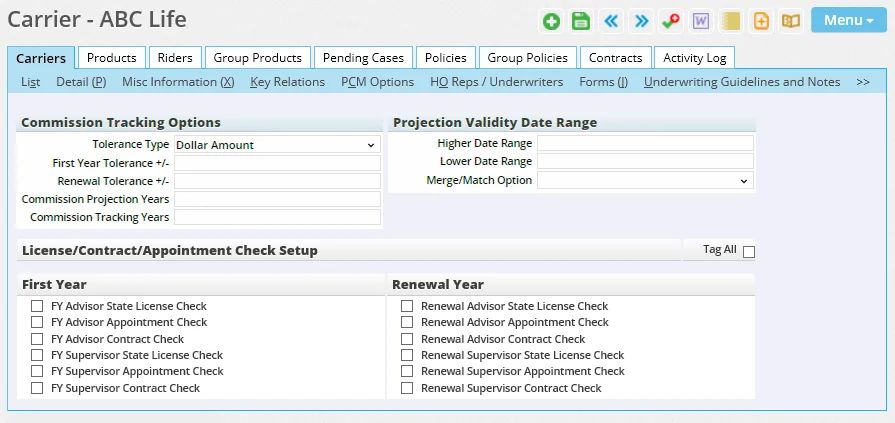
- In the Commission Tracking Options, Projection Validity Date Range and License/Contract/Appointment Check Setup sections, configure any settings for this carrier that should take precedence over the general settings defined at the office level. For help with these settings, refer to Commissions Setup.
- Select Menu > Save.
Configuring Product-Level Defaults
- Search for the product record and open it for editing.
- Click the Product Settings content link.
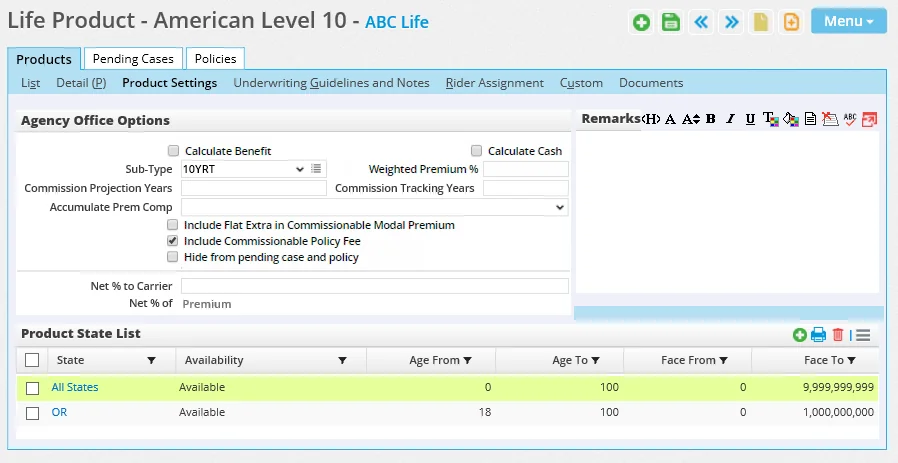
- Enter appropriate values in the Commission Projection Years and Commission Tracking Years fields that should take precedence over those configured at the carrier and office levels. For help with these settings, refer to the descriptions of the Carrier Posting Setup options in Commissions Setup.
- Select Menu > Save.