Last updated: 2025-09-19
User Groups
Overview
User groups are a convenient way to group SmartOffice users in a way that simplifies certain actions in the system, such as:
- Adding user participants to an activity
- Selecting the users who will receive a SmartPad entry as an alert and e-mail
- Multiple-user selection: Selecting a user group is generally faster than selecting users individually when performing actions like these:
- Assigning users to a contact or other record
- Selecting the users who can view a privatized record
- Custom field visibility: SmartOffice can display different custom fields to different user groups. See Contacts and Businesses - Custom Content Link.

Creating a User Group
- On the side menu, select Setup > User Groups.
- In the Search Groups dialog box, click the New button to open the User Group dialog box.
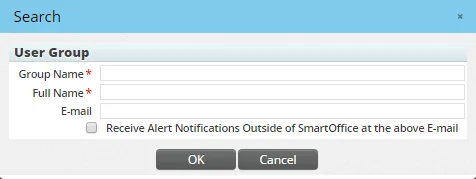
- (Optional) If the members of the group also belong to an e-mail list within the organization, enter that address in the E-mail field. When that address is specified, selecting the Receive Alert Notifications Outside of SmartOffice at the above E-mail option notifies users by e-mail if the group is added to an activity and if those users have chosen to receive alerts by e-mail. For information, see Activity Alerts.
- Enter the group name and a full name (i.e., a more detailed description of the group).
- Click the OK button.
Searching for User Groups
- On the side menu, select Setup > User Groups.
- In the Search Groups dialog box, enter the full or partial name of a particular group, or leave the Group Name field blank to display a list of all user groups.
- Click the Search button.
Adding a User to a User Group
- Search for the user group.
- Open the user group record.
- Click the User Group Members content link to display a list of users belonging to the group.
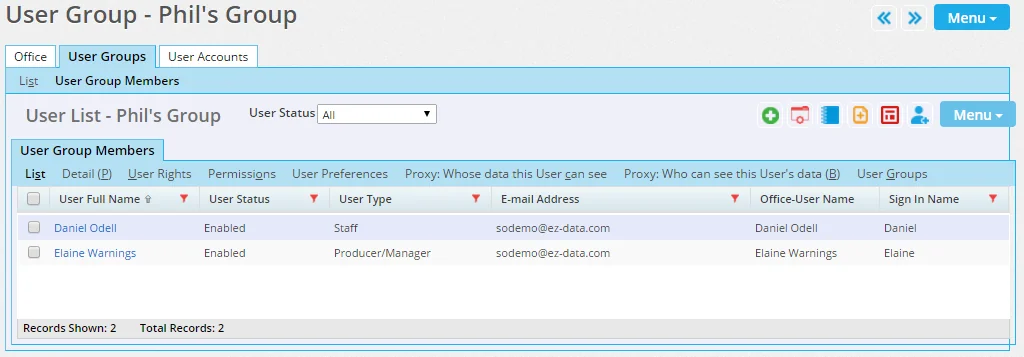
- Select Menu > New 'Group Members' record.
- When the list of users displays, tag the users to be added to the group.
- Click the OK button.