Last updated: 2025-09-19
User Accounts - Passwords
Overview
Every SmartOffice user must enter a password when signing in to SmartOffice Pro. When creating a user account, an administrator can create a password for the user or have SmartOffice generate a random password.
A user's password can be changed by the user or by the administrator. SmartOffice also has a mechanism for handling forgotten passwords. Tip: For additional account security, use two-step authentication.
Video not available: Resetting Passwords
Password Criteria
In SmartOffice, a password must:
- Meet the minimum number of characters. The default minimum password length is six characters, but an office administrator can specify a different minimum length in Office Settings
- Security Policies.
- Contain at least one alphabetical and one numerical character. For increased security, a password may also contain special characters, such as punctuation marks.
Note: Enterprise customers can require their users to include special characters by setting the \
- Be different from the user name.
In addition to these requirements, users should choose passwords that are easy to remember yet difficult for others to guess.
Changing/Resetting a Password
A user's password can be reset by a SmartOffice administrator or by the user. Tip: If a user has been locked out of his/her account because of multiple failed sign-in attempts, an administrator can reset the password to clear the lock and enable the user to sign in.
Administrator
Note: Enterprise customers who provide SmartOffice access to their users through single sign-on (SSO) can specify whether users can reset passwords. In the server config.xml file, a server administrator can set the value of \
- Search for the user's account.
- Select the user account in the list of results (or open the user account) and then select Menu > Reset Password to display the User's General Information dialog box.
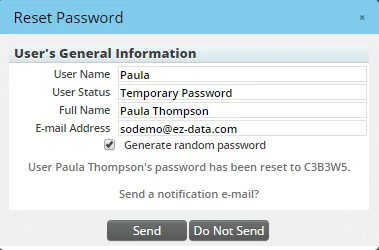
- Specify a password:
- To generate a random password, select the Generate Random Password option. A randomly generated password is temporary; when the user enters this password to sign in to SmartOffice Pro, SmartOffice will ask the user to create a new one.
- To enter a password of your choice, clear the Generate Random Password option and enter the password in the Password field that appears.
- Decide whether to send the user an e-mail notification by clicking either the Send or Do Not Send button.
Note: Before clicking the Do Not Send button, make sure to note the password and communicate it to the user using another method.
User

- Open User Preferences.
- Click the Basic Info content link.
- Select Menu > Change Password to open the Change Password dialog box.
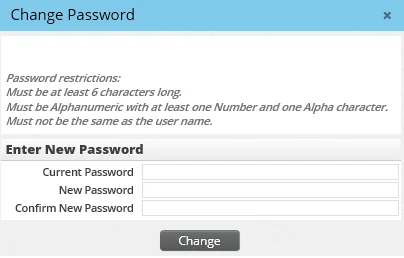
- Enter the current and new passwords in the appropriate fields.
- Click the Change button.
Note: Depending on office settings (see Office Settings - Security Policies), you may be restricted from reusing an expired password for a certain period of time.
Forgotten Passwords
To reset a forgotten password, ask an administrator to change/reset it or follow the steps below:
- Go to the SmartOffice sign-in page.
- Click the Forgot Password? hyperlink and follow the instructions.