Last updated: 2025-09-19
SmartCommissions - Carrier Interface
- Overview
- Setup
- User Rights
- DataXchange
- Bringing Transaction Data into the Carrier Interface
- DataXchange
- Data Import
- Viewing Carrier Interface Transactions
- Viewing All Transactions
- Viewing Transactions Related to a Specific Advisor or Agency
- Viewing Transactions Related to a Specific Policy
- Working with Imported Carrier Transactions
- Moving Transactions to Speed Receipts
- Linking Imported Transactions to SmartOffice Records
Overview
Note: This feature is not available in Canada. The Carrier Interface is a method for bringing commission transaction data from carriers into SmartOffice electronically.
The Carrier Interface works with carrier data delivered in the industry-standard ACORD and NAILBA 900 formats. Users who need to import commission data in non-standard formats (or who need to enter transactions manually from paper carrier statements) should use Speed Receipts instead.
The Carrier Interface can be used with or without the SmartCommissions module.
When the Carrier Interface is used with SmartCommissions, the imported carrier transactions are moved to Speed Receipts for validation before being reconciled with the expected commission records in SmartOffice.
When the Carrier Interface is used without the SmartCommissions module, the imported carrier transactions are available for viewing and reporting purposes.
Setup
User Rights
To access the Carrier Interface, a user must have the SmartCommissions - Carrier Interface license. For more information, see User Setup.
The SmartCommissions - Carrier Interface license is independent of the SmartCommissions module. It is available for free to offices that have a SmartPolicies license.
DataXchange
Many carriers deliver commission transaction data electronically in ACORD or NAILBA 900 format to SmartOffice's DataXchange system, which then delivers the data directly to the Carrier Interface.
Bringing Transaction Data into the Carrier Interface
This section describes the two methods for getting ACORD or NAILBA data into the Carrier Interface:
- DataXchange
- Data import
DataXchange
If the user is receiving transactions from the carrier through DataXchange, the data is automatically brought into the Carrier Interface periodically. No user action is required to perform the import. However, the user can manually check for new data anytime as follows:
- From the SmartOffice side menu, select Commission Utilities > Carrier Interface to open the Commissions - Carrier Interface List.
- Select Menu > Manual XML Commission Download.
Data Import
Use this method if the carrier commission data was received as an ACORD or NAILBA file.
- From the SmartOffice side menu, select Commission Utilities > Carrier Interface to open the Commissions - Carrier Interface List.
- Select Menu > Import Commission File to SmartOffice to display the File Information dialog box.
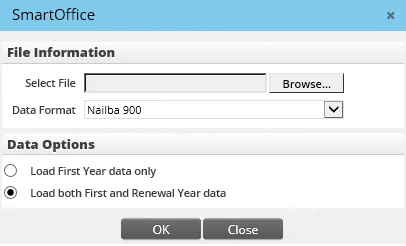
- Click the Browse button to locate and select the file to import.
- From the Data Format drop-down list, select the format that the file is saved in (NAILBA 900 or ACORD XML).
- Under Data Options, specify whether SmartOffice should import first-year commission data only or first-year and renewal data.
- Click the OK button.
Viewing Carrier Interface Transactions
Viewing All Transactions
To view all transactions and other details of an imported carrier file:
- From the SmartOffice side menu, select Commission Utilities > Carrier Interface to open the Commissions - Carrier Interface List.
- Locate the import in the list, and then click its first-column hyperlink (the carrier code, by default).
- To switch the list view between house and advisor commissions, select the House Commission or Agent Commission option from the Show drop-down list.
- To view the details of a transaction, click its first-column hyperlink (the policy number, by default).
Viewing Transactions Related to a Specific Advisor or Agency
- Search for the advisor or agency.
- Tag the advisor or agency record in the list of search results, or open the record.
- Click the Carrier Interface content link to see a list of carrier transactions matched to that advisor.
- To switch the list view between house and advisor commissions, select the House Commission or Agent Commission option from the Show drop-down list.
- To view the details of a transaction, click its first-column hyperlink (the policy number, by default).
Note: Carrier Interface transactions display on the advisor/agency Carrier Interface content link only when those transactions have been matched to the appropriate carrier, policy and advisor record in SmartOffice. For more information about the matching process, see Linking Imported Transactions to SmartOffice Records.
Viewing Transactions Related to a Specific Policy
- Search for the policy.
- Tag the policy record in the list of search results, or open the record.
- Click the Carrier Interface content link to see a list of carrier transactions matched to that policy.
- To switch the list view between house and advisor commissions, select the House Commission or Agent Commission option from the Show drop-down list.
- To view the details of a transaction, click its first-column hyperlink (the policy number, by default).
Note: Carrier Interface transactions display on the policy Carrier Interface content link only when those transactions have been matched to the appropriate carrier, policy and advisor record in SmartOffice. For more information about the matching process, see Linking Imported Transactions to SmartOffice Records.
Working with Imported Carrier Transactions
Moving Transactions to Speed Receipts
Once carrier transactions are loaded into the Carrier Interface, SmartCommissions users typically move the transactions into Speed Receipts for validation (i.e., to link the imported transactions to policy and expected commission records in SmartOffice).
- Open the Commissions - Carrier Interface List.
- Tag the import file in the list, and then select Menu > Copy Commission Records to SRE to open the copy options dialog box.
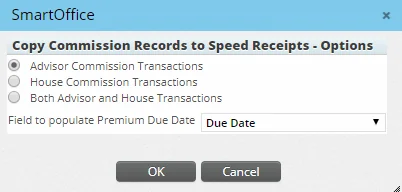
- Select the types of transactions you want to copy (advisor, house or both).
- Use the drop-down list to indicate where the system should copy the Premium Due Date value of each transaction. The user can choose to copy the value to either the Due Date field or the Paid-to/Next Due Date field in the speed receipt transactions.
- Click the OK button.
- When the Search Speed Receipts dialog box opens, search for an existing speed receipt or click the New button to create a speed receipt.
Refer to the Speed Receipts topic for information about how to validate the transactions from there.
Linking Imported Transactions to SmartOffice Records
Note: This feature is intended primarily for Carrier Interface users who do not have access to the SmartCommissions system. SmartCommissions users have access to the more powerful validation features found in Speed Receipts.
When carrier transactions are loaded into the Carrier Interface, the system automatically tries to link each transaction to the appropriate carrier, policy and advisor. This enables the system to display carrier interface transactions within advisor/agency and policy records (see Viewing Carrier Interface Transactions).
The system uses the following criteria to link carrier transactions to SmartOffice records:
- Carrier ID
- Policy number
- Advisor contract number
To check which transactions have been matched and which have not, open an imported file from the Commissions - Carrier Interface List (see Viewing Carrier Interface Transactions) and click any of the following sub-content links:
- Matched: A transaction is matched when a matching policy is found in SmartOffice but no matching expected commission record is found for the specified due date.
- Unmatched: Transactions are unmatched when a policy number from the incoming file is not found in SmartOffice. To resolve this, the user must create the policy in SmartOffice if it does not already exist, and then manually link the transaction to the policy and expected commission record.
- Linked and Verified: Linked and verified transactions are those that match a policy number and expected commission record in SmartOffice. In addition to the linking process being completed, the expected commission amount in SmartOffice falls within the variance amount defined in the Carrier Posting Setup section of Commissions Setup and is marked as being a reconciled transaction when moved into Carrier Posting.
- Linked with Errors: Transactions that are linked with errors match a policy number and expected commission record, but the expected commission amount in SmartOffice does not fall within the variance amount defined in the Carrier Posting Setup section of Commissions Setup.
Manually Linking a Policy (Including the Expected Commission Record)
If the system was unable to automatically link an imported transaction to a policy and expected record in SmartOffice, the user can link it manually as follows:
- While viewing the list of transactions from an imported file, click the Unmatched sub-content link.
- Click the first-column hyperlink of the transaction to be matched (the policy number, by default).
- In the dialog box that opens, under Commission Data from Comm. Engine, click the Policy hyperlink to search for and select the appropriate matching policy in SmartOffice.
- When prompted, select an expected commission record to match the incoming actual record from the carrier.
- Click the OK button.
If a policy and expected commission record were selected successfully, SmartOffice then reviews the transaction and determines whether it can be moved out of the Unmatched sub-content link and into another sub-content link, such as Linked & Verified or Linked with Errors.