Last updated: 2025-09-19
SmartCommissions - Projected and Expected Commissions
- Overview
- Projecting Commissions in a Contract/Rate-Based Setup
- Automatic Commission Projections
- Projecting Commissions Manually for a Single Policy
- Mass Projection
- Projecting Commissions in an Advanced Commission Split Setup
- Assigning a Commission Split to a Policy or Case
- Changing the Commission Split Assigned to a Policy or Case
- Replacing an Advisor in an Advanced Commission Split for Multiple Policies or Cases
- Deleting Commission Splits for Multiple Policies or Cases
- Importing Illustration Data and Projecting Commissions
- Viewing Projected and Expected Commissions
- Opening the Projected/Expected Commissions List
- Viewing Commission Transaction Details
- Other Projected/Expected Commission List Actions
- Troubleshooting Commission Projections
- Verifying the Contract Attached to a Policy or Case for the Writing Advisor
- Verifying the Commission Hierarchy for the Writing Advisor
- Using the Commissions Error Log
Overview
In SmartCommissions, commission amounts that agencies expect to receive from carriers are classified as either projected or expected. Projected and expected commissions enable an organization for forecast future revenue (through a variety of reports) and to ensure that correct payments are received from carriers (through reconciliation).
Projected commissions are generated for pending cases; once those policies go inforce, projected commissions become expected commissions. Apart from that distinction, which can be useful for reporting, both types are essentially handled the same way in SmartOffice.
The methods for generating commission projections vary depending on the SmartCommissions module configuration that the organization is using: contract/rate-based or advanced commission split.
Projecting Commissions in a Contract/Rate-Based Setup
Note: To ensure proper commission projections, ensure that all setup steps for the contract/rate-based module configuration have been completed. In particular, contracts, rates and hierarchies must be established.
Generally speaking, SmartCommissions generates commission projections automatically for pending cases, policies and group policies. The number of years for which automatic projections occur is defined in the Calculation Setup section of Commissions Setup (though this setting can be overridden by carrier- or product-specific commission settings).
If automatic projections do not occur for any reason, commissions can also be projected manually. Manual projections can be particularly useful for users who had existing policies in SmartOffice before purchasing the SmartCommissions module.
To verify that commissions have been projected, users can view the commission transactions. If commissions are not projected properly, see Troubleshooting Commission Projections.
Automatic Commission Projections
Automatic commission projections occur when a SmartCommissions user creates a pending case, policy or group policy record. The system tries to associate an advisor contract with the new policy or case. If more than one matching advisor contract is found, the system prompts the user to select the contract to attach to the policy or case.
Projecting Commissions Manually for a Single Policy
Note: These instructions are for projecting commissions for one policy or case at a time. For situations in which a large number of policies require manual commission projections, save time by using Mass Projection.
- Search for the policy, group policy or pending case.
- Tag the record in the list of search results, or open the record's Detail content link (for a pending case or group policy) or Basic Information content link (for a policy).
- Do one of the following:
- - For a policy or group policy, select Menu > Calculate Commission. - For a pending case, select Menu > Project Commissions for PCM.
The Commission Calculation: Date Range dialog box opens.
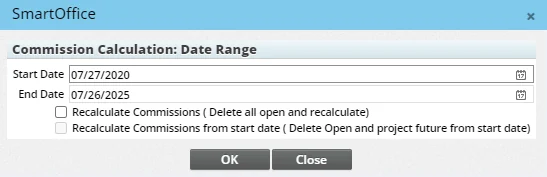
- In the Start Date field, enter the policy effective date or the beginning date of the period for which projections are required. If the case is new or still in underwriting, the latest status date is used for commission projections.
- In the End Date field, enter the last date for which commissions should be projected.
- If the policy has existing Open-status commission projections, select or both of the following options; otherwise, an error stating that commission records already exist for the case will display in the Error Log, and commissions will not be projected:
- Recalculate Commissions (Delete all open and recalculate): This option deletes any existing Open-status commission projections and recalculates them.
- Recalculate Commissions from Start Date (Delete open and project future from start date): If the Recalculate Commissions (Delete all open and recalculate) option was selected, the user can also select this option to limit deletion and recalculation of Open-status commission projections to those projections with dates that fall on or after the Start Date.
- Click the OK button.
Mass Projection
The Mass Projection utility enables SmartCommissions users to project commissions manually for all policies and pending cases that meet specific criteria. This utility is available to users who have the CTM Administrator license (see User Setup).
Before running the utility, ensure that:
- A house account, supervisors and advisors have been established, with valid contracts that include valid effective dates and lines of businesses. For more information, see House, Supervisor and Advisor Setup for the Commission Hierarchy.
- Rates have been established for the house account, supervisors and advisors.
- Policies and pending cases have been established, with valid policy dates, commissionable modal premiums, premium modes and advisors identified.
To run the Mass Projection Utility, follow these steps:
- From the SmartOffice side menu, select Commission Utilities > Mass Projection Utility to open the mass projection dialog box.
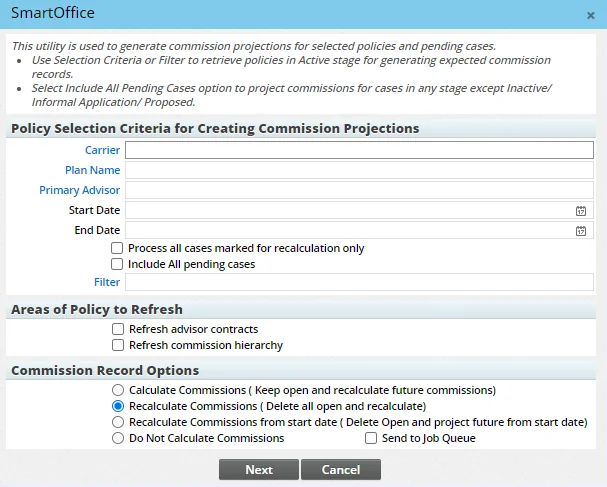
- To tell the utility which policies should be included when projecting commissions, fill in one or more of the fields (Carrier, Plan Name, Primary Advisor, etc.) or specify a filter using the Filter field (see some useful sample filters). When a filter is selected, the utility ignores any values in the Carrier, Plan Name and Primary Advisor fields. Note the following regarding specific fields and options:
- Start Date and End Date: Entering values in the Start Date and/or End Date fields overrides the default commission projection years set at the product level (on the Product Settings content link), at the carrier level (on the CTM Options content link) or at the office level (in the Carrier Posting Setup section of Commissions Setup).
- Process all cases marked for recalculation only: When this option is selected, projections are done only for pending cases that have the CTMRecalculation option selected on the pending case Detail content link.
- Include all pending cases: Selecting this option tells the utility to generate commission projections for pending cases in addition to policies. Projections are not generated for cases that are in an Inactive, Informal Application or Proposed stage. - Refresh advisor contracts: Selecting this option clears any contracts linked to the cases and selects the proper contract based on the policy data. It also refreshes the commission hierarchy so that it can be rebuilt. This option is used primarily when there was an error with contract selection and the user wants to clear all commission data, including the contract linked to the case, and start again. - Refresh commission hierarchy: This option leaves the selected contract on all cases alone but clears and rebuilds the full commission hierarchy. This option is useful when more than one contract may be appropriate for particular policies, because in these cases the system cannot select the appropriate contract on its own. This option is also useful when the hierarchy is missing a level or is otherwise incomplete. - Calculate Commissions (Keep open and recalculate future commissions): Selecting this option retains all existing Open-status commission projections and recalculates projections going forward from the date of the last open projection. - Recalculate Commissions (Delete all open and recalculate): This option deletes all existing Open-status commission projections and recalculates them. It also calculates any projections that have never been calculated. - Recalculate Commissions from Start Date (Delete open and project future from start date): This option deletes and recalculates only those Open-status commission projections whose date is the same or later than the Start Date. It also calculates any projections after the Start Date that have never been calculated. - Do Not Calculate Commissions: When this option is selected, SmartOffice does not calculate commission projections. This option is useful when the user wants to refresh advisor contracts and/or the commission hierarchy only. - Send to Job Queue: Select this option to generate the commission projections in the background using the SmartOffice Job Queue. This option enables the user to continue working in SmartOffice while commissions are projected. If this option is cleared, the user will not be able to do anything else in SmartOffice until projections are complete. The default setting for this option can be configured in Commissions Setup.
- Click the Next button. The utility displays the number of policies and pending cases that match the selection criteria.
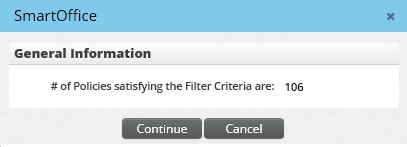
- Click the Continue button to attempt to project commissions.
- When the process is completed, a dialog box will display the number of policies successfully and unsuccessfully projected.
- To review the errors of the unsuccessful projections, refer to the Error Log.
Sample Mass Projection Filters
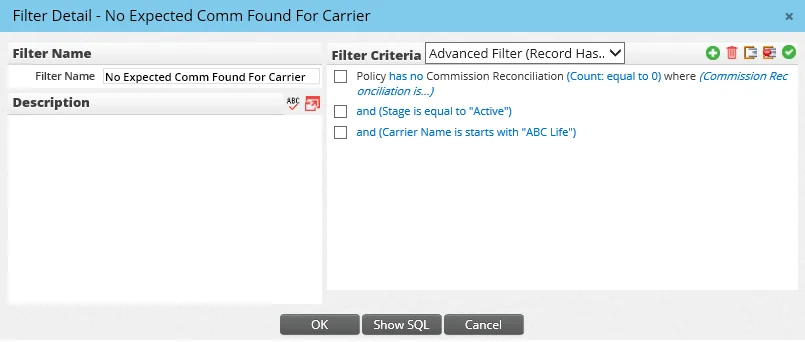
Following are examples of filters that a user might create for use with the Mass Projection utility. Learn more about creating filters. All pending cases that have commission projections
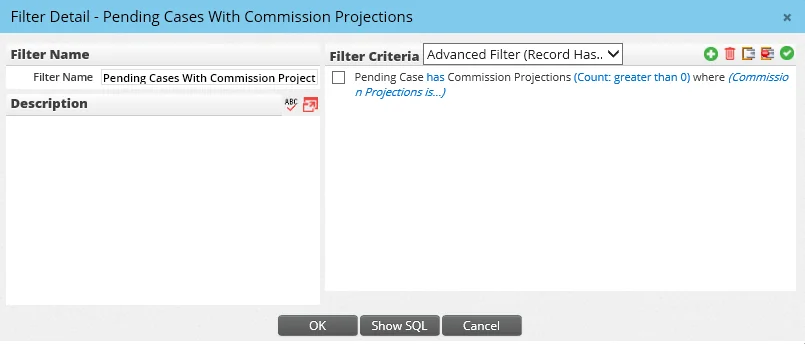
All inforce cases with projections for a specific carrier
Mass Projection for a Specific Advisor Contract
This mass projection method focuses on a single advisor contract. Specifically, it projects commissions for policies and pending cases that meet all of the following criteria:
- The primary advisor and carrier are the same as the advisor and carrier associated with the selected contract.
- There is no linked advisor contract, or the linked contract is the same as the selected advisor contract.
The process first links the selected contract (if applicable), builds the hierarchy and then calculates commissions. The process does not rebuild an existing hierarchy or recalculate existing commission projections.
- Open an advisor's Cont./Appt. content link.
- Tag a contract in the Advisor Contract List.
- Click the Options button
 and select Process Contract Commission.
Projecting Commissions in an Advanced Commission Split Setup
Note: To ensure proper commission projections, ensure that all setup steps for the advanced commission split module configuration have been completed.
To generate commission projections in an advanced commission split module configuration:
- Commission splits must be established in the policy/pending case.
- Premium data must be entered into each policy and case, either manually or from an imported illustration.
- The correct premium mode for each policy and pending case must be specified. This value is found in the Prem Mode drop-down list on the policy Basic Information or pending case Detail content link. If the Prem Mode field is blank, SmartOffice assumes the value is Annually.
Note: If no illustration data is available and the user does not want to enter premium data manually, the advanced commission split percentages can also be applied in other ways. One way is to manually enter expected commission records. The other method is to use the Calculate Commission command in Speed Receipts.
Assigning a Commission Split to a Policy or Case
An advanced commission split can be assigned to a policy or pending case anytime after the policy/case has been created.
Single Policy/Case
- Search for the policy, group policy or pending case.
- Select the record, and then click the Detail content link (for a pending case or group policy) or Basic Information content link (for a policy).
- Select Menu > Advanced Commission Payouts to open the Advanced Commission Payouts dialog box.
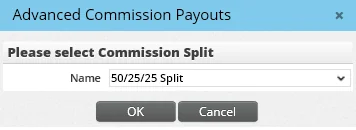
- Select the appropriate split definition (the choices are defined in the Split Definition section of Commissions Setup).
- Click the OK button to display the Commission Split Hierarchy Details editable spreadsheet.
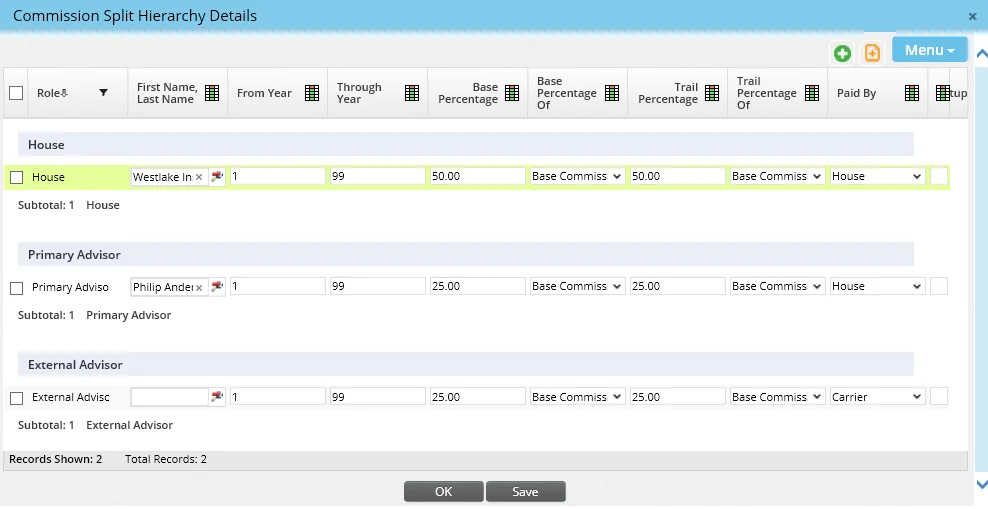
- Make sure that all fields in the First Name, Last Name column are completed. Enter any missing information, clicking the Save button to ensure that any changes are saved.
- Click the OK button to return to the regular view of the Advanced Commission Payouts dialog box.
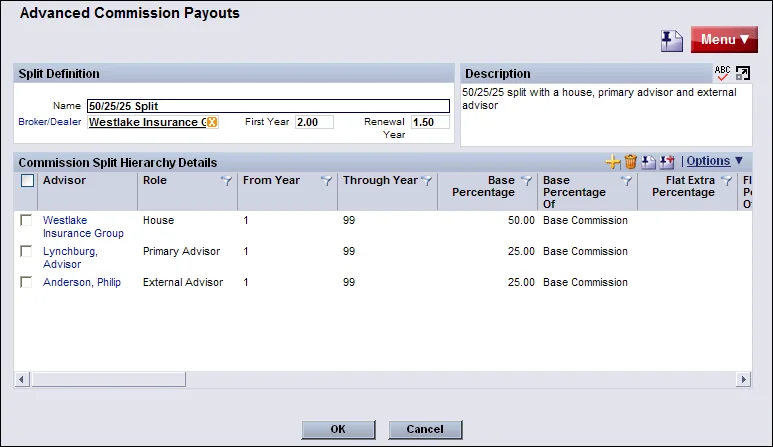
- Click the OK button.
Multiple Policies/Cases
- Perform a policy, group policy or pending case search.
- In the list of search results, tag two or more records.
Note: The tagged records must not already have a split assigned. Mass assignment works only on cases that do not have a split. Tip: To quickly identify policies containing a split, users who have the appropriate rights can add the Hierarchy Name column to the list layout.
- Select Menu > Advanced Options > Mass Assign Advanced Commission Split to open the Advanced Commission Payouts dialog box.
- Select the commission split to be assigned to the tagged records, and then click the OK button.
Changing the Commission Split Assigned to a Policy or Case
The user can change the commission split assigned to a single policy/case or on multiple policies/cases at the same time.
Single Policy/Case
- Search for the policy, group policy or pending case.
- Select the record, and then click the Detail content link (for a pending case or group policy) or Basic Information content link (for a policy).
- Select Menu > Advanced Commission Payouts to open the Advanced Commission Payouts dialog box.
- Do one of the following:
- To completely change the advanced commission payout, select Menu > Build Commission Split Hierarchy.
- To modify an individual advisor's payments, click the first-column hyperlink for that advisor (by default, the advisor's name) and change the rate for that advisor.
- When finished making changes, click the OK button.
Multiple Policies/Cases
- Search for the policies, group policies or pending cases.
- In the list of search results, tag two or more records to be modified.
Note: The tagged records must have the same commission split assigned to them. Mass modification does not work on records that have different commission splits.
Tip: To quickly identify policies containing the same split, users who have the appropriate rights can add the Hierarchy Name column to the list layout. For more information, refer to the List Layout Customization User Guide.
- Select Menu > Advanced Options > Mass Modify Advanced Commission Split to open the Advanced Commission Payouts dialog box.
- Select the new commission split to be assigned to the tagged records, and then click the OK button.
Note: The roles in the new split must match those in the original split. For example, if the original split definition includes the Primary Advisor, External Advisor and House roles, the new split must contain the same roles for mass modification to succeed.
- Make any necessary changes to the Broker-Dealer, First Year and/or Renewal Year fields.
- Click the OK button.
A confirmation message informs the user how many of the records were successfully changed and how many were not. To see details about records that were not changed, the user can select Commission Utilities > Error Log on the side menu.
Replacing an Advisor in an Advanced Commission Split for Multiple Policies or Cases
- Search for the policies, group policies or pending cases.
- In the list of results, tag one or more policies/cases.
- Select Menu > Advanced Options > Mass Modify Advisors in Advanced Commission Split to open the advisor selection dialog box.
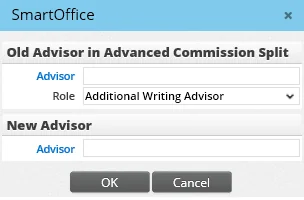
- Under Old Advisor in Advanced Commission Split, enter the name of the advisor that is being changed, as well as the advisor's role.
- Under New Advisor, enter the name of the advisor who will replace the previous advisor in the specified role.
- Click the OK button.
A confirmation message informs the user how many of the records were successfully changed and how many were not. To see details about records that were not changed, the user can select Commission Utilities > Error Log on the side menu.
Note that this process also changes the advisor on any open payable commission records.
Deleting Commission Splits for Multiple Policies or Cases
- Search for the policies, group policies or pending cases.
- In the list of results, tag one or more policies/cases.
- Select Menu > Advanced Options > Mass Delete Advanced Commission Split.
- When the confirmation message appears, click the Yes button.
Importing Illustration Data and Projecting Commissions
After advanced commission splits are established on a policy or case, illustration data must be imported or manually entered in order for commissions to be projected.
Note: Before an illustration can be imported, at least one illustration import template must be created in the Illustration Import section of Commissions Setup.
- Search for the policy, group policy or pending case.
- Tag the record in the list of search results, or open the record's Detail content link (for a pending case or group policy) or Basic Information content link (for a policy).
- Select Menu > Advanced Options > Illustration Import. If illustration data has not yet been imported for this policy/case, the Illustration Import dialog box opens.
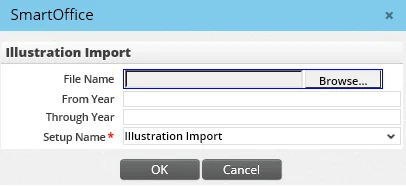
- Click the Browse button to locate and select the CSV-formatted illustration import file. If no import file is available, leave this field blank (illustration data can be entered manually in a later step).
- In the From Year and Through Year field, specify the years for which illustration data should be imported.
- In the Setup Name drop-down list, select the illustration import template to be used.
- Click the OK button to open the Commission Records from Illustration dialog box.
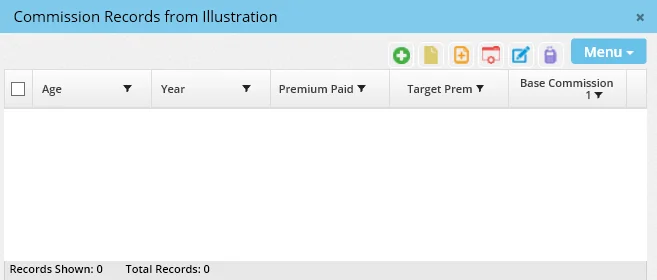
- If no import file was specified earlier—or if additional records need to be added to the imported records—add records manually as follows:
- To add a single record, select Menu > New 'Commission from Illustration' record.
- To add multiple records quickly using spreadsheet-style entry, select Menu > Add New List Row.
- Review the data displayed to ensure that it was entered correctly. Make any corrections as follows:
- To edit a single record, open it by clicking its first-column hyperlink (the age, by default). Then make any changes and click the OK button. - To edit multiple records quickly using spreadsheet-style entry, tag the records select Menu > Edit Multiple Records. - To change a specific field in multiple records at once, use the Mass Modify feature. - To delete one or more records, tag the records and select Menu > Delete 'Commission from Illustration' record.
- Click the Calculate Commission button to generate commission records. Note the following:
- Expected commission records will not be generated if Year is missing from the imported records.
- In order for the commission data to process correctly, the Policy Date and Payment Mode must be established on the policy. - Base Commission transactions are imported as an annual mode. SmartCommissions looks at the policy mode and breaks up this annual number modally for the house and all advisor records. This is also true for all other commission types except for Fee and Trail. - Trail Commission transactions are imported as annual transactions and remain annual. Trail premium is not broken up through the mode. This is also true with Fee Commission transactions. In addition, the date of the transaction will be the last date of the period instead of the policy effective date. For example, if the policy effective date is 1/1/2013, the trail and fee transactions will be due on 12/31/2013\.
- If commission processing was successful, the Expected Commission List displays.
Viewing Projected and Expected Commissions
Once commissions are projected, the user can view the commission transactions for a policy or pending case.
Opening the Projected/Expected Commissions List
- Search for the policy, group policy or pending case.
- Tag the record in the list of search results, or open the record's Detail content link (for a pending case or group policy) or Basic Information content link (for a policy).
- Select Menu > List Commission Records to open the Projected Commission List (for policies and group policies, the dialog box is titled Expected Commission List).
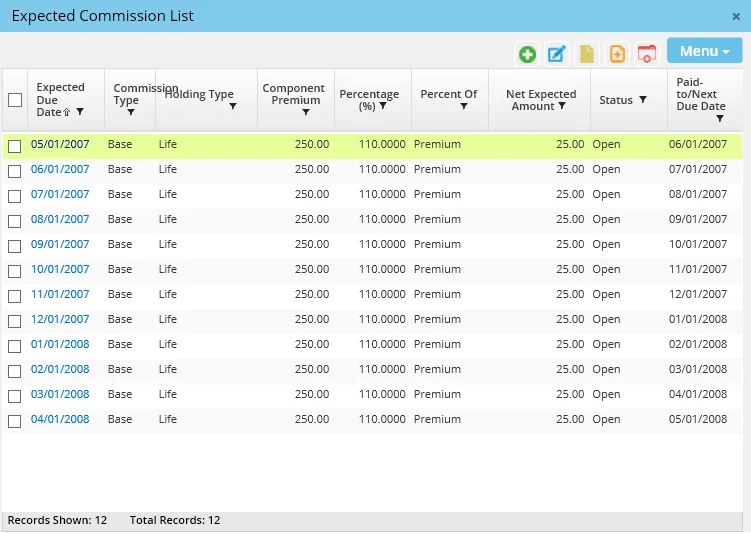
The Projected Commission List includes chargebacks and adjusting entries.
Tip: The Projected Commission List can also be access from the Policy Transactions content link of policy and pending case records as well as the Riders/Reinsurance content link of pending case records. From those pages, select Menu > List Commission Records.
Tip: The Expected Commission List can be printed and/or exported to Excel and other formats. Learn more about printing/exporting lists.
Viewing Commission Transactions Linked to an Advisor Contract
- Open an advisor's Cont./Appt. content link.
- Tag a contract in the Advisor Contract List.
- Click the Options button and select Linked Commpayable to open the Advisor Transaction List.
Viewing Commission Transaction Details
After opening the Projected/Expected Commission List, click a transaction's first-column hyperlink (the due date, by default) to view its details. The dialog box that opens differs somewhat depending on whether the transaction is projected or expected.
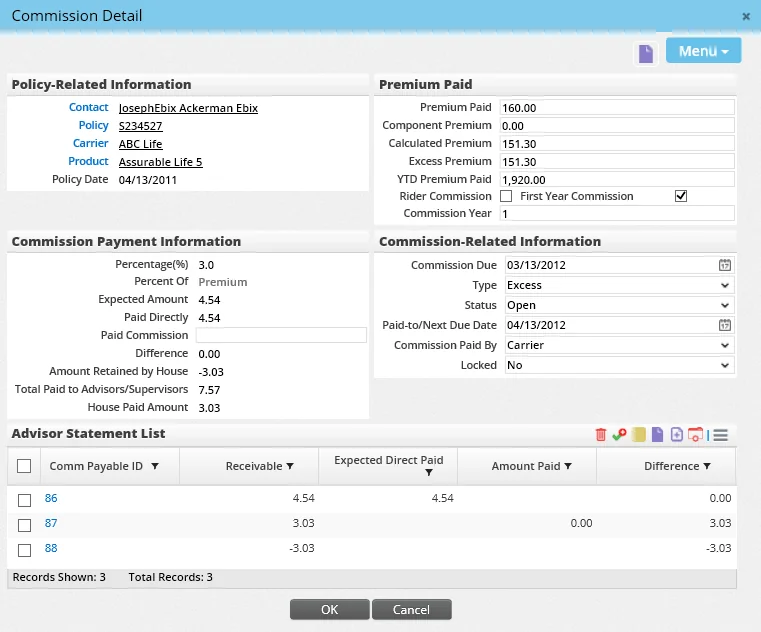
Projected Commission Detail
Expected Commission Detail
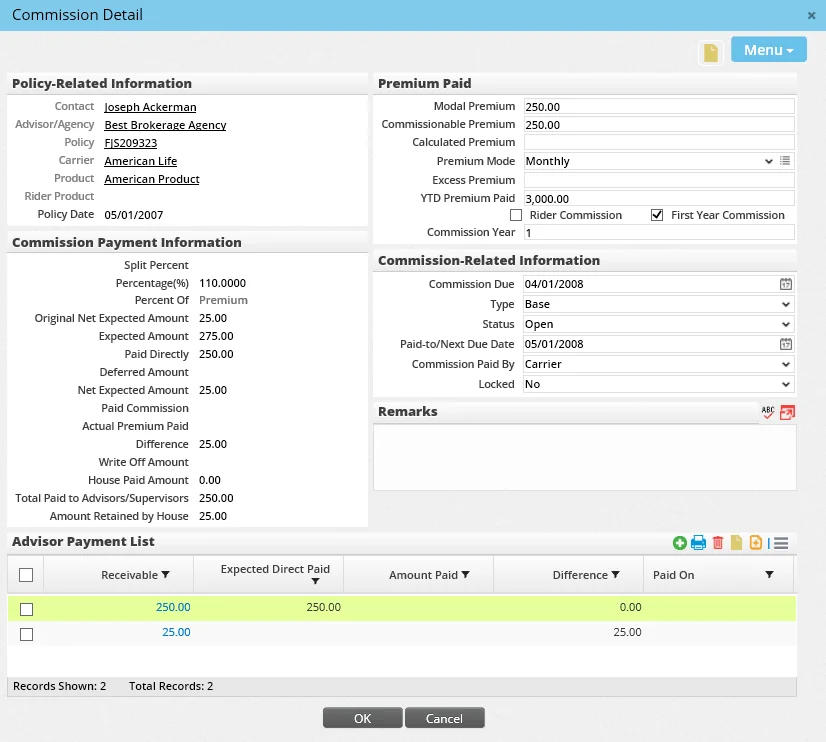
The house amounts are displayed in the top sections, while the advisor payments are displayed at the bottom.
Policy Related Information Section
- Contact: The insured on the policy.
- Advisor/Agency: (Expected commission records only) The primary advisor on the policy.
- Policy: The policy number assigned to the policy once it reaches an active stage.
- Carrier: The insurance carrier providing coverage.
- Product: The name of the product associated with the policy.
- Rider Product: (Expected commission records only) The rider attached to the policy.
- Policy Date: The effective date of the policy if is in an Issued or Inforce status.
Commission Payment Information Section
- Percentage(%): The gross percentage the house is receiving from the carrier.
- Percent Of: Identifies what the percentage represents. Premium is the most popular (for the house record, this is always Premium), but it could be commission paid on a policy.
- Original Net Expected Amount: (Expected commission records only) The original calculated amount expected from the carrier. This value is always retained and is not modified once the record goes paid; this allows for comparison reporting of expected versus actual received amounts.
- Expected Amount: The total expected premium to be paid to the house based on the gross contract percentage identified. Initially, it is calculated as commissionable modal premium x Percentage(%).
- Paid Directly: The total paid to advisors directly by the carrier.
- Deferred Amount: (Expected commission records only) Any commission amount deferred by the advisor.
- Net Expected Amount: (Expected commission records only) The amount expected on a commission statement. Depending on the way the transaction is reconciled, this amount may change. Initially, it is calculated as Expected Amount – Paid Directly.
- Paid Commission: The actual commission amount paid to the house by the carrier. This can be entered manually or filled in during speed receipt entry.
- Actual Premium Paid: The actual premium paid versus the expected premium. This field is filled in during the reconciliation process.
- Difference: This amount is calculated as Net Expected Amount – Paid Commission. The net amount that the house expects to receive on the commission statement.
- Write Off Amount: (Expected commission records only) The difference amount of the transaction written off during reconciliation.
- Amount Retained by House: The final revenue amount kept by the house after all parties have received payment. It is calculated as the Net Expected Amount minus all advisor transactions marked as paid by House.
- Total Paid to Advisors/Supervisors: All commission paid by both the house and carrier to all advisors and supervisors. This field can be used in commission reports.
- House Paid Amount: The total of all payments made by the house, including advisor and supervisor payments.
Premium Paid Section
- Modal Premium: (Expected commission records only) The amount of premium the insured is paying.
- Commissionable Premium: (Expected commission records only) The commissionable amount of premium up to Target/Base.
- Premium Paid: The amount of premium the insured has paid on this commission statement. For projections, this value reflects the full modal premium.
- Component Premium: The commissionable modal premium used for commission calculations.
- Calculated Premium: If the premium type is Base, this value is the base component (or the same as the component premium). If the premium type is Excess, this value is the premium noted in the Excess Premium field. This field enables users to see a proper breakdown of premium when creating commission reports.
- Premium Mode: (Expected commission records only) This value is pulled from the policy record.
- Excess Premium: The amount of the modal premium that is excess. The sum of the excess and the component premium should total the amount paid by the customer.
- YTD Premium Paid: A running total of the premium paid for this policy year.
- Rider Commission: This option is selected when the transaction is for the rider on the policy.
- First Year Commission: This option is selected if the transaction is based on first-year rates. If it is cleared, the transaction is based on renewal-year rates.
- Commission Year: Displays the year (count) for which this record was generated.
Commission Related Information Section
- Commission Due: The date the transaction is due from the carrier.
- Type: The premium type (base, rider, excess, trail). This determines which rate is used for this calculation.
- Status: The current status of this transaction. Here is a list of statuses (for more information about these statuses, see Carrier Posting and Batch Processing):
- Open: The amount has not been received from the carrier. - Reconciled: The amount was received from the carrier, and the amount expected matched the amount received. - Write-off: The amount was received from the carrier but did not match the expected amount. - Charge-back: The amount is a chargeback of a previous payment. - Processed: The transaction has been processed through the commission system but has not been paid yet. - Suspense: The amount was received, but the outcome has not yet been determined (i.e., the transaction has not been reconciled or written off). Note: If the stage of a pending case or policy is changed to Inactive, the system automatically changes all projected/expected commission records to a Closed status.
- Paid-to/Next Due Date: The paid-to date of the policy.
- Commission Paid By: The entity paying the commission (Carrier or House).
- Locked: This option indicates whether this payment transaction is locked because it is linked to a commissionable premium transaction. Commissionable premium transactions are listed on the Policy Transactions content link of a policy. For more information, refer to the SmartPolicies User Guide.
Advisor Payment List Section
The Advisor Payment List provides a detailed breakdown of how the Net Expected Commission is split to lower levels. To display the details of any payout, click its first-column hyperlink (the due date, by default) to open the Advisor Payment Detail dialog box.
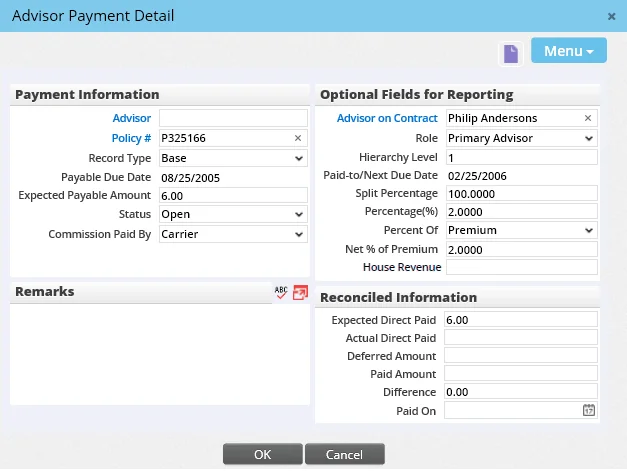
Note the following:
- Only users who have the Administrative Database Maintenance user right can edit the Payable Due Date field.
- To calculate the value in the House Revenue field, SmartOffice multiplies the commission transaction's Amount Retained by House value (see Viewing Commission Transaction Details) by the advisor's split percentage on the policy. The system automatically populates this field when the associated commission batch is processed and clears the field if the batch is unposted.
Other Projected/Expected Commission List Actions
Displaying Parties Receiving Payouts
The Advisor Commission List displays all parties that will receive a payout on a case.
- From the Projected/Expected Commission List, select a transaction.
- Select Menu > Show Advisor Commission List to open the list.
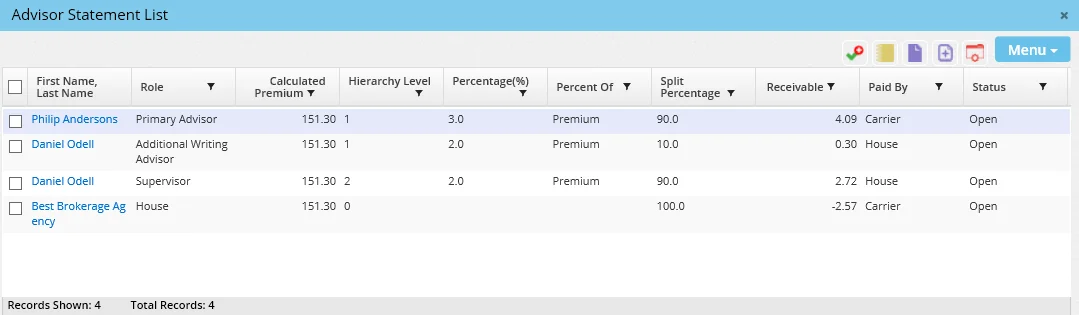
The house account, always identified at hierarchy level 0, will have a transaction representing the net commission after all parties have been paid by the house. Click on an advisor's name to view details about that advisor's payout.
Adding a Projected/Expected Commission Transaction Manually
- From the Projected/Expected Commission List, select Menu > New 'Expected Commission' record.
- Enter the commission due date (required), type (e.g., Base) and other details, and then click the OK button.
The transaction is generated based on the rates set up in the system for period defined by the due date and the type.
If the advanced commission split method of commission payment is being used, the user can select Menu > New (Comprehensive) to quickly enter expected commission record (this command is not available under the rate-based payment method.
Editing Multiple Projected/Expected Commission Transactions at Once
- From the Projected/Expected Commission List, tag the records to be edited.
- Select Menu > Edit Multiple Records to open a spreadsheet-style dialog box.
- Edit the records as necessary. Use the TAB key to jump quickly from field to field.
- When finished with all changes, click the OK button.
Deleting Projected/Expected Commission Transactions
- Transactions that are not processed or reconciled can be deleted.
- From the Projected/Expected Commission List, tag the records to be deleted.
- Select Menu > Delete 'Expected Commission' record.
Viewing or Adding Notes about Projected/Expected Commission Transactions
- From the Projected/Expected Commission List, tag one or more records.
- Do one of the following:
- To view notes for the selected records, select Menu > View Expected Commission Notes.
- To create a note for the selected records, select Menu > New Expected Commission Note.
For more information about working with notes in SmartOffice, see Contacts and Businesses - SmartPad.
Closing Projected/Expected Commission Transactions
The user can close a transaction so that it does not display in Carrier Posting when transactions are being reconciled. This feature is useful when the user does not know how much commission was received from the carrier for an old transaction and is therefore unable to reconcile that transaction.
- From the Projected/Expected Commission List, tag one or more records.
- Select Menu > Set Status Close.
If a transaction was closed accidentally, tag it and select Menu > Set Status Open to reopen it.
Creating a Chargeback Transaction
To generate a chargeback that is an exact reversal of a paid transaction:
- From the Projected/Expected Commission List, tag one or more records.
- Select Menu > Create Charge Back to create the chargeback.
- If only a portion of the premium is being charged back:
- Open the new chargeback transaction. 2. Modify the Modal Premium value. 3. Select Menu > Recalculate the expected commission amounts. The system recalculates the expected commission based on the newly entered premium.
Displaying Linked Speed Receipts
If a transaction is linked to a speed receipt record, the user can view that record directly from the list.
- From the Projected/Expected Commission List, tag a record.
- Select Menu > Show Linked Speed Receipt.
If the record is linked to a speed receipt, the speed receipt record displays. Otherwise, a message informs the user that the record is not linked to a speed receipt.
Calculating or Recalculating Projected/Expected Commission Transactions
The user can quickly calculate or recalculate expected commissions on a policy or case directly from the Projected/Expected Commission List.
Note: This option is available only for policies that use a contract and rates. Commissions cannot be calculated in this way for policies that use an advanced commission split; for these policies, the user must either enter commission transactions manually or perform an illustration import.
- From the Projected/Expected Commission List, tag a record.
- Do one of the following:
- For policies and group policies, select Menu > Calculate Commission.
- For pending cases, select Menu > Project Commissions for PCM.
Listing Projected Commission Records (Policies and Group Policies Only)
After a policy has been issued, the user may want to see the commission projections that were generated while the case was in underwriting. This can be useful, for example, when the user needs to reproject those commissions for reporting purposes.
To view projected commission records, from the Expected Commission List, select Menu > List Projected Commission Records.
Troubleshooting Commission Projections
When commission calculations do not complete successfully in a contract/rate-based setup, use the information in this section to help identify and correct any issues.
Verifying the Contract Attached to a Policy or Case for the Writing Advisor
To find out whether a contract has been assigned to a policy or pending case:
- Search for the policy, group policy or pending case.
- Select the record, and then click the Detail content link (for a pending case or group policy) or Basic Information content link (for a policy).
- Do one of the following:
- For a policy or pending case, find the primary advisor in the Policy Advisor List and click the first-column hyperlink (the advisor's role, by default) to open the Policy Advisor Information dialog box. - For a group policy, click the button just to the right of the Primary Advisor field to open the Policy Advisor List, and then click the first-column hyperlink (the advisor's role, by default) to open the Policy Advisor Information dialog box.
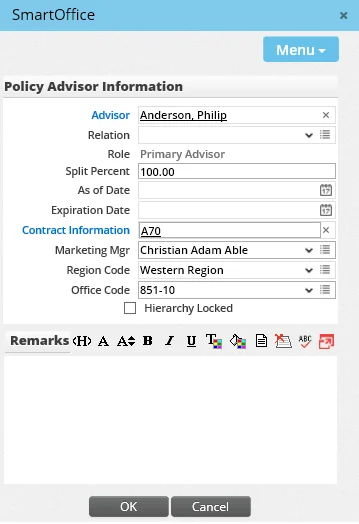
- If no contact is specified in the Contract Information field, click the Contract Information hyperlink to search for and select a contract. A common reason that a contract is not automatically assigned to a policy or case is that the policy effective date does not fall within the effective and expiration dates of the contract (see House, Supervisor and Advisor Setup for the Commission Hierarchy).
- Ensure that the Split Percent field contains a valid value.
- Click the OK button.
Verifying the Commission Hierarchy for the Writing Advisor
The hierarchy for an advisor is determined by the contract selected for the policy or case. Once the appropriate contract has been selected for a policy or case, follow these steps to display the hierarchy:
- Search for the policy, group policy or pending case.
- Select the record, and then click the Detail content link (for a pending case or group policy) or Basic Information content link (for a policy).
- In the Policy Advisor List, select the writing advisor, and then click the Options button and select Show Hierarchy to open the Commission Hierarchy dialog box.
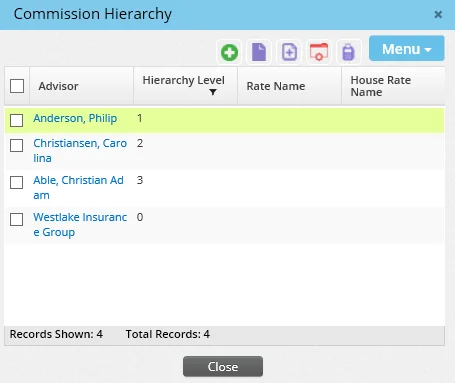
The Commission Hierarchy displays all parties in the hierarchy chain. A house account must be listed at hierarchy level 0\. The advisor is always listed at hierarchy level 1\. All supervisors associated with the advisor are listed at hierarchy level 2 and up. Common errors that can be determined from this dialog box include:
- Missing supervisors: If there are missing supervisors, verify that the writing advisor is pointing to the appropriate supervisor/contract combination. Also, verify that the supervisor's contract is associated with the appropriate supervisor/contract combination. For more information, see House, Supervisor and Advisor Setup for the Commission Hierarchy.
- Undefined rates: In the preceding example, note that validated commission rates have been identified. A carrier rate is identified for Best Brokerage Agency and advisor Philip Anderson, and a house rate is identified for Philip Anderson and supervisor Daniel Odell. If any of these rates were missing, it would indicate that the system was unable to link valid rates to the appropriate contract. To correct this issue, return to the commission rate setup area of the system and establish rates for the missing contract. If rates already exist, verify that the proper effective/expiration date range and banding ranges have been established. Once rates have been identified, return to Commission Hierarchy dialog box and rebuild the commission hierarchy.
- Hierarchy not found: This error displays when the advisor is not set up with an appropriate contract. To resolve this issue, see Verifying the Contract Attached to a Policy or Case for the Writing Advisor.
- Click the Close button.
From the Commission Hierarchy dialog box, the user can also perform the following actions as part of the troubleshooting process:
- Add a party to the hierarchy.
- Delete a supervisor from the hierarchy.
- Rebuild the hierarchy.
- Add notes to a party in the hierarchy.
- Change the order of the hierarchy.
- Change a commission rate for a single case.
The following sections describe these actions in detail.
Adding a Party to the Commission Hierarchy
While verifying the hierarchy for the writing advisor on a policy or case, the user can add parties to the commission hierarchy directly from the Commission Hierarchy dialog box. The only restrictions to adding a party to the hierarchy in this manner are:
- The added party must have a contract defined on his or her advisor record for the specified carrier.
- The rates must be defined.
To add a party to the hierarchy:
- From the Commission Hierarchy dialog box, select Menu > New 'Commission Hierarchy' record to open the Commission Hierarchy Detail dialog box.
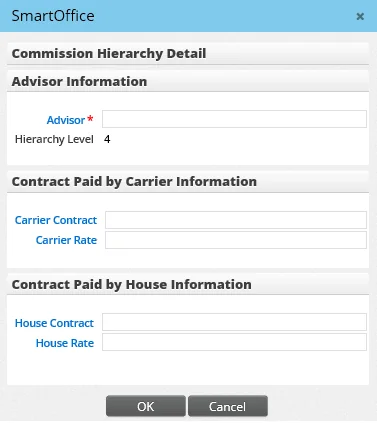
- Click the Advisor hyperlink to search for and select the new advisor.
- Click the appropriate contract hyperlink (Carrier Contract or House Contract) to select a contract.
- Click the appropriate rate hyperlink (Carrier Rate or House Rate) to select a rate.
- Click the OK button.
Deleting a Supervisor from the Commission Hierarchy
While verifying the hierarchy for the writing advisor on a policy or case, the user can remove a supervisor from the Commission Hierarchy dialog box. Only supervisors can be deleted from the hierarchy.
- From the Commission Hierarchy dialog box, select the supervisor.
- Select Menu > Delete 'Commission Hierarchy' record. Supervisor record that you would like to delete and then click the Delete button.
Rebuilding the Commission Hierarchy
While verifying the hierarchy for the writing advisor on a policy or case, the user can rebuild the commission hierarchy. The most common reasons for doing so are:
- An advisor contract was not pointing to the appropriate supervisor.
- Rates were not established for the carrier, product and contracts for all parties on the policy or case.
Once these issue have been corrected, rebuild the hierarchy by selecting Menu > Rebuild Hierarchy.
Adding Notes to a Party in the Commission Hierarchy
While verifying the hierarchy for the writing advisor on a policy or case, the user can log a note regarding the hierarchy if necessary. The note will be logged to the advisor for the corresponding policy or case. Tag a party in the hierarchy, and then select Menu > New Commission Hierarchy Note to create a note.
To view existing notes, select Menu > New Commission Hierarchy Notes. For more information about working with notes, see SmartPad.
Changing the Order of the Commission Hierarchy
The order of a hierarchy can be important for successful commission projections. It is especially important when using rate percentages that are based on other parties in the hierarchy. One example is a cumulative rate, in which the amount a person in the hierarchy is paid is directly related to other parties and their locations in the hierarchy (see Rates for more information).
While verifying the hierarchy for the writing advisor on a policy or case, the user can change the order of the hierarchy. Note the following:
- The writing advisor is always the first person in the hierarchy. This cannot be changed.
- The house account is always at the top of the hierarchy. This cannot be changed.
- The hierarchy position of any supervisor identified on Level 2 and above can be changed.
To change the hierarchy order:
- From the Commission Hierarchy dialog box, select Menu > Change the Commission Hierarchy Order to open the Change Order dialog box.
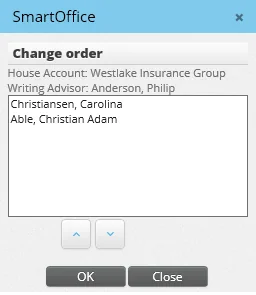
- Select a record, and then click the up or down arrow button to change the order.
- Click the OK button.
Changing a Commission Rate for a Single Case
While verifying the hierarchy for the writing advisor on a policy or case, the user can change a commission rate for a single case.
- From the Commission Hierarchy dialog box, select a record.
- Select Menu > Advanced Options > Show Commission Rate to view the commission banding information.
- Enter the rate (see Rates) to open the Save Commission Rate dialog box.
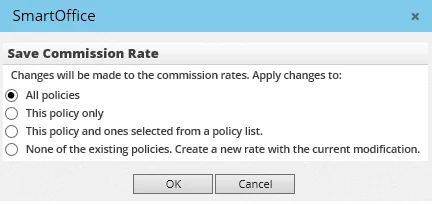
- Select the appropriate option:
- All policies: This option changes all policies associated with this rate. Once the rate is changed, all of the existing policies must be revalidated in the Invalid Policy List section of Commissions Setup.
- This policy only: This option creates a unique rate and associates it with this policy only. No other rates are affected. - This policy and ones selected from a policy list: This option creates a unique rate for this policy and enables the user to select additional policies that will get the new rate. - None of the existing policies. Create a new rate with the current modification: This option changes no current cases. Instead, it adds a second rate for cases in the future.
- Click the OK button.
Using the Commissions Error Log
The Error Log helps the user identify any errors that may have occurred during the process of projecting commission transactions. Using the log, the user can determine what steps need to be taken to resolve the issue. The Error Log menu option is used by the CTM Administrator to view all commission errors generated within the system. Errors are logged at the policy level and are consolidated within the Error Log.
Accessing the Error Log
To view and correct any errors that may have occurred with a given policy during commission projections:
- From the SmartOffice side menu, select Commission Utilities > Error Log from the expanded menu to open the Search Commissions Error Log dialog box.
- Click the Search button to display the Commission Error Log List.
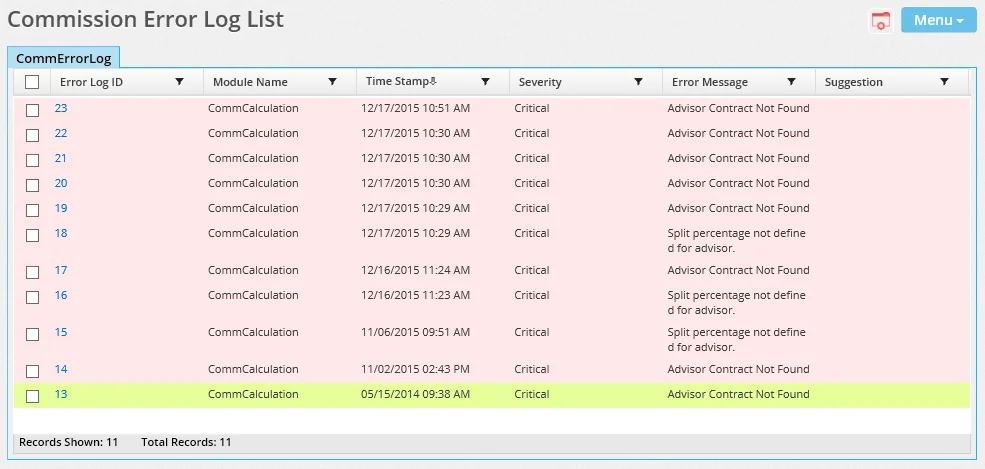
Understanding Common Errors
- Commission record already exists for specified date range: A user attempted to reproject commission records for a date range for which projections already exist. To resolve this issue, view the list of commission records and delete any existing projections for the period being projected. Then use the Menu > Project Commissions for PCM command to recalculate the commission records manually.
- No commission rate attached to the case: This error can occur when a contract is not established properly or the rates for the contract have not been defined. Look at the effective/expiration date of a contract as well as the lines of business. For the rates, it is critical to view the effective/expiration date as well as all of the banding parameters that could make a rate unique. Once rates are established for this carrier/product/contract, return to the case and use the Project Commissions for PCM command.
- Policy advisor record not found: This error indicates that the writing advisor was not properly assigned to this case.
- Commission hierarchy not found: This error indicates that someone in the hierarchy chain is not pointing to an appropriate supervisor/contract combination. Each person in the hierarchy must chain together until a house account is identified at the top of the hierarchy. See Verifying the Commission Hierarchy for the Writing Advisor for troubleshooting steps.
- Modal premium not specified for the case: This error indicates that a commissionable modal premium was not identified and is needed for the calculation. To resolve this issue, click the Modal Premium hyperlink on the pending case Detail content link and verify that there is a premium number in the base commission.
- Commission rate banding not found: This error indicates that banding criteria such as date, age, face amount, option or state was not found for this case. Resolve this error by locating the incorrect rates and editing them (see Rates).
- Rider rate for house not defined: This error relates to the rider portion of a case. Each rider has a unique product identified so that specific rates can be identified. To resolve this issue, open the rider record and verify that rates are identified for the house and advisor contracts by selecting Menu > Advanced Options > Show Commission Rates.