Last updated: 2025-09-19
SmartCommissions - Carrier Posting
- Overview
- Setup
- Understanding Reconciliation Options
- Writing Off the Difference
- Creating a Balance Due/Excess Pay Record
- Placing a Transaction in Suspense
- Modifying Advisor Commissions
- Creating a Carrier Posting
- Speed Receipt Method
- Manual Method
- Advisor Payment Import Method
- Viewing Carrier Postings
- Carrier Posting Search
- Carrier Posting Fields and Columns
- Deleting a Carrier Posting
- Reconciling Commission Transactions
- Basic Reconciliation Steps
- Unreconciling Transactions
- Closing Transactions
- Deleting a Transaction
- Adding an Adjusting Entry
- Adding a Partial Chargeback
- Viewing All Suspense Transactions at Once (Suspense Items)
- Additional Reconciliation Tools
- Auto-Reconcile Posting
- Advance Commission
- Reproject Commission
- Show Linked Speed Receipt
- Updating Carrier Posting Status
- Advisor Payment List
- Accessing the Advisor Payment List (Payment Search)
- Moving Transactions to the History List
- Generating an Advisor Commission Report
- Releasing Held Commissions
- Modifying the Advisor Payment
- Adding an Adjusting Entry
- Entering an Advance
- Generating Out-of-Batch-Cycle Checks
Overview
Carrier Posting is the portion of SmartCommissions that enables users to reconcile expected commission amounts with actual amounts received. When the amounts are the same, a transaction is considered reconciled. When a difference exists, the user has a number of reconciliation options available.
Commission transactions are moved into Carrier Posting using these methods:
- Speed Receipts
- Manual data entry (e.g., paper statements)
- Advisor Payment Import
Once transactions are reconciled in Carrier Posting, they can be moved to Batch Processing so that statements can be generated for advisors and payments can be made to the appropriate parties.
Setup
Carrier Posting relies on several settings in the Carrier Posting section of Commissions Setup. The administrator who sets up the SmartCommissions system should ensure that the proper options have been selected.
Understanding Reconciliation Options
Before learning how to reconcile transactions in Carrier Posting, the user should understand the reconciliation options available in SmartCommissions when the actual and expected commission amounts differ.
Writing Off the Difference
If the expected and actual amounts received are "close enough" within the limits configured by the administrator in Carrier Posting Setup section of Commissions Setup, the difference can be written off. The advisor or supervisor receives the amount expected, and the amount retained by the house is adjusted up or down based on the difference.
Creating a Balance Due/Excess Pay Record
When the user chooses to create a Balance Due or Excess Pay record, a portion of the transaction is marked as reconciled, and a second transaction is created for the portion that was more or less than the expected amount. This option is useful when the user wants to make sure that the balance due/excess amount is logged so that it displays in future statements.
Placing a Transaction in Suspense
If a transaction cannot be reconciled but the remaining transactions must be moved to Batch Processing so that advisor statements can be generated and checks written, the user can place the transaction is suspense and review it at a later time. A suspense transaction remains linked to the carrier posting record and does not have to be reconciled or written off.
Modifying Advisor Commissions
This action lets the user reconcile the transaction and update the advisor payment based on the actual amount received from the carrier. In the relevant policy record, the Expected Commission List will display a closed transaction representing the difference, i.e., the amount that was not paid on the transaction.
This reconciliation option can be used when the payment type to the advisor is percentage of base commission.
Creating a Carrier Posting
Speed Receipt Method
The most common method for creating a carrier posting is from the Speed Receipts area of the system (for instructions, see Speed Receipts). After creating a carrier posting in Speed Receipts, the user can proceed directly to viewing a carrier posting.
Manual Method
If a user does not have access to Speed Receipts—or if a user has a commission statement with a small number of transactions (100 or fewer) and simply wants to bypass Speed Receipts—the user can create a carrier posting using the following manual method:
- Do one of the following:
- From the SmartOffice side menu, select Commission Utilities > Carrier Posting to open the Search Carrier Postings dialog box. Then click the New button.
- From the Detail content link of an existing carrier posting record, select Menu > New 'Carrier Posting' Record.
- When the Carrier Posting dialog box opens, enter the carrier name, check date, deposit date, check number and check amount in the appropriate fields.
- Click the Post Check button. The carrier posting Detail content link displays.
- Proceed to viewing a carrier posting.
Advisor Payment Import Method
See Advisor Payment Import - Creating an Advisor Transaction Posting.
Viewing Carrier Postings
Carrier Posting Search
- From the SmartOffice side menu, select Commission Utilities > Carrier Posting to open the Search Carrier Postings dialog box.
- Enter criteria (e.g., carrier name, check date, deposit date, etc.) to narrow the search, or leave the fields at their default values to display all open carrier postings.
- Click the Search button to display the Carrier Posting List.
Carrier Posting Fields and Columns
To open a carrier posting from the Carrier Posting List, use one of these methods:
- Click its first-column hyperlink (the date it was posted, by default).
- Tag the carrier posting, and then click the Detail content link.
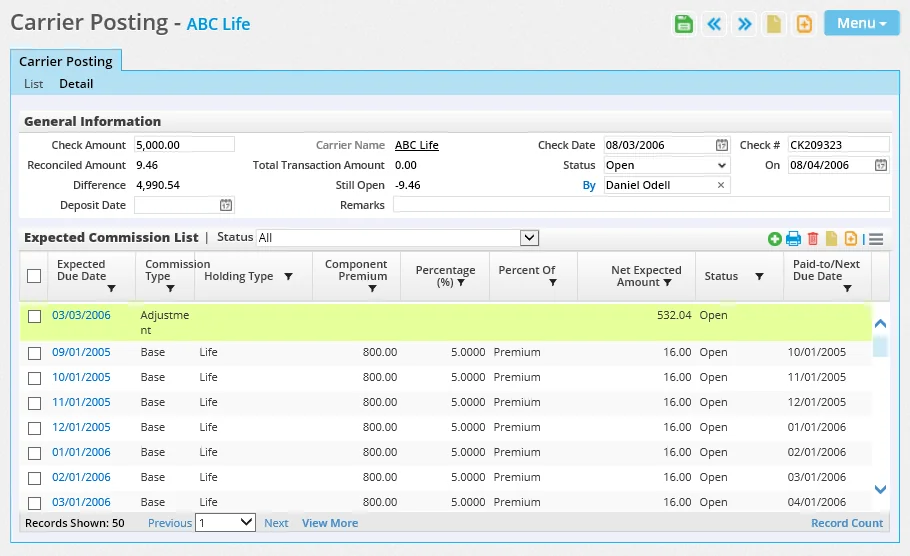
The carrier posting's Detail content link displays general information about the posting as well as the list of expected commissions.
 and selecting List Options > Export List (for more information about exporting data from SmartOffice, see Printing or Exporting a List).
General Information Section
Key fields in the General Information section include:
- Reconciled Amount: This field displays the total actual commission amounts paid on reconciled transaction. When a transaction in the Expected Commission List is reconciled using any of the available reconciliation options, the actual amount paid for that transaction is added to the Reconciled Amount field.
- Difference: This is the difference between the amounts in the Reconciled Amount and Check Amount fields.
- Total Transaction Amount: This is the sum of the Actual Amount Paid values of all transactions in the Expected Commission List, whether they are reconciled or not.
- Still Open: This is the difference between the amounts in the Total Transaction Amount and Reconciled Amount fields.
- Status: This field indicates whether the carrier posting is ready to be included in a commission batch. If the status is Open, the posting cannot be included in a batch. For more information, see Updating Carrier Posting Status.
Expected Commission List Section
The main purpose of the Expected Commission List of a carrier posting record is to tell the user whether the transactions from the carrier have been reconciled with the expected commission records in SmartOffice. The Expected Commission List displays transactions based on the following criteria:
- The Commission Tracking Years field in the Carrier Posting Setup section of Commissions Setup.
- The due date of each expected commission (it must be earlier than or the same as the date of the check received from the carrier).
- The status of the associated policy (it must be Active).
- The Track Comm. option on the associated policy's Basic Information content link (it must be selected).
To view the details of any transaction listed, click its first-column hyperlink (the policy number, by default). The Commission Detail dialog box opens.
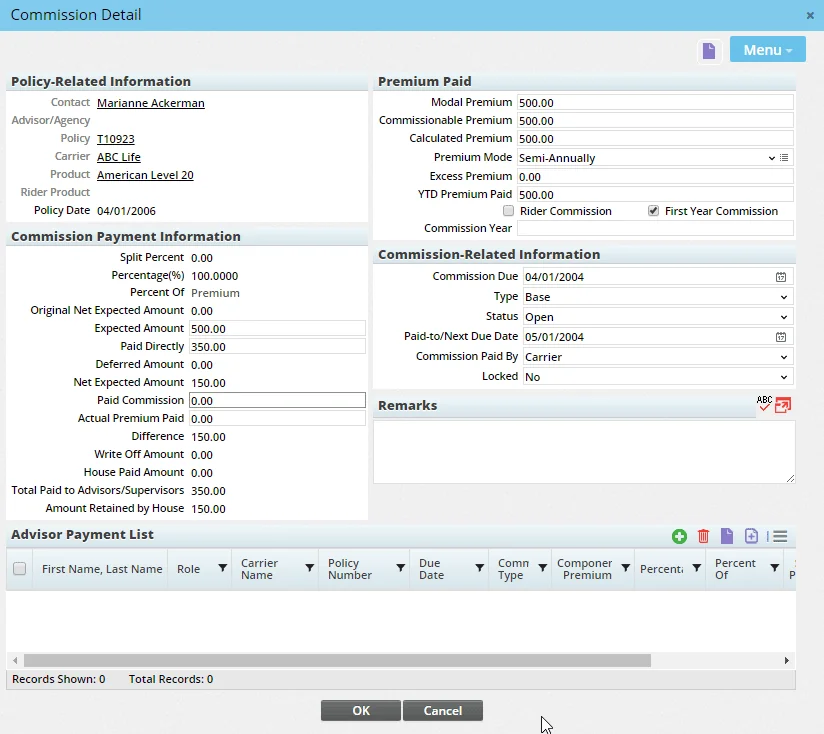
Transactions displaying an Open status must go through the reconciliation process before the carrier posting can be sent to Batch Processing.
The list of transactions can be filtered by status using the Status drop-down list at the top.
One useful column that can be added to the Expected Commission List is the Policy Alert column. The column gives SmartCommissions users a way to read alerts related to the policy linked to a particular transaction. Alerts display as hyperlinked text in this column. Click the text to view the full alert.
For more information about policy alerts, see Record Alerts.
Deleting a Carrier Posting
- From the SmartOffice side menu, select Commission Utilities > Carrier Posting to open the Search Carrier Postings dialog box.
- Click the Search button to display the Carrier Posting List.
- Tag the posting and select Menu > Delete 'Carrier Posting' record.
Reconciling Commission Transactions
Basic Reconciliation Steps
The steps for reconciling a transaction in the Expected Commission List of a carrier posting vary depending on whether the transaction shows an amount in the Actual Amount Paid column (in the commission transaction record itself, this amount is shown in the Paid Commission field).
Transactions with Actual Amount Paid
Note: When the actual amount paid is present and matches the net expected amount, SmartOffice automatically reconciles a transaction, and the steps below are unnecessary. In this scenario, SmartOffice also copies the value in the transaction's Calculated Premium field to the Actual Premium Paid field.
- Open the carrier posting record if it is not already open (see Viewing Carrier Postings).
- Tag one or more open transactions in the Expected Commission List.
- Click the Options menu and select the reconciliation option to be applied to the selected transactions (these options are described in Understanding Reconciliation Options):
- Reconcile (this option writes off the difference)
- Move to Suspense - Create a Balance Due/Excess Pay Record - Modify Advisor Commissions
- If the Reconcile option is selected and SmartOffice displays the message "Some records cannot be reconciled. Write them off?" click the Yes button. Note that the administrator may limit the amount that can be written off (see Commissions Setup).
Transactions with No Actual Amount Paid
- Open the carrier posting record if it is not already open (see Viewing Carrier Postings).
- Obtain the actual amount paid for a transaction from the carrier statement.
- If the actual amount matches the amount in the Net Expected Amount column of the commission transaction in SmartOffice, tag the transaction, click the Options button and select Reconcile. SmartCommissions automatically enters a value in the Actual Amount Paid column equal to the value in the Net Expected Amount column, and the transaction is marked Reconciled. In addition, SmartOffice copies the value in the transaction's Calculated Premium field to the Actual Premium Paid field. No further action is necessary.
- If the actual amount paid differs from the net expected amount, proceed to the next step.
- From the Expected Commission List, open the expected commission record (see Viewing Carrier Postings).
- Enter the actual amount paid from the carrier statement in the Paid Commission field.
- (Optional) Enter the premium amount paid in the Actual Premium Paid field.
- Click the OK button.
- If the actual and net expected amounts match, the transaction is marked as Reconciled in the Expected Commission List.
- If the actual and net expected amounts differ, the system prompts the user to select a reconciliation option (these options are described in Understanding Reconciliation Options).
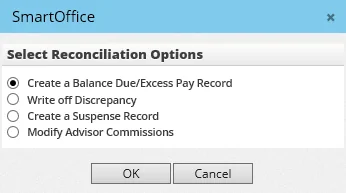
Select the appropriate option and click the OK button.
- Close the Commission Detail dialog box.
Unreconciling Transactions
If the user reconciles a commission transaction in error or simply needs to unreconcile it for any other reason, the user can move the transaction back to an Open status.
- Open the carrier posting record if it is not already open (see Viewing Carrier Postings).
- Under General Information, make sure that the message "Linked to Batch" does not appear under the carrier posting's Status field. If the carrier posting is linked to a commission batch, unlink it before continuing (for more information, see Creating a Commission Batch).
- Select Open from the Status drop-down list if it is not already selected, and then select Menu > Save.
- In the Expected Commission List, tag one or more reconciled transactions.
- Click the Options button , and then select Un-Reconcile.
Closing Transactions
A transaction in the Expected Commission List can be closed if no payment is expected on that transaction. This is a common situation for new SmartCommissions users dealing with old commission transactions. These transactions should be closed so that the no longer display on expected commission revenue reports or in Carrier Posting.
and select Set Status Close.
and select Set Status Open to reopen it.
Deleting a Transaction
To delete an expected commission transaction from the carrier posting:
- In the Expected Commission List, tag one or more transactions.
- Click the Options button and select Delete 'Expected Commission' Record.
Adding an Adjusting Entry
Add an adjusting entry to the Expected Commission List when the carrier sends commission amounts that are not related to a particular policy and that need to be added to the carrier posting to balance the check.
- In the Expected Commission List, click the Options button and select New 'Expected Commission' record to open the Commission Detail dialog box.
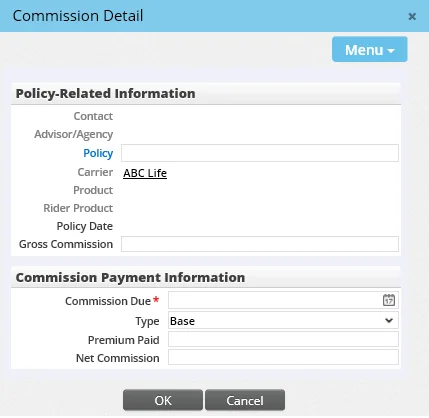
- Enter the gross commission, commission due date, commission type and the actual premium paid in the appropriate fields.
- Note that if the type is set to Base, Excess or anything other than Adjustment, the system will apply the appropriate rate from the rate file for all parties in the hierarchy. If the type is set to Adjustment, the user will have to enter all levels of hierarchy receiving an adjustment (see below).
- Click the OK button. If the type was set to anything other than Adjustment, the transactions are generated and no further action is required. If the commission type was set to Adjustment, continue to the next step.
- When the Advisor & Agency List displays, do one of the following:
- To pass some of the adjustment funds to one or more advisors, tag the appropriate advisors and click the OK button.
- If no funds are to be passed to advisors, click the Cancel button.
- If advisors were selected in the previous step, verify the advisor name, record type, expected payable amount (this is the amount the advisor will be paid), commission paid by, percentage and split percentage.
- Click the OK button.
Adding a Partial Chargeback
The steps for adding a partial chargeback are essentially the same as the steps for adding an adjusting entry. The only difference is that the Paid Commission and Actual Premium Paid amounts that the user enters will be negative.
Viewing All Suspense Transactions at Once (Suspense Items)
The Suspense Items feature displays a consolidated list of transactions that are in a suspense status (see Understanding Reconciliation Options), regardless of which carrier posting they are linked to.
To access the Suspense Items list, select Commission Utilities > Suspense Items from the SmartOffice side menu.
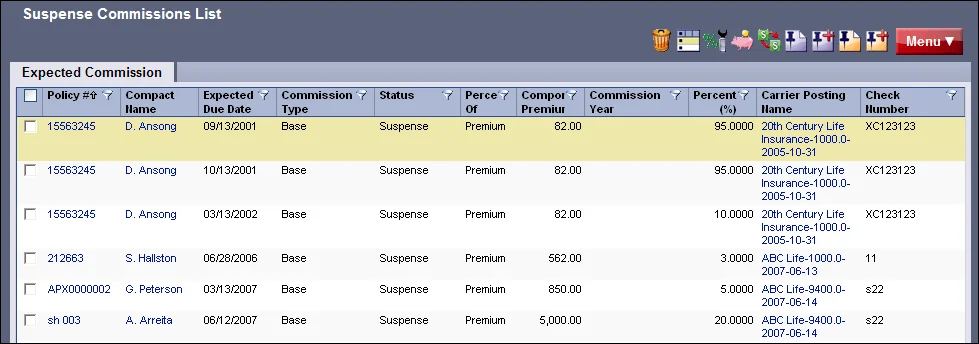
The list offers the user a quick way to review suspense transactions all at once and decide whether to write them off, create balances due or modify advisor payments based on the amount received from the carrier. These options are available from the Menu button.
Note: If a suspense transaction is cleared after the carrier posting to which it is linked has already been through batch processing, the transaction must be added to a carrier posting that has not yet been processed and then included in a future batch. When setting up this batch, make sure to select the Release commissions for cleared suspense items option (see Creating a Commission Batch).
Additional Reconciliation Tools
Auto-Reconcile Posting
Auto-reconciliation enables the user to take any difference between the check amount and the reconciled amount in a carrier posting and place that money into a house-level adjusting entry. This feature is useful when there is an amount of renewal commission that the user does not want to manually reconcile with a large group of policies.
- Open the carrier posting record if it is not already open (see Viewing Carrier Postings).
- Select Menu > Auto Reconcile Posting.
Advance Commission
This feature is useful when the carrier has sent payment of future expected modal premium payments.
Because carrier postings normally do not display expected commission transactions that are due after the check date, this feature essentially enables the user to override that system check and add a future expected commission transaction to the carrier posting. The user can then reconcile the advance payment normally.
Note: The future expected commission transaction must already exist in the system before it can be added to the carrier posting.
- Open the carrier posting record if it is not already open (see Viewing Carrier Postings).
- Select Menu > Advance Commission.
- When the Search Policies dialog box opens, search for and select the policy.
- When the Expected Commission List opens, tag the future commission transactions and lick the OK button.
Reproject Commission
This is a convenience feature that enables the user to generate new expected commission records for a single policy without having to leave Carrier Posting.
- Open the carrier posting record if it is not already open (see Viewing Carrier Postings).
- Select Menu > Re-Project Commission.
- When the Re-Project Commission dialog box opens, click the Policy hyperlink to search for and select the policy, or simply enter the policy number.
- Enter start and end dates to set a date range for the commission projections.
- Click the OK button.
Show Linked Speed Receipt
and select Show Linked Speed Receipt to display the associated speed receipt record.
Updating Carrier Posting Status
Once all expected commission transactions in a carrier posting have been reconciled, the status of the carrier posting itself must be moved from Open to Reconciled to indicate that it is ready for inclusion in a commission batch.
The status of the carrier posting is noted in the Status field located in the General Information section. To update the status:
- Open the carrier posting record if it is not already open (see Viewing Carrier Postings).
- Select Menu > Update Posting Status.
If the Reconciled Amount field does not match the Check Amount field, the system displays a warning. If the carrier posting is linked to a batch, the message "Linked to Batch" appears under the Status field.
Advisor Payment List
The Advisor Payment List is a point-in-time reference of advisor payments that can help the user complete a carrier posting. From this list, the user can:
- View and manage transactions that are in a payment due status.
- View and manage transactions that are on hold due to advisor licensing, contracting or appointment issues.
- Print checks to advisors outside the normal batch processing cycle for payments due.
- Save and/or print a report of advisor commissions.
- Add adjusting entries.
- Enter advances.
The following sections describe these features in detail.
Accessing the Advisor Payment List (Payment Search)
To access the Advisor Payment List:
- From the SmartOffice side menu, select Commission Utilities > Advisor Payments to open the Search Advisor Payments dialog box.
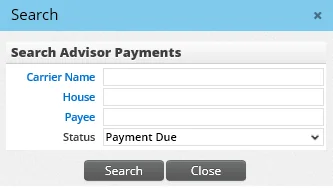
- Complete any of the fields to narrow down the list of search results. The fields are:
- Carrier Name: Enter all or a portion of the carrier name, or click the Carrier Name hyperlink to search for and select a carrier.
- House: Enter all or a portion of the house name, or click the House hyperlink to search for and select the agency. Specifying an agency will narrow down the search results to include only those transactions linked to a specific house account. - Payee: Enter a specific advisor's name, or click the Payee hyperlink to search for and select and advisor.
- Status: Limit the results to transactions with a specific status: - - All - Assumed Paid - Closed - On Hold - On Hold due to Appointment - On Hold due to Contract - On Hold due to Licensing - Open - Paid - Payment Due (this is the default) - Reconciled - Suspense - Write Off - Not Open (this constitutes all statuses except Open)
- Click the Search button to display the Advisor Statement List.
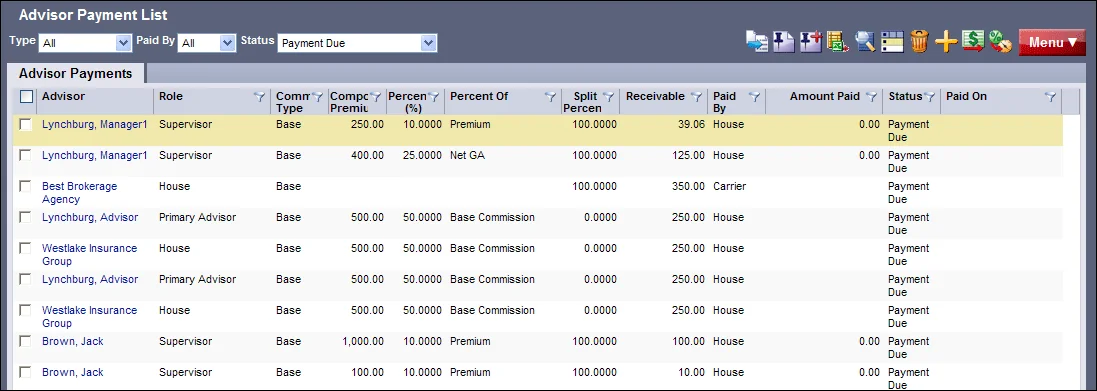
Note: By default, adjustment entries do not display on the Advisor Payment List. To display them, select Menu > Include Adjustment Commission Entries.
Moving Transactions to the History List
Transactions can be removed from the main transaction list and moved to the history list. The history list filters out old paid transactions so that they are not included in calculations of expected commission revenue.
- Open the Advisor Payment List.
- Tag one or more transactions, and then select Menu > Move to History.
Generating an Advisor Commission Report
This feature enables the user to print the Advisor Payment List to a PDF file, which can then be saved or printed.
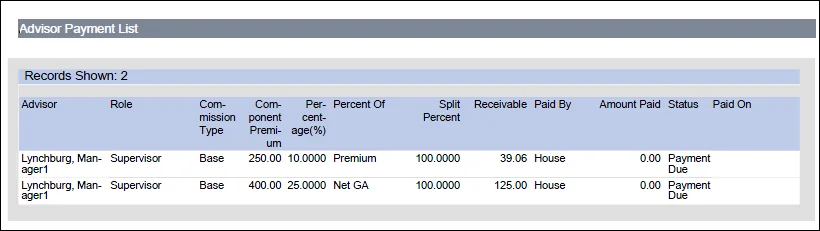
To generate the report:
- Open the Advisor Payment List.
- (Optional) Customize the layout of the list.
- Select Menu > Generate Advisor Commission Report.
- Select the appropriate printing options (for details, see Printing or Exporting a List).
- Click the OK button.
Releasing Held Commissions
As explained elsewhere in this documentation (see Commission Setup and Carrier and Product Setup), SmartCommissions can be set up so that advisor payments due are automatically held for any advisor who has an expired license, contract or appointment.
To see these transactions, select one of the following search options when opening the Advisor Payment List:
- On Hold Due to License
- On Hold Due to Contract
- On Hold Due to Appointment
Note: In a carrier posting record, transactions held for any reason display a status of Reconciled – Advisor Transaction on Hold.
Held transactions are not released during batch processing. The user must release them manually, either by correcting the licensing/contracting/appointment issue that triggered the hold and running a recheck or by assigning the amount to another party.
To release a held transaction:
- On the Advisor Payments List, tag one or more transactions.
- Click the Menu button and select one of the following commands:
- Recheck Advisor for Lic/Cont/Appt: This command rechecks all of the advisors whose transactions are tagged to determine whether the licensing/contracting/appointment issues have been resolved so that the transactions can be moved back to a Payment Due status.
- Assign Advisor: This command changes the party who will receive the payment to a different advisor.
Note: If a held transaction is released or corrected after the carrier posting to which it is linked has already been through batch processing, the transaction must be added to a carrier posting that has not yet been processed and then included in a future batch. When setting up this batch, make sure to select the Release commissions for cleared Licensing/Contracting items option (see Creating a Commission Batch).
Modifying the Advisor Payment
If an incorrect amount is being paid to an advisor the user can open the payment due transaction and modify the amount to be paid to the advisor. The user can also manually change the status to Payment Due.
Adding an Adjusting Entry
An adjusting entry can be added from the Advisor Payment List to pay or reduce the payment of an advisor because of fees that are not represented on a carrier statement. An example would be to advance money to an advisor or to reduce the advisor's check because of licensing fees that an advisor is required to pay.
and select Include Adjustment Commission Entries.
- Open the Advisor Payment List.
- Select Menu > New 'Advisor Payments' record to open the Advisor Payment Detail dialog box.
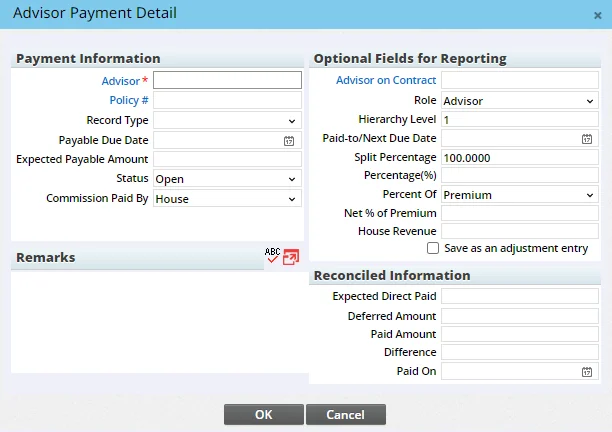
- Complete the Payment Due Date, Expected Payable Amount and Commission Paid By fields. If the Commission Paid By field is set to House, the adjusting entry will pass into the commission system.
- Ensure that Adjustment is selected from the Record Type drop-down list. (Optionally, to link the transaction to a policy and identify the transaction as a type other than Adjustment, enter a policy number in the Policy \# field.)
- Click the OK button.
and select New 'Advisor Payments' record.
Entering an Advance
To enter an advance on the Advisor Payment List, the user simply adds two adjusting entries. Create the first adjusting entry and enter the current date in the Payment Due field. Then create the second adjusting entry with a future date in the Payment Due field.
Note: When including these transactions in a batch, make sure to select the Include Adjustment Commission Entries option when creating the batch.
Generating Out-of-Batch-Cycle Checks
The Advisor Payment List enables the user to generate a commission statement and post a Smart Check for an advisor outside the regular batch processing cycle, while a carrier posting is still in process.
Note: This procedure requires some familiarity with batch processing. Users who have not processed a batch before may want to review the Batch Processing portion of this documentation before proceeding.
Out-of-batch-cycle checks can be created only for transactions that have a status of Payment Due. A transaction's status may become Payment Due when it is reconciled. A payment due transaction can also be added manually to the Advisor Payment List by selecting Menu > New 'Advisor Payments' record.
Once an out-of-batch-cycle check has been generated, the payment due transactions cannot be deleted or changed from a reconciled back to an unreconciled state.
To generate an out-of-batch-cycle check:
- Open the Advisor Payment List.
- Tag the payment due transactions to be included in the check.
- Select Menu > Generate Advisor Out-of-Batch-Cycle Commission Check to open the General Information dialog box.
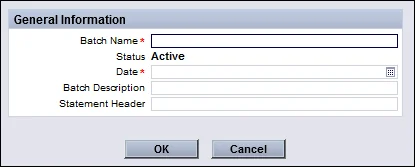
The information requested in this dialog box is used to create a special batch specifically for these transactions.
- Complete the fields:
- Batch Name: This descriptor should make the batch easy to find again. Example: Philip Anderson's Payment.
- Date: The date entered here will display on the advisor statement. - Batch Description: Use this field to include any additional remarks about this check. - Statement Header: This text will display at the top of the commission statement.
- Click the OK button to create and view the batch. The batch will already be processed.
- Generate the advisor commission report to verify that processing was successful, and then post the batch. An entry is created in the advisor's Smart Checks content link.