Last updated: 2025-09-19
SmartCommissions - Batch Processing
- Overview
- Creating a Commission Batch
- Viewing Commission Batches
- Batch Search
- Opening a Batch
- Deleting a Commission Batch
- Processing a Commission Batch
- Post-Processing Features
- Generating an Advisor Commission Report
- Posting/Unposting a Batch
- Reopening a Batch
- Displaying Advisor Commission Checks
- Displaying Advisor Commission Checks under the Minimum Check Amount
- Exporting Batch Commissions
- Sending Commission Statements to Advisors
- Viewing Advisor Checks (Smart Checks)
Overview
Batch Processing is the portion of SmartCommissions that enables users to consolidate multiple carrier postings. The purpose of this consolidation is to generate individual commission statements for advisors. This is the final step in the reconciliation and statement generation workflow.
In addition to processing carrier postings, Batch Processing can also process advisor transaction postings created through Advisor Payment Import.
The main functions performed in Batch Processing are:
- Creating a commission batch and linking carrier postings to it.
- Processing the batch to generate the appropriate advisor payment records.
- Post-processing, including verifying that the batch processed correctly.
- Posting the batch.
- Sending commission statements to advisors.
Creating a Commission Batch
- From the SmartOffice side menu, select Commission Utilities > Batch Processing to open the Search Commission Batches dialog box.
- Click the New button to display the batch Detail content link.
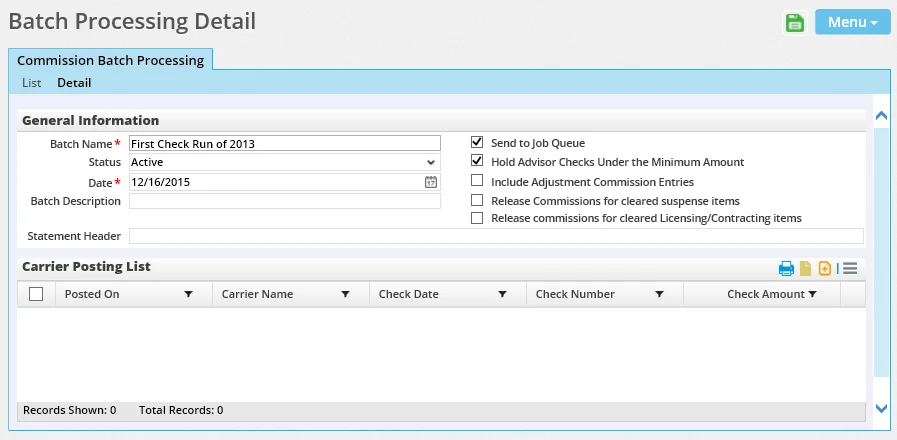
- Complete the fields and select the appropriate options:
- Batch Name: A name that will identify the commission batch in the system, e.g., "January 15th Check Run" or "January Mid-Month." This field is required. - Status: The status of the batch: Active, Processed, Processed with Suspense or Posted. After the new batch is saved, this field becomes read-only and can be edited only by a user with the Administrative Database Maintenance user right.
- Date: The date the batch was created. This field is required. - Batch Description: A description of what is contained in the batch. - Statement Header: The title that will display at the top of the Advisor Commission Report, which can be generated after the batch is processed to ensure that the batch was processed correctly. - Send to Job Queue: Select this option to process the batch in the background using the SmartOffice Job Queue. This option enables the user to continue working in SmartOffice while the batch processes. If this option is cleared, processing will run interactively, and the user will not be able to use SmartOffice until processing is complete. The default setting can be configured in the Calculation Setup section of Commissions Setup.
- Hold Advisor Checks Under the Minimum Amount: When this option is selected and the check total for an advisor falls below the minimum check amount, the relevant transactions are not passed into the check writing software for payment, although statements are still generated. The system first checks to see whether a minimum check amount is specified on the Add'l Detail content link of the advisor record. If no amount is specified at the advisor level, the system uses the amount configured for the entire office in Commissions Setup. If this option is cleared, advisors will receive a check regardless of the check total. - Include Adjustment Commission Entries: Selecting this option includes any transactions with a commission type of Adjustment or transactions saved as adjustment entries in the batch. - Release commissions for cleared suspense items: When this option is selected, advisor checks are not generated for commission records processed as suspense items in a carrier posting. These records become available for processing after they are reconciled from the Suspense Items list. Reconciled suspense records from earlier carrier postings are available when this option is selected. - Release commissions for cleared Licensing/Contracting items: When this option is selected, commission records with a status of Reconciled – Advisor Transactions on Hold due to licensing/contracting/appointment issues are included in the batch.
- Select Menu > Save.
- In the Carrier Posting List section, use the following commands from the Options menu to specify which carrier postings will be included in the batch (this step is not necessary for processing only adjusting entries):
- Link Carrier Posting: Select this command to search for and select the reconciled carrier postings that should be included in the batch.
- Unlink Carrier Posting(s): Tag one or more carrier postings in the list, and then select this command to remove them from the batch. - Link all Carrier Postings: Select this command to quickly add all unprocessed, reconciled carrier postings to the batch.
- In the Advisor Transaction Posting List section (which appears only if the user has access to the Advisor Payment Import feature), use the appropriate Options menu commands to specify which advisor transaction postings will be included in the batch. For more information, see Advisor Payment Import - Batch Processing.
- Select Menu > Save.
The user can then process the batch.
Viewing Commission Batches
This section describes how to find and open/view batches after they have been created.
Batch Search
- From the SmartOffice side menu, select Commission Utilities > Batch Processing to open the Search Commission Batches dialog box.
- Enter search criteria (e.g., batch name, date, status, etc.) to narrow the search, or leave the fields at their default values to display all open batches.
- Click the Search button to display the Batch Processing List.
Opening a Batch
To open a commission batch from the Carrier Posting List, use one of these methods:
- Click its first-column hyperlink (the batch name, by default).
- Tag the batch, and then click the Detail content link.
Deleting a Commission Batch
Note: A batch with an Active status cannot be deleted if any linked carrier posting has a Posted status. To correct any problem data, a user with the Administrative Database Maintenance user right can change the status of the batch from Active to Posted and then unpost the batch.
- Open the batch record if it is not already open (see Viewing Commission Batches), or select the batch from a list of batches.
- Select Menu > Delete 'Commission Batch Processing' record.
Processing a Commission Batch
- Open the batch record if it is not already open (see Viewing Commission Batches).
- Make sure that all necessary carrier postings and advisor payment imports are listed (see Creating a Commission Batch).
- Select Menu > Process Commission Batch.
SmartOffice reviews all transactions included in the batch and determines which ones must be sent to be paid based on the batch options selected. This also changes the status of each associated carrier posting record to Processed.
Note: Once a batch is processed, carrier postings and advisor payment imports can no longer be linked to the batch.
Post-Processing Features
This section describes features that become available for a batch once processing of the batch is complete.
Generating an Advisor Commission Report
The Advisor Commission Report lists the payments made to advisors as part of a batch. The report helps the user verify that the batch was processed correctly so that the batch can be posted. This report can be saved/printed or exported to Excel or other formats.
- Open the batch record if it is not already open (see Viewing Commission Batches).
- Select Menu > Show Advisor Commission List to open the Advisor Payment List report, which displays all payments due to advisors.
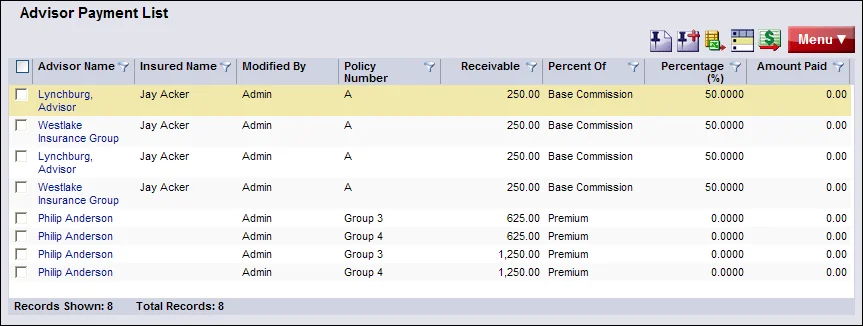
- If appropriate, modify the list layout (Menu > List Options > Customize List Layout) and/or the sorting/grouping of the report. Note that any changes made to the layout and/or sorting of this list also apply to certain commission statements sent to advisors.
- To create a PDF file for saving/printing:
- Select Menu > Generate Advisor Commission Report to open the Print Options dialog box. 2. (Optional) Enter a title for the report in the List Title field. 3. (Optional) Click the Disclaimer hyperlink to add a disclaimer. For more information about disclaimers, see PDF Reports - Disclaimers. 4. Click the OK button to display the PDF.
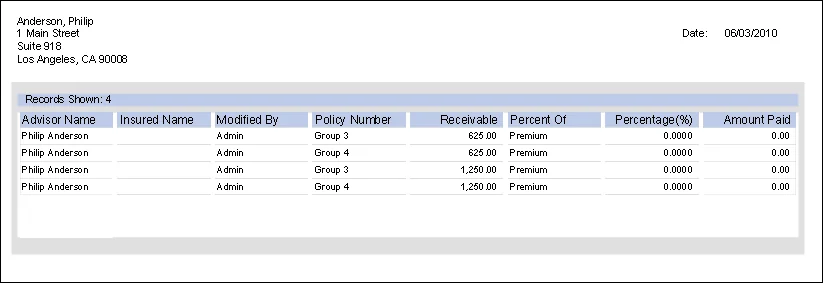
5. Save and/or print the PDF file. 6. Close the file.
- To export the report data to Excel or another data format, select Menu > List Options > Export List and follow the instructions presented. For more information, see Lists - Printing or Exporting a List.
Posting/Unposting a Batch
After generating the Advisor Commission Report to ensure that a commission batch was processed properly, the user can post the batch to the history file so that the transactions are no longer included in calculations of expected commission revenue. Posting a batch is required before the user can send commission statements to advisors.
Posting a batch does several things:
- Changes the status of all linked carrier posting records from Processed to Posted.
- Locks the associated commission transactions to prevent further modification.
- Creates an entry on the Smart Checks content link of the relevant advisor records.
- Changes the status of the advisor transactions to Paid and updates the transaction's Paid Amount and Paid On fields.
To post a batch:
- Open the batch record if it is not already open (see Viewing Commission Batches).
- Select Menu > Post Batch.
If any discrepancies are found in a posted batch, the batch can be unposted. Unposting a batch reverts it to an Active status. Carrier postings linked to the batch remain linked, but their status is reset to Reconciled. The status of advisor transactions is changed to Payment Due, and any checks added to the Smart Checks content link are deleted.
- Open the batch record if it is not already open (see Viewing Commission Batches).
- Select Menu > Un-Post Batch.
Reopening a Batch
A user with the CTM Administrator license (see SmartCommissions - User Setup) can reopen any batch to resolve discrepancies. This feature is available only for batches that have one of the following statuses:
- Processed
- Processed with Suspense
- Posted
To reopen a batch:
- Open the batch record if it is not already open (see Viewing Commission Batches).
- Select Menu > Advanced Options > Error Handling – Reopen Batch.
If the carrier postings linked to the batch have a status of Open, reopening the batch has the following effects:
- The entire batch is unposted.
- The status of each carrier posting is updated to Reconciled.
- The advisor payments for the expected commission records in each carrier posting are updated so that the Paid On field is blank, the Difference field reflects the remaining unpaid amount, the Status field is either Payment Due (for Paid by House records) or Assumed Paid (for Paid by Carrier records), and the History field is No.
If the carrier postings linked to the batch have the correct status, a message displays notifying the user that there is no discrepancy in the batch.
Displaying Advisor Commission Checks
This feature displays a list of commission checks that were generated for advisors as part of the batch, including information such as the advisor's address.
- Open the batch record if it is not already open (see Viewing Commission Batches).
- Select Menu > Show Advisor Checks List to open the Advisor Commission Check List.
To view the transactions included in a check, click its first-column hyperlink (the advisor's name, by default) to open the Advisor Check Detail dialog box.
The Advisor Commission Check List can be customized, saved/printed or exported, just like any SmartOffice list.
In addition, specific checks can be marked as private so that they are not visible to advisors who have access to commission data through SmartView for Advisors. To privatize one or more checks:
- In the Advisor Commission Check List, tag the checks to be privatized.
- Select Menu > Mark Check(s) Private.
Tip: The user can change the privacy status of multiple checks quickly using the Mass Modify feature from the Advisor Commission Check List.
Displaying Advisor Commission Checks under the Minimum Check Amount
If the user selected the Hold Advisor Checks Under the Minimum Amount option when creating a commission batch, the user can display a list of checks that were held when the batch was processed.
- Open the batch record if it is not already open (see Viewing Commission Batches).
- Select Menu > Show Advisor Checks Under the Minimum Check Amount to open the Advisor Checks Under the Minimum Check Amount list.
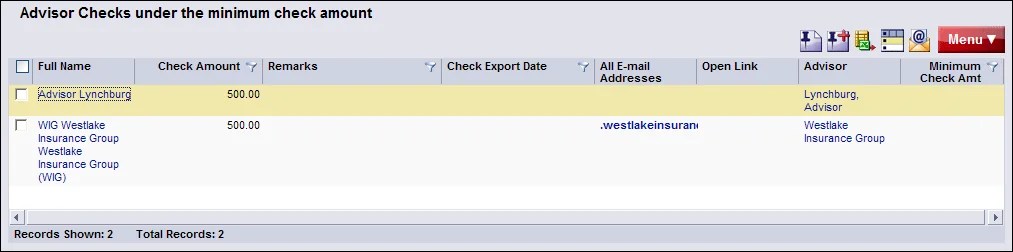
The list can be customized, saved/printed or exported, just like any SmartOffice list.
In addition, specific checks can be marked as private so that they are not visible to advisors who have access to commission data through SmartView for Advisors. To privatize one or more checks:
- Tag the checks to be privatized.
- Select Menu > Mark Check(s) Private.
Tip: The user can change the privacy status of multiple checks quickly using the Mass Modify feature.
Exporting Batch Commissions
This feature enables the user to export data from the batch for import into the QuickBooks® accounting package. It is recommended that users test this feature to ensure that it is compatible with their version of QuickBooks.
- Open the batch record if it is not already open (see Viewing Commission Batches).
- Select Menu > Export Batch Commissions to open the Commission Data Export Options dialog box.
- Click the OK button.
- When the file download dialog box opens, click the Save button and save the file to a location on the local computer.
- Open QuickBooks and import the file.
Sending Commission Statements to Advisors
Once a batch has been posted, the user can send e-mail commission statements to advisors directly from the batch record. Statements are sent as PDF files attached to e-mail messages.
Note: To determine which e-mail address a statement should be sent to, SmartOffice first checks whether the advisor has an e-mail address that is assigned the E-mail for Commission Information type. If no such address exists, the statement is sent to the advisor's preferred business e-mail address. These addresses can be configured on the advisor Personal content link.
- Open the batch record if it is not already open (see Viewing Commission Batches).
- Select Menu > Communication and choose one of the following commands:
- E-mail Commission Stmt. to Advisors: Users who want to control the column layout of statements should select this command. The statements generated using this command use the same column layout as the Advisor Commission Report.
- E-mail PDF Stmt. to Advisors: This command generates statements that use a predefined layout. The layout used is specified in the Commission Export Setup section of Commissions Setup. See examples of these statements in Reports.
- In the dialog box that opens, tag the advisors to whom statements will be sent, and then click the OK button.
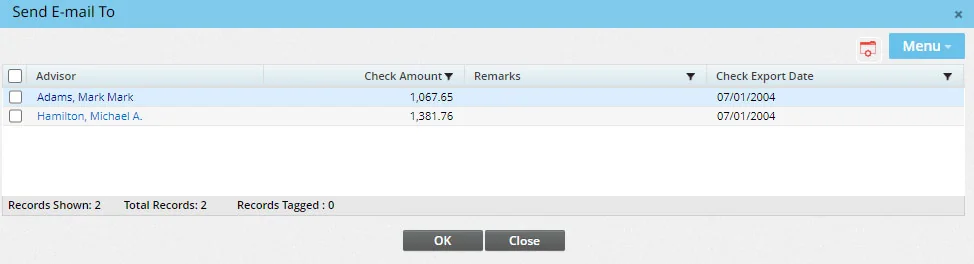
- To hide checks from the Smart Checks content link of SmartView for Advisors users, tag the advisors and select Menu > Mark Check(s) Private.
- Type the text that will display in the body of the e-mail message (the default body text, as well as the default From address that will display in the e-mail messages, can be configured in the Commission Export Setup section of Commissions Setup).
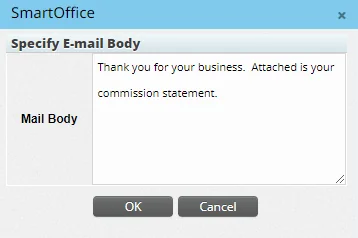
- Click the OK button to send the statements to the selected advisors.
- If any errors are found with e-mail addresses or privacy settings, a dialog box explaining the issues opens.
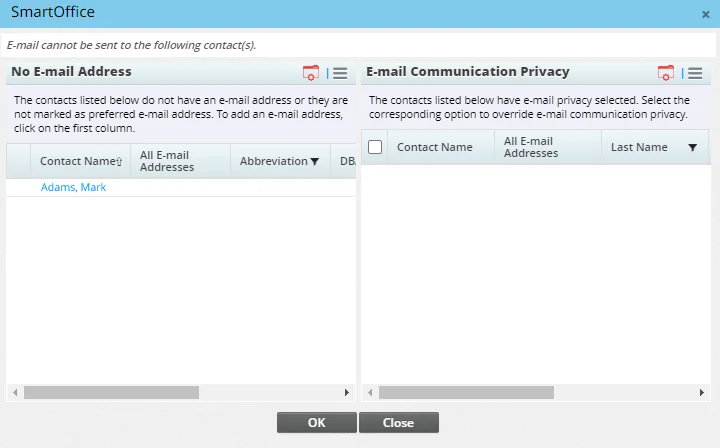
Follow the instructions in the dialog box to resolve any issues, and then click the OK button to send the statements. When a statement is sent to an advisor, an entry is added to the advisor's SmartPad.
Viewing Advisor Checks (Smart Checks)
The Smart Checks content link of an advisor record lists all commission checks initiated through SmartOffice that have been generated for the advisor. It is the same information that is displayed when the user displays advisor commission checks for a posted batch, except that this list is specific to the selected advisor and shows checks from all batches.
Note: Smart Checks are simply SmartOffice records of the advisor payments included in a check. SmartOffice does not have a check writing feature and does not track whether checks have been printed and/or sent to the advisor. Check writing features are available in third-party accounting applications such as QuickBooks.
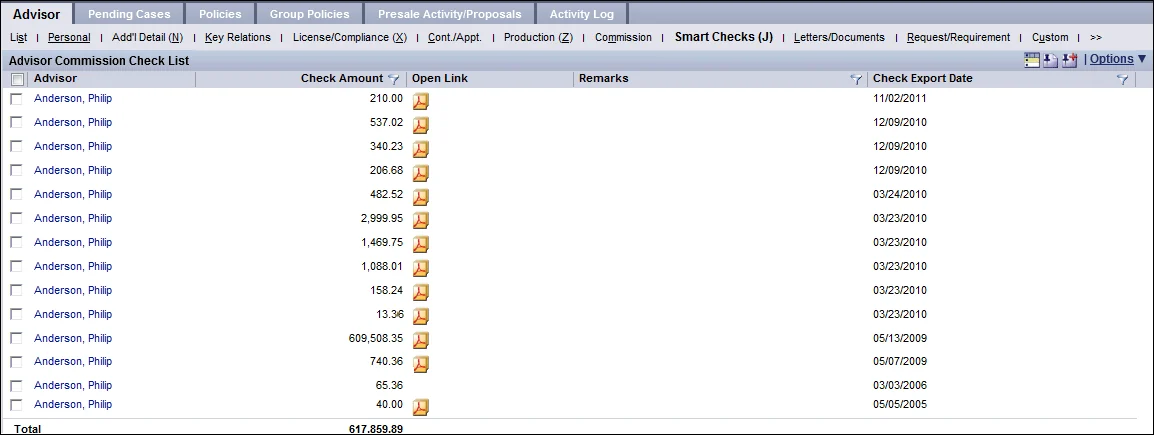
To view the details of a check, click its first-column hyperlink (the advisor's name, by default).
The Open Link column displays a PDF icon that the user can click to generate a PDF statement listing the advisor payments included in the check. The PDF uses the Commission Statement format described in Reports. To display the Open Link column, customize the list layout.