Last updated: 2025-09-19
SmartLeads - Other Leads Management Features
- Alerts
- Advisor Alerts
- Leads Coordinator Alerts
- Leads Web Alerts
- Lead Assignment E-mail Alerts to Advisors
- Viewing and Creating Leads Notes
- Assigning Multiple Leads to a Campaign
Alerts
SmartOffice features a number of different alerts that SmartLeads users can receive regarding leads.
Advisor Alerts
By default, when a SmartLeads user has been assigned new leads, an alert displays when the user signs in to SmartOffice.
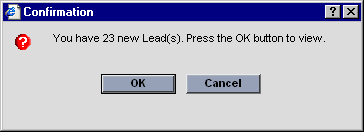
Clicking the OK button immediately takes the user directly to the Unaccepted Leads List. Clicking the Cancel button enables sign-in to proceed normally.
This alert can be enabled or disabled in User Preferences - Sign-In Events.
Leads Coordinator Alerts
When a leads coordinator imports or creates leads, the system opens a list of leads that are ready to be assigned whenever the coordinator signs in to the system.
Leads Web Alerts
When leads are submitted using the Leads Web form (see Creating, Importing and Collecting Leads), users can receive alerts through the SmartOffice Alerts Center. To do so, select the Web Site Leads option in User Preferences - Alert Center.
Once the Submit button is clicked on the Web form, the lead is highlighted in the SmartOffice Alert Center for any leads coordinators whose office the Leads Web URL is pointing to.
When a Leads Coordinator user imports or adds new leads, the system opens a list of leads that are ready to be assigned whenever he/she signs in to the system. The Unassigned - Leads List contains several buttons that enable the Leads Coordinator to perform activities such as assigning leads, rejecting leads, creating leads, etc.
Lead Assignment E-mail Alerts to Advisors
Once a lead is assigned to an advisor, an e-mail message can be sent automatically to the advisor, prompting the advisor to accept or reject the lead.
The following conditions must be met for an e-mail alert to be sent:
- The signed-in advisor must assign the lead to another advisor. If the signed-in advisor assigns the lead to him/herself, no e-mail alert is sent.
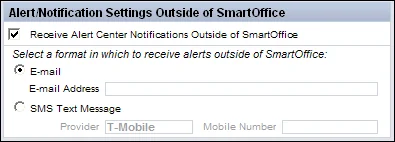
- The advisor who wants to receive alerts must select the Receive Alert Center Notifications Outside of SmartOffice option in User Preferences - Basic Info. In addition, the E-mail option must be selected, and a valid e-mail address must be entered.
- From the System office, an administrator must open the Configuration Tool and configure the optOut service.
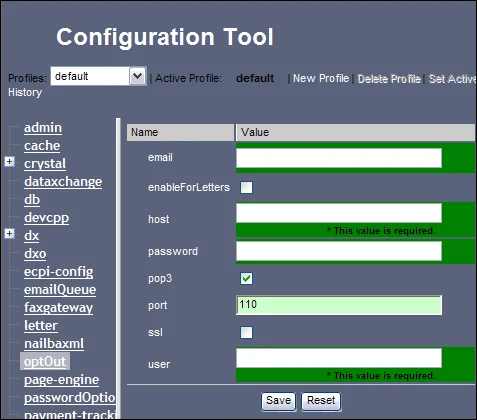
The fields for e-mail address and other information must be completed. Confirm that the e-mail address is not shared by any other server in order to accept and reject leads from the e-mail that is sent to the advisor.
Viewing and Creating Leads Notes
While viewing a specific lead or a list of leads, the user can add notes to a lead by selecting either Menu > View Lead Notes or Menu > New Lead Note.
Assigning Multiple Leads to a Campaign

The leads coordinator can quickly assign multiple leads to a marketing campaign using these steps:
- In the Unassigned Leads List, tag the appropriate leads.
- Select Menu > Campaign Mass Assignment.
- In the Search Campaigns dialog box, click the Search button to display all the campaigns in the database, and then select the appropriate marketing campaign.