Last updated: 2025-09-19
SmartLeads - Leads Reporting and Analysis
Overview
SmartOffice features several tools that enable SmartLeads users to report on leads data. These include the Leads Dashboard, Dynamic Reports and Excel Reports.
Leads Dashboard
The Leads Dashboard is a reporting and analysis tool. It is available to all leads user types. From the side menu, click Reports and then select Leads Dashboard from the expanded menu to display the Leads Dashboard.
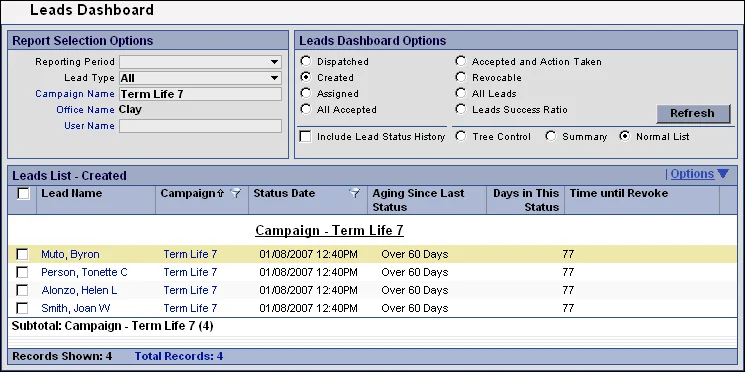
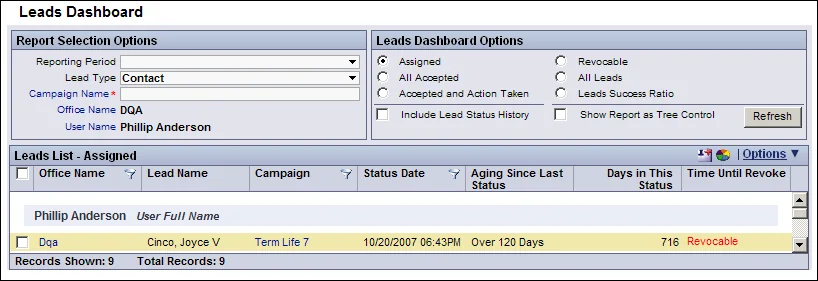
Select any combination of options from the Report Selection Options and Leads Dashboard Options sections and then click the Refresh button to display the appropriate lead information. The options available differ somewhat depending on the type of user.
Dashboard for Leads Coordinators
Dashboard for Advisors
The report selection options are as follows:
- Reporting Period: Select the date interval for the report from this drop-down list.
- Lead Type: Select the type of leads to report on (All, Advisor, Business or Contact).
- Campaign Name:
- 1. Click the Campaign Name hyperlink to open the Search Campaigns dialog box. 2. Click the Search button to display the Marketing Campaign list. 3. Select the applicable campaign hyperlink.
- Office Name: If the user is not an Enterprise user, the Office Name field displays the current office name.
- User Name: Leads coordinators can use this field to select a particular user to report on. The User Name hyperlink does not display if the Dispatched option is selected in the Leads Dashboard Options section. For advisors, this field displays the sign-in user's name.
After the Report Selection Options are specified, select the appropriate option from the Lead Dashboard Options section and then click the Refresh button to display the results.
Tip: When the user selects the Leads Success Ratio option and then generates the report, the user can customize the layout of the results list to include the Revoked column. This column provides statistics about the number of leads revoked for the user specified in the User Name field.
See List Layout Customization. The following additional options are available for changing the format of the information displayed:
- Include Lead Status History: Select this option to include previous status information in the report. This results in the same lead being listed more than once if that lead had a particular status more than one time (e.g., if a lead was accepted, revoked and then accepted again).
- (Show Report as) Tree Control: Select this option to display the report in a tiered tree layout instead of a simple list.
- Summary: Click this option to display the report as a summary.
- Normal List: Click this option to display the report as a normal list.
Validating the Leads Success Ratio
When the user selects the Leads Success Ratio option in the Leads Dashboard, the resulting list of statistics may not be up to date if other users have recently accepted, rejected or otherwise changed leads.
To ensure that the leads success ratio statistics are up to date:
- Select Validate Leads Success Ratio from the expanded Utilities menu to open the Validate Leads Success Ratio dialog box.
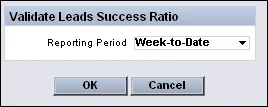
- From the Reporting Period drop-down list, select the period to validate.
- Click the OK button.
- Open the Leads Dashboard and refresh the Leads Success Ratio report.
Dynamic Reports and Excel Reports
For more extensive reporting on leads, Dynamic Reports and Analytic (Excel) Reports provide a variety of reporting options. See Dynamic Reports and Analytic (Excel) Reports.