Last updated: 2025-09-19
Advisors/Agencies - Advisor Requests
- Overview
- Displaying the Advisor Request List
- Creating an Advisor Request
- Automatic Creation of Advisor Requests
- Creating an Advisor Request Requirement
- Following Up on Advisor Request Requirements
- Viewing Advisor Request History Data
Overview
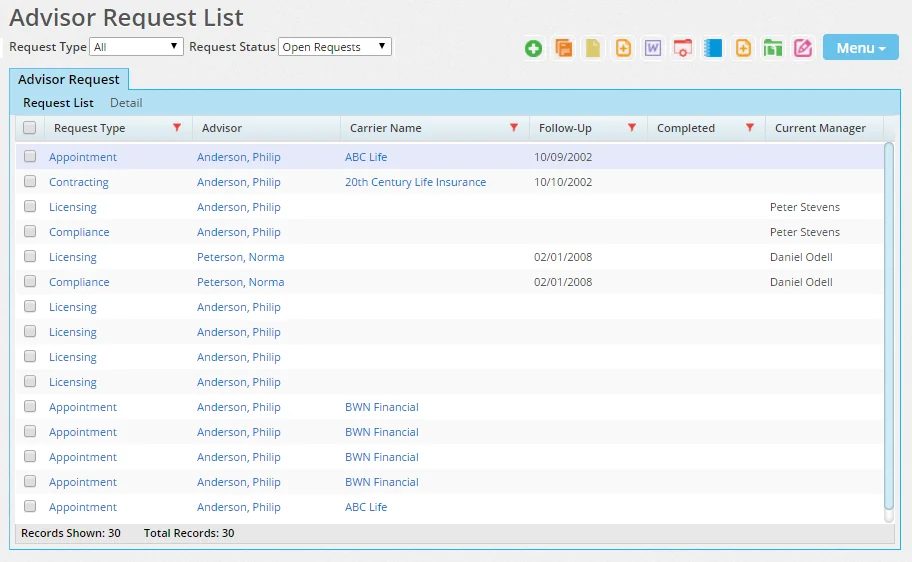
The Advisor Request List enables the user to view and manage all advisor requests in the system for all advisors/agencies.
Note: To view advisor requests for a particular advisor or agency, access the advisor/agency Request/Requirement content link.
Displaying the Advisor Request List
- From the side menu, select Insurance and then select Advisor Requests from the expanded list.
- In the Search Advisor Requests dialog box, click the Search button.
Once the search results display, the user can perform these tasks:
- Sort and/or narrow down the list of results using the Request Type and Request Status drop-down lists.
- View the details of a request using one of these methods:
- Tag a request and click the Detail content link. - Click the request's first-column hyperlink (the Request Type column by default).
- View information about the advisor by clicking the advisor's name (if the name is a hyperlink).
- Use the Custom Button Bar or the Menu button to add notes, send correspondence and perform other tasks related to a request.
Note: When the user sends correspondence to a carrier regarding an advisor request, the letter displays on the advisor's Letters/Documents content link and SmartPad. It does not display on the carrier's SmartPad.
Creating an Advisor Request
- From the Advisor Request List, select Menu > New 'Advisor Request' record to open the Search Options dialog box.
- Search for and select an advisor. The Select an Advisor Request Type dialog box opens.
- Select the appropriate request type to open the advisor request Detail content link.
- Enter the appropriate information and then click the Save button to add the advisor request to the Advisor Request List.
Automatic Creation of Advisor Requests
A nightly automated service creates advisor requests for licenses, appointments and compliance (but not contracts). The system checks the following criteria before creating an advisor request:
- Status is Active
- State is specified (licenses and appointments only)
- Expiration/end date is within the Alarm Before Expiration period specified in Policy/Case Setup
- Advisor assignment is selected for the advisor in the Policy/Case Setup
Creating an Advisor Request Requirement
- From the Advisor Request List, select an advisor request and then select the Detail content link.
- In the Requirements List section, click the Options button
 and select New 'Advisor Request Requirement' record to open the Select Advisor Requirement Type(s) dialog box.
 - Tag the appropriate requirement type to open the Requirement Detail dialog box.
- Enter the appropriate information and then click the OK button to add the advisor request requirement to the Requirement List.
Following Up on Advisor Request Requirements
- From the side menu, click Insurance and then select Advisor Follow-Ups to open the Search Advisor Request Requirements dialog box.
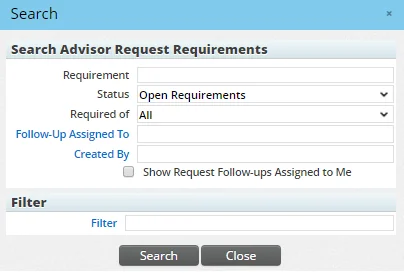
- Do one of the following:
- To list all follow-ups, leave all settings as they are. - To list follow-ups for a specific user, click the Follow-Up Assigned To hyperlink to select the user.
- Click the Search button to display the Requirements List.
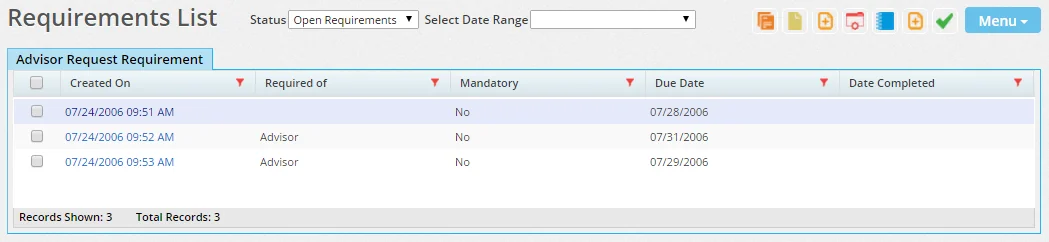
- Tag a requirement and then click the Menu button to select one of the following options:
- Complete Requirement: This option designates the tagged requirement as Complete, changes the status to Completed and fills in the Completed Date.
- Show Advisor Request: This option opens the advisor request associated with the requirement. - Mass Assign Requirement Manager: This option enables the user to assign a new requirement manager to all selected requirements.
Viewing Advisor Request History Data
The history of changes to an advisor request can be displayed by accessing the Advisor Req History table. The table can be accessed from several areas of SmartOffice:
- Advisor Request List (through list layout customization)
- Filters and Dynamic Reports (Advisor/Agency family, Request category)