Last updated: 2025-09-19
Audit Report
Overview
Note: This feature is not available in Canada and Australia.
The Audit Report feature allows you to quickly compile SmartPad notes, correspondence and documents from SmartOffice into a report suitable for demonstrating compliance.
For example, if your compliance officer needs documentation pertaining to investment advice provided to a particular client, you can generate an audit report containing all relevant notes, correspondence and documents for the officer.
SmartOffice generates the report as a single PDF file containing all of the relevant records.
Setup
Office Setup
The Audit Report feature is available in offices that have the Record Tagging license enabled (see Record Tags). SmartOffice Online offices have this license by default, so no action is normally necessary to enable it. If your office does not have this license, contact your SmartOffice administrator.
User Setup
If office setup has been completed (see previous section), all users in the office have access to the Audit Report feature. Generally speaking, no additional user setup is necessary.
The Audit Report feature includes the ability to save reports directly to Docupace. To do so, the user must have the Docupace Client Folder license, which is part of SmartOffice's Docupace integration.
Data Setup
For best results when generating audit reports, use record tags to mark all SmartPad entries, correspondence and documents that may need to be included in a compliance review. Although records do not have to be tagged to be included in an audit report, tagging them makes the process of generating the report much faster. For more information, see Record Tags.
Users who want to save their reports directly to Docupace should also ensure that their contact records have a Social Security number, as Docupace requires that information.
Creating an Audit Report
- Do one of the following:
- In the SmartOffice side menu, select Reports > Audit Report. When prompted, search for and select a contact or business record.
- Search for a contact or business record, open the record, and then select Menu > Reports > Run Audit Report.
- When the welcome message appears, click the Next button. The Notes page appears.
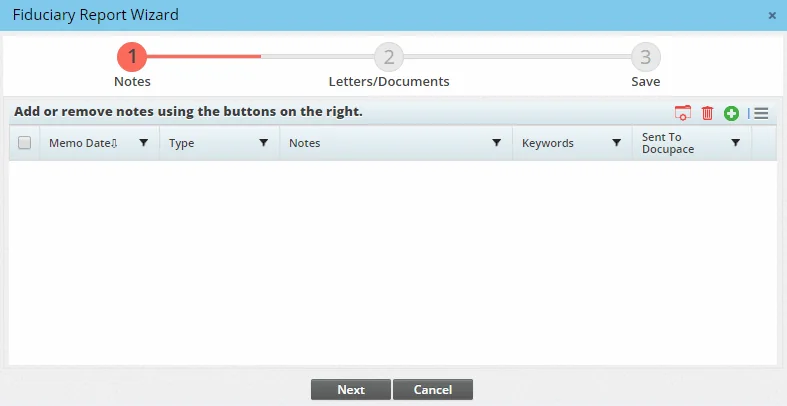
- Specify the notes you want to include in the report:
- To add notes, click the Add 'SmartPad Notes' Record button
 . When the Search Notes dialog box opens, specify your search criteria (learn more about searching for SmartPad entries). Make sure to select any record tags to limit your results to notes containing those tags. Then click the Search button. When the search results appear, select the notes you want to include in the report, and then click the OK button to add them to the list.
 - To remove notes, select one or more notes, and then click the Remove 'SmartPad Notes' Record button
 .
.
- Click the Next button to open to the Letters/Documents page.
- Specify the letters and documents you want to include in the report:
- To add letters or documents, click the Add 'Letter/Documents' Record button . When the Letters/Documents dialog box opens, specify your search criteria (data range, created by, etc.). Make sure to select any record tags to limit your results to letters or documents containing those tags. Then click the Search button. When the search results appear, select the letters and documents you want to include in the report, and then click the OK button to add them to the list.
- To remove letters or documents, select one or more letters or documents, and then click the Remove 'Letter/Documents' Record button .
- Click the Next button to go to the Save page.
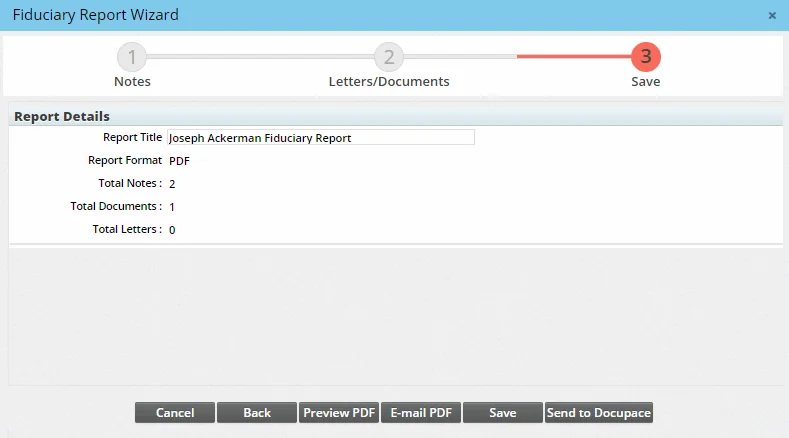
- Preview PDF: Generate the PDF report and save it to your computer.
- E-mail PDF: Open a blank e-mail message in your default e-mail application with the PDF report attached.
- Save: Save the PDF report directly to the selected contact's Letter/Documents content link in SmartOffice. When you select this option, SmartOffice prompts you to enter details about the document, such as the document name, keyword, category and record tags.
- Send to Docupace: If you use SmartOffice's Docupace integration, you can click this button to instantly save the PDF report to the contact's Docupace client folder. Note:
- Type a title for the report.
- Use the buttons at the bottom to perform additional actions or to finalize your report:
- This button is available only if you have the Docupace Client Folder license for your user account and the contact's record in SmartOffice contains a Social Security number (if the contact has no Social Security number, an SS \# field appears so that you can enter it directly from this screen).
- In the contact's Docupace client folder, a General subfolder must already exist. If it does not, you will receive an error stating that additional Docupace setup is required. To resolve this issue, sign in to Docupace and create a General subfolder in the client's folder, then try saving the audit report again in SmartOffice.