Last updated: 2025-09-19
Integrations - Portfolio Pathway
Overview
The Portfolio Pathway integration with SmartOffice enables users to access Portfolio Pathway directly from SmartOffice without having to sign in to Portfolio Pathway.
For more information about the Portfolio Pathway portfolio management application, visit the Intelliflo website.
Requirements
- Portfolio Pathway account
Setup
A SmartOffice user with administrator rights must enable the appropriate license for each SmartOffice user who will use the integration.
- In SmartOffice, select Setup > User Accounts and access the User Rights content link for the user's account.
- In the Licenses column, select Portfolio Pathway in the Integration section.
- Select Menu > Save.
- Repeat these steps for each additional user.
Using the Integration
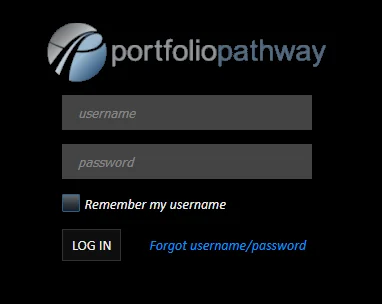
In SmartOffice, select Integrations > Portfolio Pathway from the side menu to access Portfolio Pathway. The first time you use the integration, you will be prompted to log in to your Portfolio Pathway to establish a link to your SmartOffice account.
Note: Currently, the integration always takes the user to the Ops Center in Portfolio Pathway, not to a specific client's record. No SmartOffice contact data is transmitted to Portfolio Pathway.