Last updated: 2025-09-19
Integrations - SmartOffice Secure
Overview
SmartOffice Secure determines whether a user who is trying to sign in to SmartOffice is using a device with adequate security settings. This integration helps broker-dealers comply with data security regulations and reduce the risks to client data posed by insecure device access.
After a user enters his or her sign-in credentials, the integration analyzes the user's device to determine whether it meets the organization's security criteria. SmartOffice Secure then displays the results of that analysis to the user, along with options for resolving any issues detected.
Administrators can view an inventory of devices accessing SmartOffice that includes information about encryption, antivirus, operating system version and more.
SmartOffice Secure, which is currently capable of analyzing desktop/laptop computers running Windows or macOS, leverages the Venn (formerly OS33\) Workplace cloud security and compliance platform. For more information, visit the Venn website.
SmartOffice Setup
Office Setup
To enable SmartOffice Secure for your office, contact your SmartOffice sales representative. The SmartOffice team will complete the setup and notify you when the integration is enabled. You will also receive information about how to access the Venn Workplace portal, where you can define your organization's security requirements for devices.
User Setup
Note: SmartOffice Secure does not apply to SmartView for Advisors and SmartView for Clients user accounts. When SmartOffice Secure is enabled, these users will bypass the security check and sign in normally.
Once SmartOffice Secure is enabled for the office, any user who signs in to SmartOffice for the first time using a particular device sees a "Security Software Required" message. From there, the user must install the security software. Venn has instructions for installing the software for the following supported web browsers:
Note: SmartOffice Secure supports only those versions of Windows and macOS that are actively receiving security updates. For the latest information about supported Windows versions, refer to Microsoft's Windows lifecycle fact sheet. For macOS, refer to the Apple security updates page.
Using the Integration
Administrators
SmartOffice administrators can sign in to their Venn Workplace portal to set up security requirements for devices.
Click the Partner Center button in the upper-right corner to access a dashboard containing information about users who have signed in, along with information about the devices they used. From the dashboard, administrators can also block users and perform other actions.
Users
When users sign in to SmartOffice, they are redirected to the Workplace security check page.
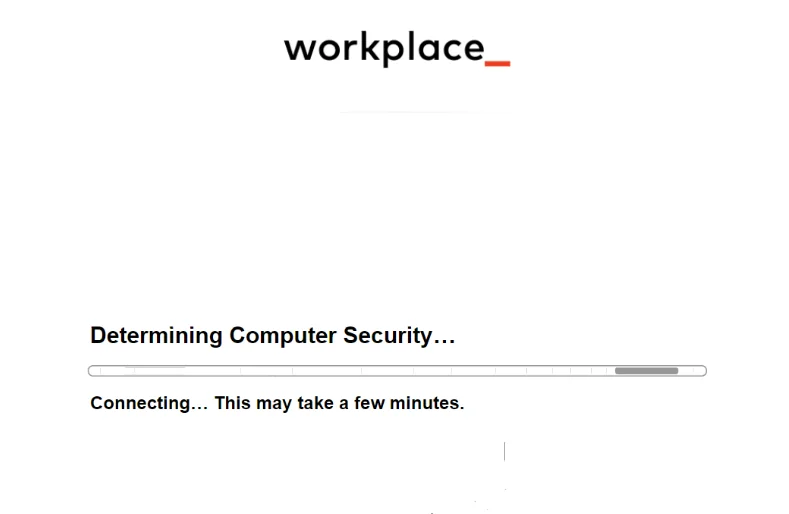
If SmartOffice Secure detects any issues with the device, it displays a message with further instructions. Depending on the settings specified by the administrator, the user may be able to continue despite any issues found by selecting Continue.
If there are no issues, the user is automatically redirected to SmartOffice.