Last updated: 2025-09-19
Integrations - VitalLTC
- Overview
- Requirements
- SmartOffice Setup
- Data Setup
- Using the Integration
- Creating an LTC Comparison Report
- Viewing an LTC Comparison Report in SmartOffice
Overview
This integration enables the user to create long-term care product comparison reports in VitalLTC directly from SmartOffice. These reports can then be saved to SmartOffice.
Learn more about VitalLTC at the VitalSales Suite website.
Requirements
To use the VitalLTC integration, a user must have a VitalSales Suite subscription.
SmartOffice Setup
Data Setup
Improperly entered client data can cause inconsistencies in VitalLTC reports. Verify that client data is entered in the correct fields in SmartOffice to ensure good results when using the integration.
The tables below list the fields in SmartOffice that must be completed. Where appropriate, the corresponding fields in VitalLTC are also listed.
Contact Fields
| SmartOffice | Comments | VitalLTC |
|---|---|---|
| Personal content link | Products step | |
| First Name | Name | |
| Last Name | Name | |
| Birth Date | Birth Date | |
| Age | Age | |
| Gender | N/A | |
| State | Make sure to select the Preferred Address option. | State |
| Marital Status | Marital Status | |
| Primary Advisor | Agent Name |
Advisor Fields
| Personal content link | Agent Info tab | |
| First Name | Agent Name | |
| Last Name | Agent Name | |
| Agency | Agent Company | |
| Primary Business Address | ||
| Address Block | Make sure to select the Primary Business Address option. | Agent Address1 |
| Additional Line - 2 | Agent Address2 | |
| Additional Line - 3 | Agent Address3 | |
| City | Agent City | |
| State | Agent State | |
| ZIP Code | Agent ZIP Code | |
| Primary Business Phone Number | Make sure to select the Primary Business Phone option. | Agent Phone |
| Primary Business Phone Extension | ||
| Business Fax Number | Agent Fax | |
| Preferred E-mail Address | Make sure to select the Preferred option. | Agent Email |
Using the Integration
Creating an LTC Comparison Report
- In SmartOffice Pro, open one of the following record types, or select one of these record types from a list:
- Contact
- Business
- Advisor
- Agency
- Presale activity/proposal
- Select Menu > Integrations > LTC Quote.
Tip: If you use this integration frequently, you can open it more quickly by adding a button to the Quick Action Corner or the Custom Button Bar.
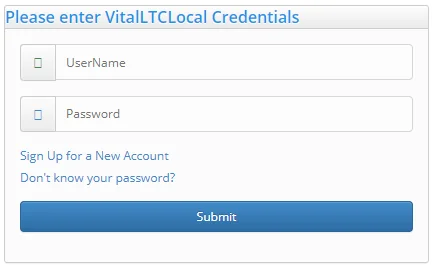
- If prompted, enter your VitalLTC user name and password, and then select the Submit button.
- The long-term care insurance comparison system opens, with the relevant fields from SmartOffice pre-filled.
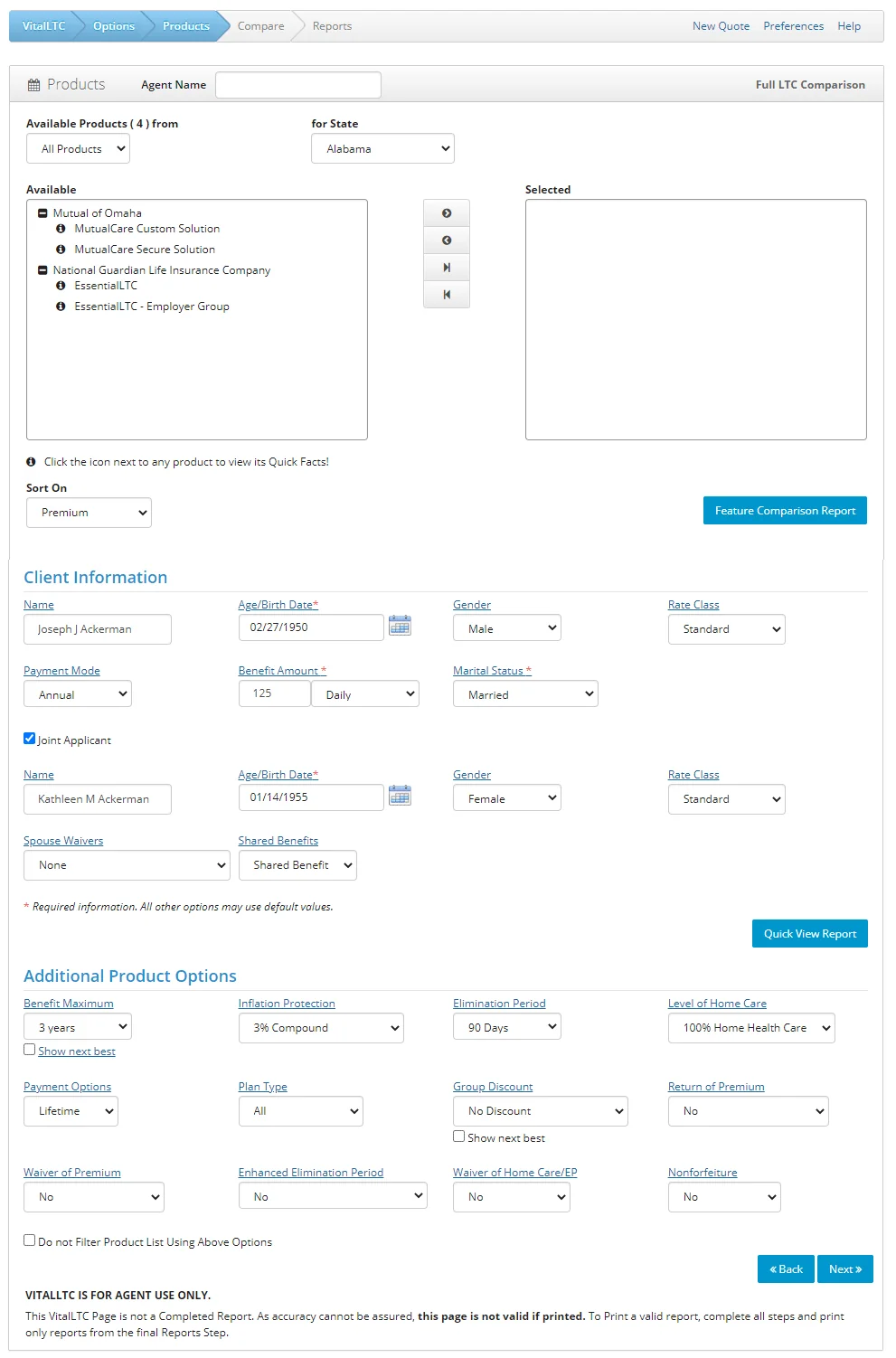
- Select the products to compare, and then select the Next button to select the appropriate report types and to proceed through the remaining steps.
- In the final step, select the Save to SmartOffice button.
Viewing an LTC Comparison Report in SmartOffice
When a report is saved to SmartOffice, SmartOffice automatically creates a presale activity/proposal record and attaches the report to that record. If more than one report is generated, SmartOffice creates a separate presale record for each.
To find the presale activity record, search for the presale activity or open the appropriate contact or advisor record and select the Presale Activity/Proposals tab.
Open the presale activity record and follow these steps to view the report:
- In the Additional Details section, click the name of the report in the Image field.
- When the File Details dialog box opens, select the Open File button.