Last updated: 2025-09-19
Integrations - Albridge Applink
- Overview
- Requirements
- Setup
- Office Setup
- User Setup
- Using the Integration
- About Single Sign-On
- Navigating from SmartOffice to Albridge
- Navigating from Albridge to SmartOffice
- SmartOffice Contact/Albridge Client Matching
Overview
The Albridge Applink integration for SmartOffice lets users navigate seamlessly between SmartOffice and the Albridge® Wealth Reporting™ application.
Note: Information about downloading client and account data from Albridge into SmartOffice is covered in a separate topic. See Investment Data Downloads.
With this integration, advisors and their assistants can:
- Navigate to the Client List in Albridge Wealth Reporting directly from SmartOffice.
- Open a client's profile, accounts or reports page in Albridge Wealth Reporting directly from that client's SmartOffice contact record.
- Open a SmartOffice contact record directly from the Client List in Albridge Wealth Reporting.
This integration features single sign-on (SSO), which allows users to navigate between SmartOffice and Albridge® Wealth Reporting without having to sign in to each application separately.
Requirements
To set up and use this integration, a SmartOffice user must have:
- Albridge Wealth Reporting
- Albridge Partner User ID (available from your firm or broker-dealer)
- Client and account data downloaded from Albridge into SmartOffice (see Investment Data Downloads)
- SmartInvestments module in SmartOffice
Setup
Office Setup
A SmartOffice administrator with access to Office Settings must set the correct authentication mode for the office.
- In the SmartOffice side menu, select Setup > Office Settings.
- If a search dialog box opens, search for and select the appropriate office.
- On the office’s Detail content link, select Both from the Authentication Mode drop-down list.
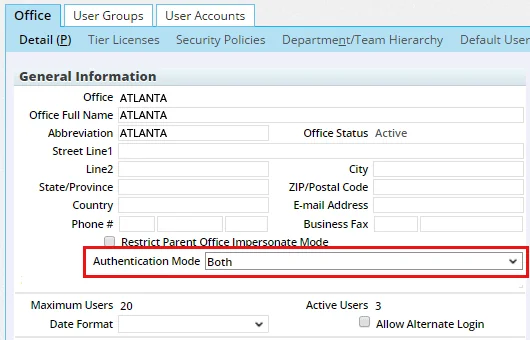
Important: Do not select Single Sign-On as the authentication mode. Even though the integration uses single sign-on technology, choosing that setting will prevent the user from accessing SmartOffice.
- Select Menu > Save.
User Setup
User Rights
These steps must be performed by a SmartOffice administrator who has the ability to assign licenses (for more information, see User Accounts - User Rights).
- Sign in to SmartOffice.
- Do one of the following:
- If you are setting up the integration for the user account your are currently signed in to, click the profile menu in the upper-right corner, and then select Profile & Settings
 .
. - If you are setting up the integration for another user account, select Setup > User Accounts on the SmartOffice side menu, and then search for the user account.
- With the user account record open, click the User Rights content link.
- In the Licenses column, under Integration, select the Albridge Applink license. If the license is not available, contact SmartOffice Technical Support.
- Select Menu > Save.
Albridge Partner User ID Setup
Follow these steps to set up an Albridge Partner User ID for each advisor whose book of business you want to access in Albridge Wealth Reporting.
- Sign in to the SmartOffice user account that will be accessing the integration.
- In the side menu, select Integrations > Albridge Applink to open the Albridge Applink setup page.
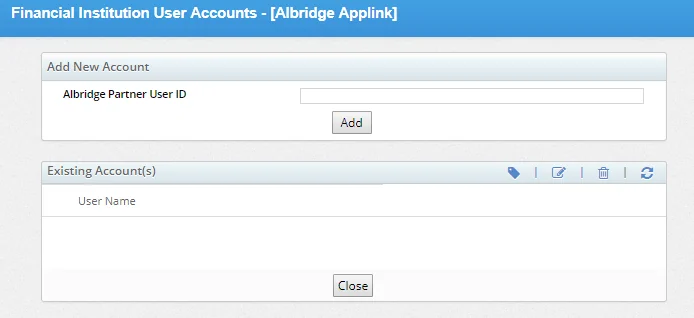
- Check whether the advisor's Albridge Partner User ID is already displayed under Existing Account(s). The ID may already be listed there if Albridge investment data downloads were set up for the advisor previously.
If the ID is already listed and you don't need to set up more advisors, click the Close button and skip the rest of these steps. If the ID is not listed, or if you need to set up more advisors—for example, if you are an assistant who helps multiple advisors manage their books of business—continue to the next step.
- Enter an advisor Albridge Partner User ID, and then click the Add button. If the ID is valid, it appears under Existing Account(s). If you get an error, ensure that you entered the ID correctly and, if necessary, check with your firm or broker-dealer to confirm the ID.
- Repeat the previous step to add any additional Albridge Partner User IDs.
- When finished setting up all advisors, click the Close button.
Using the Integration
About Single Sign-On
The integration requires you to sign in to only one application (SmartOffice or Albridge Wealth Reporting) to access both applications.
Navigating from SmartOffice to Albridge
SmartOffice contains several menu commands for navigating to Albridge Wealth Reporting. The following table summarizes the available commands in SmartOffice and the destination that each command takes you to in Albridge Wealth Reporting.
| SmartOffice Menu Command | SmartOffice Area Being Viewed | Albridge Wealth Reporting Destination |
|---|---|---|
| Side menu > Integrations > Albridge Applink | Any area | Client List |
| Menu > Integrations > Albridge Applink Image from image667.gif | Contact List or Contact Personal content link | Client Profile page |
| Household List or Household Detail content link | Client Profile page | |
| Account List | Client Accounts page | |
| Account Detail content link | Client Accounts page | |
| Account Positions content link | Client Accounts page | |
| Menu > Reports > Albridge Applink Reports Image from image668.gif | Contact List or Contact Personal content link | Run Report page |
| Household List or Household Detail content link | Run Report page | |
| Account List | Run Report page | |
| Account Detail content link | Run Report page | |
| Account Positions content link | Run Report page |
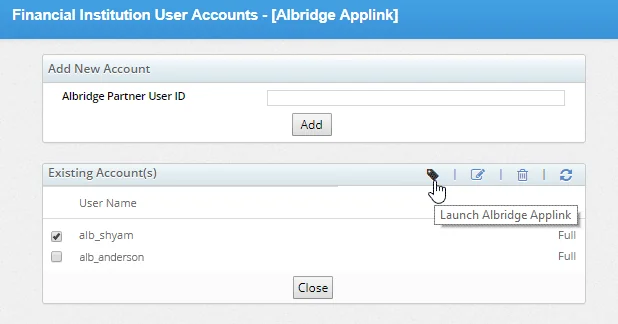
 to open the Albridge application.
Navigating from Albridge to SmartOffice
Certain hyperlinks in Albridge Wealth Reporting take you to SmartOffice, as described in the following table.
| Albridge Hyperlink | SmartOffice Destination |
|---|---|
| SmartOffice hyperlink in External Links column of Client List Image from image198.jpg | SmartOffice contact record |
SmartOffice Contact/Albridge Client Matching
The integration matches SmartOffice contact and Albridge client records based on Social Security number/tax ID. This section describes how the integration behaves when there are no matches (or multiple matches).
No Tax ID Match
If there is no matching Social Security number/tax ID for a client in Albridge, SmartOffice displays the following error message: Your request cannot be processed. Please contact Albridge Help (1-800-AWR-HELP) concerning error code AWR-P1-102\.
Multiple Tax ID Matches
While trying to navigate from a client record in Albridge Wealth Reporting to the corresponding contact record in SmartOffice, you may see a dialog box listing multiple matching SmartOffice contacts. The dialog box displays each contact’s first name, last name, Social Security number, date of birth, home address and home phone number.
This occurs when multiple SmartOffice contacts have the same Social Security number/tax ID as a single client in Albridge. Select the correct contact and click the Submit button to view that contact in SmartOffice, or click the Close button to return to the Albridge application.