Last updated: 2025-09-19
Integrations - Zapier
- Overview
- Requirements
- Data Setup
- SmartOffice Capabilities in Zapier
- Triggers
- Actions
- Creating a Zap
- Getting Help
Overview
Using Zapier, you can connect SmartOffice with other web applications to create automated workflows (or "Zaps") without having to write code. A Zap typically involve one app automatically sending data to another based on a trigger event.
For example, you can connect SmartOffice with a web form application (such as Jotform) so that, when a prospect submits information through the form application, a contact record containing that information is created automatically in SmartOffice.
For more information about Zapier, visit the Zapier website.
Requirements
- Zapier account: The integration works with all Zapier plans, free and paid. Note that Zapier's plans differ in terms of the number of Zaps you can create, the number of data transactions allowed per month, how long it takes for data updates to occur, and other details. For more information about these differences, refer to Zapier's pricing page.
- Other app accounts: You must have accounts with the apps you plan to link to SmartOffice. See the list of apps that Zapier supports.
Data Setup
The applications you connect using Zapier may have required fields that must be populated. For example, in SmartOffice, the Last Name field of a contact is required; if you want another app to create a contact in SmartOffice, the other app must send the last name in order for the workflow to produce the results you expect.
Required fields are labeled in Zapier. Ensure that the application that is sending data, whether it is SmartOffice or another app, contains the information required by the app that is receiving the data.
SmartOffice Capabilities in Zapier
This section describes the available triggers and actions that SmartOffice supports on Zapier.
Triggers
When SmartOffice is the trigger app (i.e., the app that starts the Zapier workflow), the available trigger events are:
- New Contact: The workflow begins when a contact is created in SmartOffice.
- Updated Contact: The workflow begins when a contact is modified in SmartOffice.
Actions
When SmartOffice performs an action triggered by another app, the available actions are:
- Add Activity: This action creates an activity in the SmartOffice calendar using data received from the other app.
- Add Business: This action creates a business record in SmartOffice using data received from the other app.
- Add Contact: This action creates an individual contact in SmartOffice using data received from the other app.
- Add Document: This action posts a copy of a document from the other app into a SmartOffice contact record.
- Add Lead: This action creates a lead in SmartOffice using data received from the other app. This action includes the ability to link the new lead to a campaign.
- Add Note: This action adds a SmartPad note to a contact in SmartOffice using data received from the other app.
- Delete Activity: This action deletes an activity from the SmartOffice calendar in response to a trigger from the other app.
Creating a Zap
Note: The process of creating a Zap for SmartOffice is the same as that for other apps on Zapier. The steps below provide a basic overview. For more detailed instructions, visit the Zapier Help Center.
- Sign in to Zapier.
- On the Dashboard, under Make a Zap, use the Connect this app... field search for and select the app that will trigger the workflow (either SmartOffice or the other app).
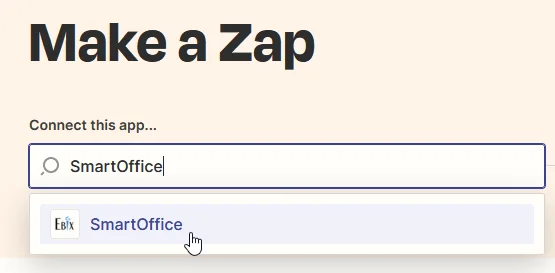
- In the with this one field, search for and select the app (SmartOffice or another app) that will perform an action in response to the first app you selected.
- In the When this happens field, choose the trigger event.
- In the then do this field, choose the action that will occur in response to the trigger.
- Select Try it, and then select Get Started.
- Follow the instructions to connect your SmartOffice account (and your account with the other app) to Zapier. When prompted, enter your SmartOffice sign-in credentials.
Note: If you normally access SmartOffice through another web portal and do not have SmartOffice sign-in credentials, select I don't access SmartOffice with a user name or password on the SmartOffice sign-in prompt. Then enter an integration sign-in code to connect your account instead. To learn how to generate an integration sign-in code in SmartOffice, see Integration Sign-in Code.
- Follow the instructions to map fields between SmartOffice and the other app.
Getting Help
If you need additional help with creating Zaps, visit the Zapier Help Center or contact Zapier support.
If you have a question about support for specific SmartOffice fields on Zapier, contact SmartOffice Technical Support.