Last updated: 2025-09-19
Integrations - IXN
- Overview
- Requirements
- SmartOffice Setup
- Office and User Setup
- Data Setup
- IXN Setup
- Agencies
- Advisors
- Using the Integration
- Starting a Life Quote
- Receiving Pending Case Status Updates
Overview
This integration connects SmartOffice to the IXN Agency Life Quoter, part of the FireLight Product Quoting platform by Insurance Technologies. The integration enables advisors to:
- Start the IXN Agency Life Quoter from SmartOffice and prefill fields for life insurance quotes using data from SmartOffice contact and advisor records.
- Receive notifications about SmartOffice pending case status updates in the IXN mobile app.
To learn more about the IXN Agency Life Quoter, visit the FireLight Annuity and Life Quoting Software website.
Requirements
- IXN account: Your agency must have an account with IXN.
- IXN MobileAppID: Contact IXN at fulfillment@ixn.tech for this information, which is required to configure notifications from SmartOffice to the mobile app.
SmartOffice Setup
Office and User Setup
Please contact SmartOffice Technical Support for assistance in setting up the integration.
Data Setup
This section describes requirements and suggestions that agencies should consider when preparing their SmartOffice data to work with IXN.
Contacts
To create quotes in IXN from SmartOffice contact records, ensure that contact records are linked to a primary advisor. By default, the primary advisor is listed on the contact Personal content link.
SmartOffice can send data from the following contact fields to IXN's quoting platform to prefill fields. Ensuring that these fields are completed in your SmartOffice contact records will speed up the quoting process (by default, these fields are located on the contact Personal content link and Add'l Personal content link):
- Last Name
- First Name
- Greeting
- Type
- Birth Date
- Age
- Gender
- Phone Number
- Address
- E-mail Address
Agencies
On the agency Detail Content Link, ensure that the agency's e-mail address is the same as the e-mail address configured for the agency in IXN's Dashboard.
Advisors
To receive notifications about SmartOffice pending case status updates in the agency's mobile app, the primary advisor's record in SmartOffice must have the following (by default, this information appears on the advisor Personal content link in SmartOffice):
- E-mail address: The e-mail address should be identical to the e-mail address configured for the advisor in IXN. If the advisor has a SmartView for Advisors user account, the e-mail address on that user account must also be the same as the e-mail address configured for the advisor in IXN. In both cases, the e-mail address must also be marked as the preferred e-mail address on the advisor record if the advisor will be receiving mobile alerts.
- Agency: The advisor record should be linked to the correct agency record.
SmartOffice can send data from the following advisor fields to IXN's quoting platform to speed up the quoting process. To create life quotes more quickly in IXN, ensure that these fields are completed in your SmartOffice advisor records (by default, these fields are also located on the advisor Personal content link):
- Last Name
- First Name
- Phone Number
- E-mail Address
Pending Cases
To ensure that an advisor receives alerts about SmartOffice pending case updates in the IXN mobile app, verify that the advisor is the primary advisor on the case. In pending case records, the primary advisor is listed on the Policy Advisor List, which is located on the pending case pending case Detail content link by default.
IXN Setup
Agencies
Ensure that all advisors who will use the integration are entered in IXN's Dashboard (see IXN's instructions). When entering the advisor's e-mail address, ensure that it matches the advisor's e-mail address configured in SmartOffice if you want the advisor to receive pending case update notifications.
Advisors
Mobile App Installation
To receive notifications about status updates to pending cases in SmartOffice, an advisor must have the agency's mobile app installed (for instructions, refer to IXN's video tutorial). The advisor can install the mobile by searching for the agency's name in the Google Play Store (for Android devices) or the Apple App Store (for Apple devices).
Note: When signing in to the mobile app, the advisor must use the same e-mail address that appears on the advisor's record in SmartOffice.
Using the Integration
Starting a Life Quote
A SmartOffice user can start a life insurance quote directly from a SmartOffice contact or advisor record, or from the SmartOffice side menu.
From a Contact Record
- Search for the contact record you want to create a quote for.
- Select the contact record in the list of search results, or open the record.
- Select Menu > Integrations > IXN Agency Life Quoter. IXN's Life Quoter form opens, and data from the contact record and the linked advisor record appears automatically in the appropriate IXN fields.
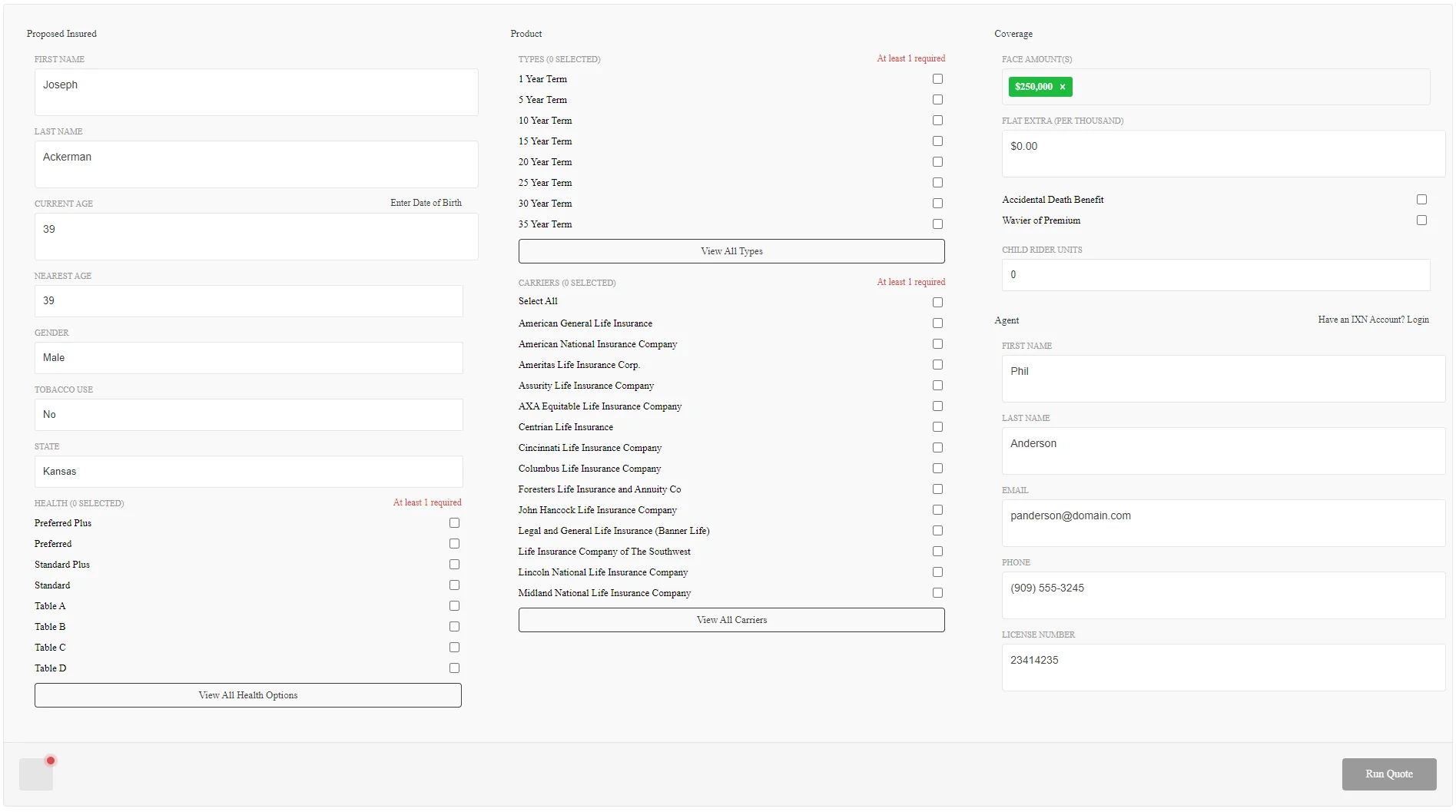
- Complete any additional required fields in IXN, and then click the Run Quote button.
For help completing the quote, refer to IXN's Agency Life Quoter support page.
From an Advisor Record
- Search for the advisor record you want to create a quote for.
- Select the advisor record in the list of search results, or open the record.
- Select Menu > Integrations > IXN Agency Life Quoter. IXN's Life Quoter form opens, and data from the advisor record appears automatically in the appropriate IXN fields.
- Complete any additional required fields in IXN, and then click the Run Quote button.
For help completing the quote, refer to IXN's Agency Life Quoter support page.
From the Side Menu
- On the SmartOffice side menu, select Integrations > IXN Agency Life Quoter. IXN's Life Quoter form opens.
Note: Accessing the integration from the side menu does not automatically prefill any fields in the IXN form.
- Complete the required fields in IXN, and then click the Run Quote button.
For help completing the quote, refer to IXN's Agency Life Quoter support page.
Receiving Pending Case Status Updates
If an advisor has the agency's mobile app installed (see IXN Setup), the advisor can receive pending case status notifications from SmartOffice in the agency mobile app whenever a pending case is updated in SmartOffice.
The advisor must be designated as the primary advisor on a case in SmartOffice in order to receive alerts about that case. Important: The advisor must log in to the IXN mobile app using the preferred e-mail address specified on that advisor's record in SmartOffice.
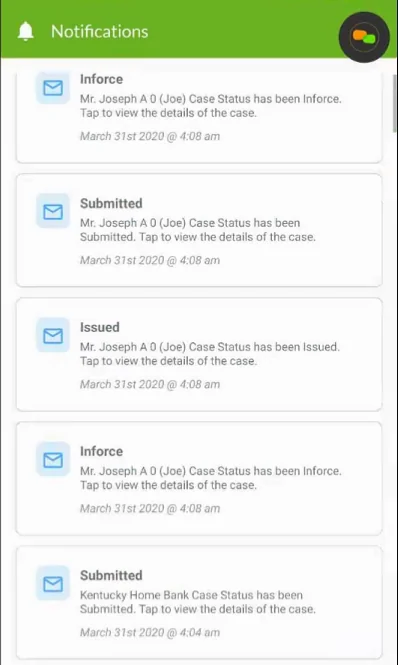
Advisors can also turn these notifications on or off from within the mobile app's settings. For information about receiving and viewing notifications, refer to IXN's tutorial.