Last updated: 2025-09-19
Integrations - Intellisys
Overview
The Intellisys integration for SmartOffice enables users to view a SmartOffice contact’s existing documents on the Intellisys (ExamOne) website. For more information on the Intellisys (ExamOne) application, please visit www.examone.com"). For information about the Azalea bar code font, please visit azaleabarcodes.com.
Requirements
- An Intellisys account
- SmartOffice v5\.1 or higher
- SmartCaseManager license
- The Azalea Bar code font C128
- Rights to the Intellisys integration
Using the Intellisys Integration
- From the SmartOffice Pending Case List or Detail content link, select Integrations from the expanded Menu list.
Note: The integration can also be accessed from the side menu; however, accessing the integration from the side menu only displays the Intellisys Search screen.
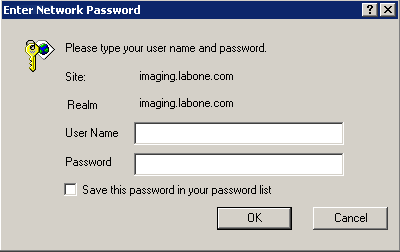
- Select the Intellisys option to open the Enter Network Password dialog box.
- Enter the Intellisys User Name and Password and then click the OK button.
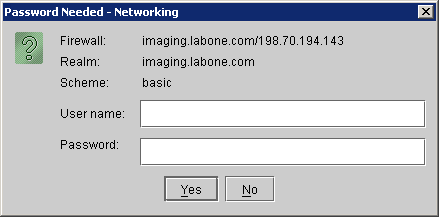
- Enter the User Name and Password again if prompted. If prompted to download a file/software/security certificate from Intellisys (ExamOne), please do so in order to display the files that are stored on their site.
- Based upon the pending case ID or unique case ID, the document storage for that particular contact/case ID displays.
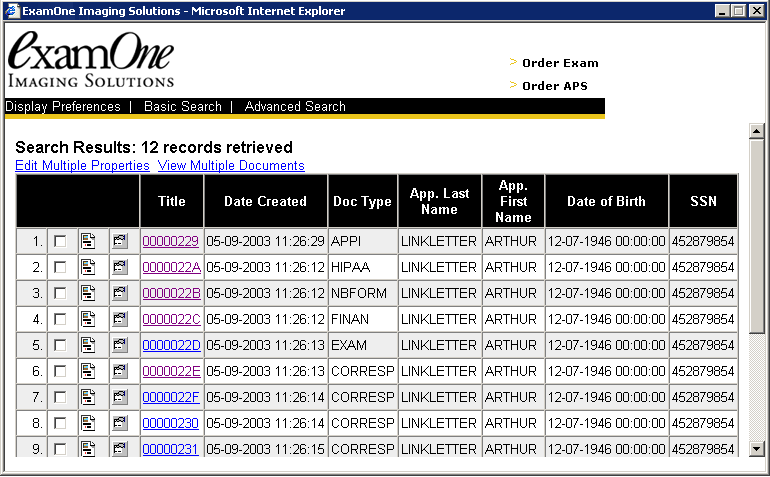
- Click the appropriate Title hyperlink to display the corresponding information.