Last updated: 2025-09-19
Integrations - Financial Media Exchange
- Overview
- Setup
- Using the Integration
- Sharing FMeX Marketing Content from SmartOffice
- Viewing Campaign Statistics from the SmartPad
Overview
The Financial Media Exchange (FMeX) integration for SmartOffice enables advisors to engage with clients and prospects by sending them personalized, branded, compliant marketing communications directly from SmartOffice.
From a special tab on your SmartOffice home page, you can browse or search Financial Media Exchange's library of articles, newsletters, videos, and other content, and then send that content to your SmartOffice contacts.
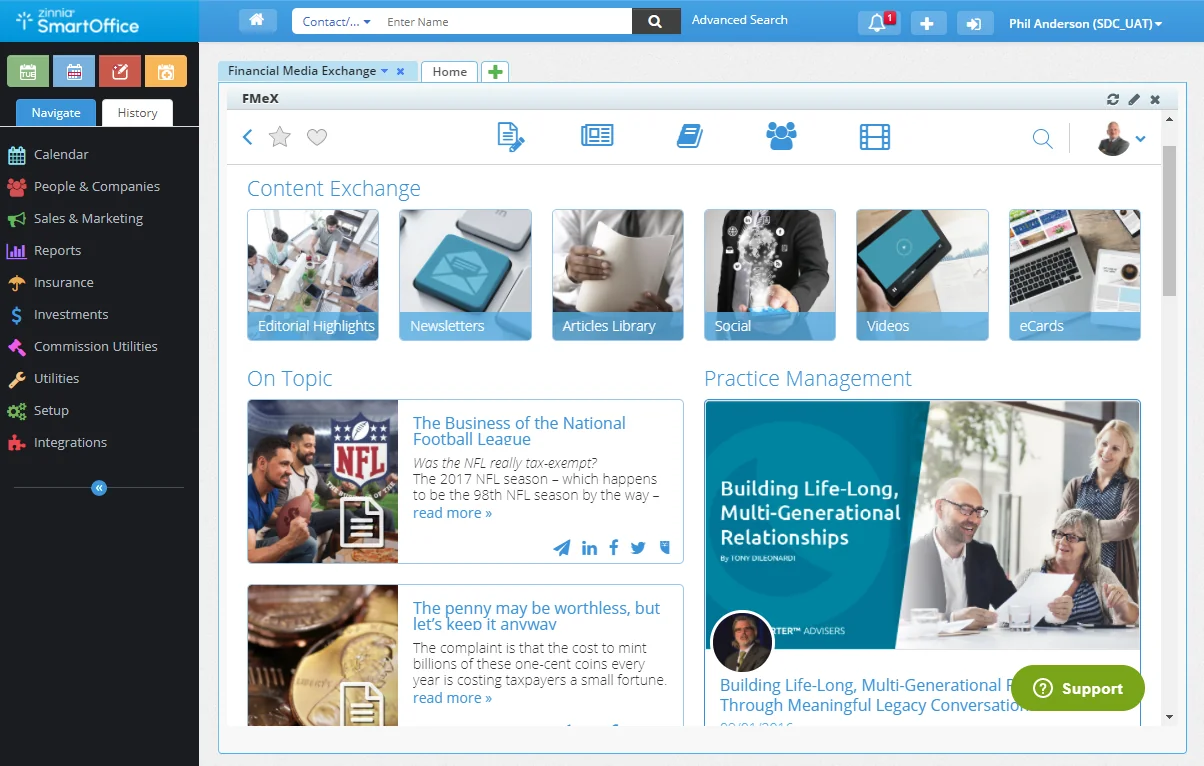
A record of all communications you send is stored in each recipient's SmartPad. Financial Media Exchange offers a free trial to SmartOffice users. To sign up for the free trial, follow the setup instructions in the next section.
Setup
- In SmartOffice Pro, click your name in the upper-right corner to open the profile menu, and then click the Profile & Settings button
 to open your user account page.
 - Click the User Rights content link.
- In the Licenses column, select Financial Media Exchange.
- Select Menu > Save.
- In the side menu, select Integrations > Financial Media Exchange.
- In the dialog box that opens, click the Start Using FMeX button.
- In SmartOffice, click the home button
 to go to your home page. You will see a new Financial Media Exchange home page tab.
 - Follow the instructions presented in the tab to create your free trial account and complete the setup process.
Once you complete the setup process, your SmartOffice contacts and sets will be synchronized automatically to Financial Media Exchange.
Using the Integration
This section present basic instructions for using Financial Media Exchange from SmartOffice. For more in-depth help, click the Support button in the lower-right corner of your Financial Media Exchange tab to contact Financial Media Exchange directly.
Sharing FMeX Marketing Content from SmartOffice
- In the Financial Media Exchange tab on your SmartOffice home page, browse or search for content (article, video, etc.) you want to share.
- When you find a piece of content, open it, and then click the Share button to open a list of sharing options.
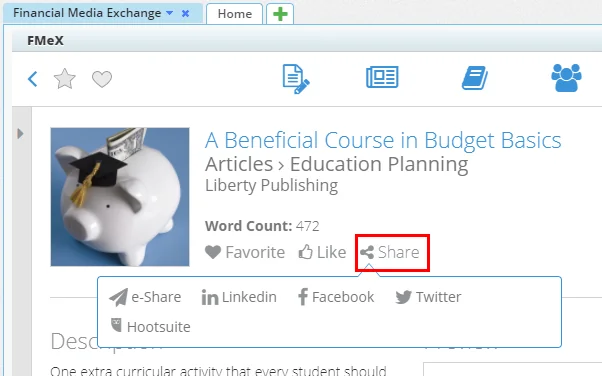
- Select one of the following options:
- e-Share: This option sends the content by e-mail. When you choose this option, Financial Media Exchange presents a preview of the e-mail message. Under Choose Recipients, select a SmartOffice set, or specify individual contacts by typing their names or e-mail addresses into the Individual Recipient(s) field. Optionally, you can personalize the e-mail by adding your own comments under Enter Personal Message, changing the subject line, and more. When finished, scroll to the bottom of the preview window and click the Send button.
- LinkedIn, Facebook, Twitter or Hootsuite: These options allow you to post a link to the content on your social media feed. If you are posting to one of these networks for the first time, you will be prompted to sign in to that network.
Viewing Campaign Statistics from the SmartPad
To send content to one or more contacts, Financial Media Exchange posts a note to each contact's SmartPad. The note includes a link you can click to access statistics about the content.