Last updated: 2025-09-19
Integrations - Riskalyze
- Overview
- Requirements
- Setup
- SmartOffice Setup
- Using the Integration
- Opening Riskalyze from SmartOffice and Linking Contacts
- Displaying Risk Numbers in SmartOffice
- Risk Numbers in Contact Records
- Risk Numbers in Lists and Dynamic Reports
- Frequently Asked Questions
Overview
Riskalyze is a solution by Nitrogen that helps advisors build portfolios for their clients based on each client's individual Risk Number. The Riskalyze integration for SmartOffice enables advisors to do the following:
- Launch Riskalyze directly from SmartOffice without having to sign in to Riskalyze.
- Export a client's portfolio from SmartOffice into Riskalyze in order to calculate the portfolio's Risk Number.
- Display client and portfolio Risk Numbers from Riskalyze in SmartOffice.
For more information about Riskalyze, go to the Riskalyze website or call (530\) 748-1660\.
Requirements
To use SmartOffice's integration with Riskalyze, a user must have the following:
- Riskalyze account
- Investment Tracking license in SmartOffice (to export investments)
Setup
Follow the instructions in this section to ensure that office, user and browser settings are configured correctly for the Riskalyze integration.
SmartOffice Setup
User Settings
A SmartOffice user with administrator rights must enable the Riskalyze license for each SmartOffice user who will use the integration. Note: The user who accesses the integration must be an advisor. The integration will not work if a non-advisor (e.g., an assistant) tries to use the integration.
- In SmartOffice, access the User Rights content link for the user's account (Setup > User Accounts).
- In the Licenses column, select Riskalyze in the Integration section.
- Select Menu > Save.
- Repeat these steps for each additional user.
Data Setup
The following SmartOffice contact fields must be completed for any contacts that will be used with Riskalyze:
- First Name
- Last Name
In addition, note the following:
- Asterisks in account names: Riskalyze does not support asterisks (\*) in investment account names. Any SmartOffice account containing asterisks in the name will be exported to Riskalyze with the asterisks removed.
- Position limits: Riskalyze supports a maximum of 400 positions, or holdings, per client record. When a SmartOffice contact has more than 400 holdings, an error occurs, and the contact's data and investments are not exported to Riskalyze.
Using the Integration
Opening Riskalyze from SmartOffice and Linking Contacts
- Sign in to SmartOffice using an advisor user account.
- Search for a contact.
Note: The integration does not currently work with SmartOffice business records.
- Open the contact record, or tag the record in the list of search results.
- Select Menu > Integrations > Riskalyze.
- If the Riskalyze sign-in page appears, sign in to Riskalyze normally. This step is necessary only the first time you use the integration.
- When the Riskalyze Contact Search page appears, review the list of matching Riskalyze contacts that SmartOffice has found, if any.
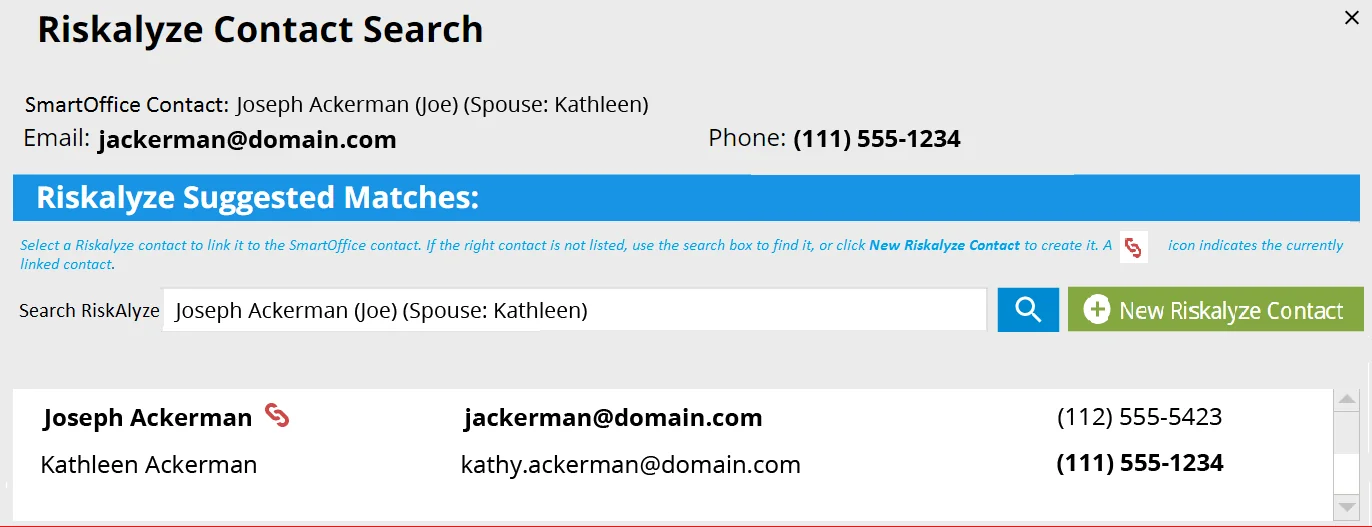
- The next step depends on whether the correct matching Riskalyze contact appears in the list:
- If the correct match appears in the list, make sure the link icon
 appears next to the Riskalyze contact's name. The icon indicates that a link has been established between the SmartOffice contact and the Riskalyze contact. Click the contact's name to proceed to Riskalyze.
If the link icon appears next to the wrong Riskalyze contact, click the icon to unlink that contact, and then click the correct Riskalyze contact's name to establish a new link. Note: Only an advisor can link and unlink contacts. If you are not an advisor (e.g., if you are an assistant), ask the advisor to sign in to SmartOffice, launch the Riskalyze integration and perform these actions.
- If the correct match does not appear in the list, search for the correct Riskalyze contact or create a Riskalyze contact. Note: Only the advisor can search for or create Riskalyze contacts using the integration. If you are not the advisor (e.g., if you are an assistant), ask the advisor to sign in to SmartOffice, launch the Riskalyze integration and perform these actions.
To search for the correct contact, change the search terms in the Search Riskalyze field, and then click the search button. If the correct Riskalyze contact appears in the results, click the contact's name to establish the link.
To create a Riskalyze contact, click the New Riskalyze Contact button; this opens Riskalyze and imports the contact's name, contact information and investment holdings from SmartOffice into a new Riskalyze record. The new Riskalyze contact is also linked to the SmartOffice contact automatically.
Once Riskalyze opens, any changes made to the client's contact information and investments in SmartOffice since the last time you opened the integration are synced to Riskalyze.
Displaying Risk Numbers in SmartOffice
Risk Numbers in Contact Records
To view Risk Number information in SmartOffice contact records, you can use SmartOffice's page layout customization feature (see Page Layout Customization).
Create a custom page layout for the contact Personal content link, adding the Riskalyze portlet to that layout. The client's Risk Number and the client's current portfolio Risk Number appear side by side in the portlet.
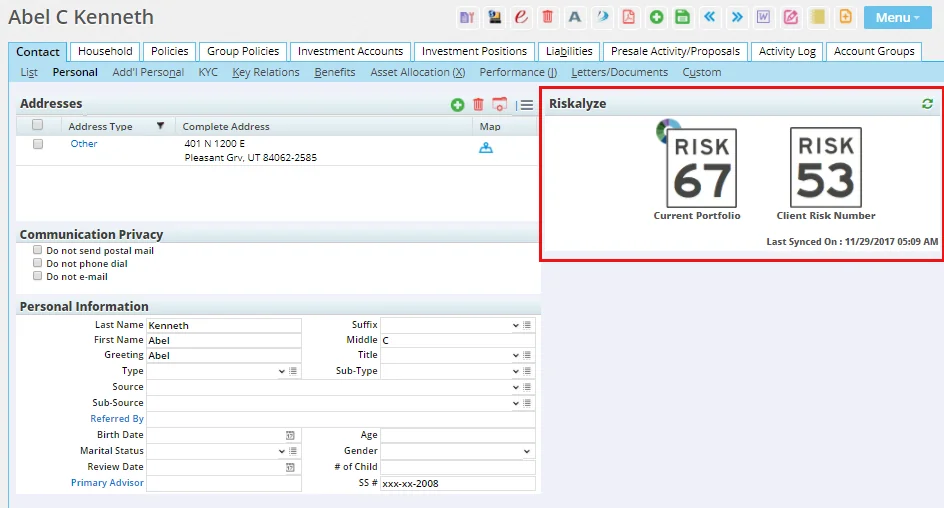
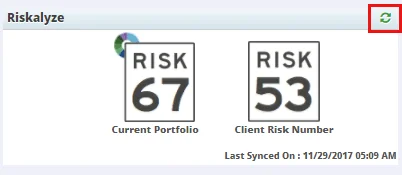
Using this information, you can see at a glance whether a client's portfolio aligns with the client's risk profile. To ensure that you are seeing the latest Risk Number information, click the Refresh Portlet button in the portlet.
If you see a question mark instead of a number, a Risk Number has not yet been calculated for this contact in Riskalyze.
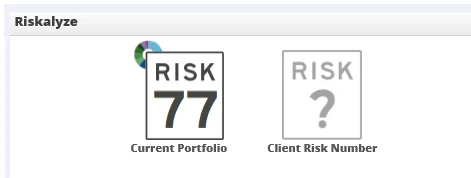
In this case, log in to Riskalyze and calculate the client's Risk Number. Then go back to the client's contact record in SmartOffice and refresh the Riskalyze portlet.
Risk Numbers in Lists and Dynamic Reports
Note: This section assumes you are familiar with list layout customization and Dynamic Reports.
To view client Risk Number information in a SmartOffice list or Dynamic Report, include one or more of these columns from the ContactExtLink table:
- Current Risk: This column corresponds to the Current Portfolio number that appears in the Riskalyze portlet.
- Target Risk: This column corresponds to the client Risk Number that appears in the Riskalyze portlet.
- Last SyncedOn: This column indicates the last time Risk Number information for the client was refreshed.
Note: To ensure that you are viewing the latest Risk Number information, manually refresh the Risk Number data before viewing a list or running a report. For more information about refreshing Risk Numbers, refer to the section about displaying Risk Numbers information in contact records.
Frequently Asked Questions
Once I set up the integration and push my clients' information and investments to Riskalyze, will any changes to the data in SmartOffice be synced automatically to Riskalyze?
No. To update the data in Riskalyze, you must launch the integration again and confirm that the contacts are still matched correctly between the two systems.
When the Riskalyze Contact Search dialog box opens, it is blank. I know the selected contact exists in both SmartOffice and Riskalyze. What am I doing wrong?
Only the advisor can link a SmartOffice contact to a Riskalyze contact. If you are not the advisor (e.g., if you are an assistant), ask the advisor to sign in to SmartOffice, launch the Riskalyze integration and create the link between the SmartOffice contact and the Riskalyze contact. You will then see the linked Riskalyze contact when you start the Riskalyze integration.
When I try to use the integration, I receive a Riskalyze error stating, "We could not authorize the integration for this user." What should I do?
To resolve this issue, contact Riskalyze support at support@riskalyze.com and let them know you encountered the error while trying to use the Riskalyze integration in SmartOffice.
Does the integration export insurance policy data, such as variable annuities, from SmartOffice to Riskalyze?
Generally speaking, Riskalyze accepts only investment data from external applications like SmartOffice. However, for variable annuities, the integration does create a placeholder account in Riskalyze and names it “Incomplete Variable Annuity Account.” However, the user must update this account manually in Riskalyze; it is not updated automatically the way other investments are updated when you access Riskalyze from SmartOffice.
Can Risk Number information imported from Riskalyze into SmartOffice be updated automatically? Not at this time. The Risk Number information must be refreshed manually in SmartOffice. Automatic updating of Risk Numbers is being considered for a future release of the integration.
Can the answers that a client provides to the Riskalyze questionnaire be imported into the client's SmartOffice record? Not at this time. This feature is being considered for a future release of the integration.