Last updated: 2025-09-19
Integrations - Cisco Webex
- Overview
- Requirements
- Setup
- User Setup
- Installing the Integration
- Using Cisco Webex with SmartOffice
- Scheduling a Cisco Webex Meeting from SmartOffice
- Tracking Completed Cisco Webex Meetings in SmartOffice
Overview
With the Cisco Webex integration, SmartOffice users can track Cisco Webex meetings in the SmartOffice calendar and save Cisco Webex audio recordings in the SmartOffice SmartPad. Users can also schedule Cisco Webex Meetings directly from SmartOffice.
For more information about Cisco Webex, visit the Cisco Webex website.
Requirements
- Cisco Webex account: The integration works only with paid versions of Cisco Webex.
Setup
User Setup
A SmartOffice administrator with the ability to assign licenses must enable the appropriate license for each SmartOffice user who will use the integration.
- Sign in to SmartOffice Pro.
- Do one of the following:
- If you are setting up the integration for the user account your are currently signed in to, click the profile menu in the upper-right corner, and then select Profile & Settings
 .
. - If you are setting up the integration for another user account, select Setup > User Accounts on the SmartOffice side menu, and then search for the user account.
- With the user account record open, click the User Rights content link.
- In the Licenses column, under Integration, select Webex Integration.
- Select Menu > Save.
Installing the Integration
- In SmartOffice, select Integrations > Cisco Webex in the side menu.
- When the Cisco Webex integration page opens, select Install.
- Sign in to Cisco Webex when prompted.
- If a page appears asking you to approve a list of permissions requested by SmartOffice, select Accept. These permissions are necessary in order for the integration to function.
- When prompted, sign in to SmartOffice.
Using Cisco Webex with SmartOffice
Once setup is complete, you can schedule Cisco Webex Meetings from SmartOffice and track completed meetings in SmartOffice.
Scheduling a Cisco Webex Meeting from SmartOffice
To schedule a Cisco Webex Meeting from SmartOffice, create an activity from the SmartOffice Pro calendar, noting these additional steps:
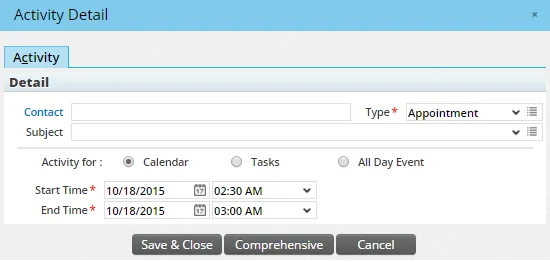
- If you are using the Simple Add dialog box to create the activity, open the full Activity Detail dialog box by selecting Comprehensive.
- At the bottom of the Activity Detail dialog box, select Options to expand that section, and then select Cisco Webex from the Web Meeting menu.
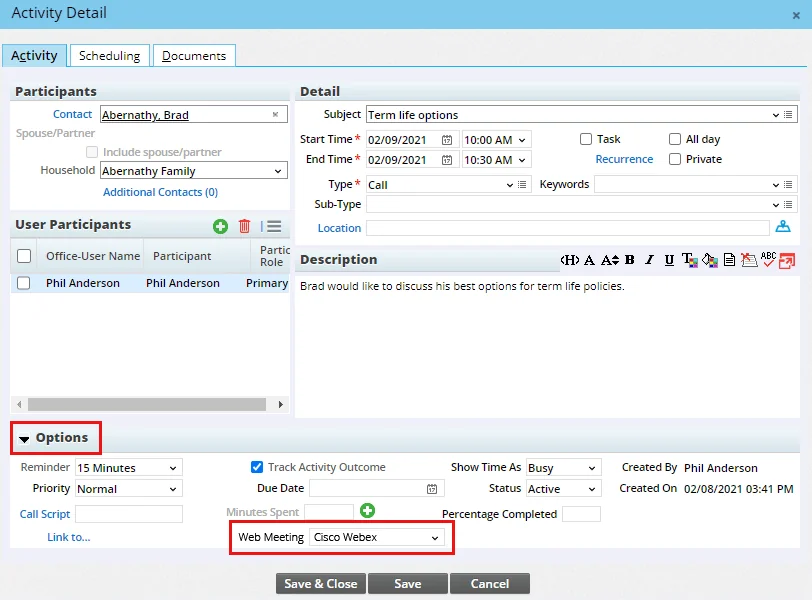
If the Cisco Webex option does not appear and this is your first time using the Cisco Webex integration, try signing out of SmartOffice and then signing in again.
Note: The Web Meeting drop-down list is not available for untimed, recurring, or previously saved activities, or for activities created in areas of SmartOffice other than the calendar.
- Enter the remaining details of the activity, and then select Save & Close.
Once you save the activity, the following occurs automatically:
- SmartOffice adds details about the Cisco Webex Meeting, including the meeting link, meeting ID and call-in information, to the activity's Description field (if you already entered a description, the Cisco Webex information is appended after your description).
- SmartOffice creates the meeting in Cisco Webex. You can sign in to the Cisco Webex website or app to view it.
Note: After you save a new SmartOffice activity with the Cisco Webex option selected, the activity stays in sync with the Cisco Webex Meeting. Modifying or deleting the activity in SmartOffice automatically modifies or deletes the meeting in Cisco Webex and vice versa.
Tracking Completed Cisco Webex Meetings in SmartOffice
SmartOffice automatically does the following after a Cisco Webex Meeting:
- Creates a calendar activity: SmartOffice checks whether a calendar activity with the same date, time and subject as the Cisco Webex Meeting already exists. If not, SmartOffice creates the activity and adds those details, which you can review in the Activity Detail dialog box.
Under User Participants, SmartOffice also adds the SmartOffice user who created the Cisco Webex Meeting (to determine this user, SmartOffice looks for a match on the e-mail address of the Cisco Webex Meeting creator).
You can add more users to the participants list manually, if necessary. In addition, you can manually link the activity to the appropriate contact (by specifying the contact's name in the Contact field) and change the activity's status to Done (under Options) to track the outcome of the activity.
- Saves the meeting recording to the SmartPad: SmartOffice saves the audio recording as an activity note, which you can access from the Activity Detail dialog box by selecting Menu > View Activity Notes.
SmartOffice creates the note when the recording becomes available in Cisco Webex. In addition, for longer meetings or during busy periods for Cisco Webex, it may take a few minutes after the meeting ends for the note to appear in SmartOffice.
The audio recording is also saved as a SmartPad note in your contact record.