Last updated: 2025-09-19
Integrations - FMG Suite
- Overview
- Requirements
- SmartOffice Setup
- Data Setup
- User Setup
- FMG Suite Setup
- Using the Integration
- Sending Marketing E-mails
- Working with Website Leads
- Synchronizing Contacts Manually
- Changing Sync Settings
- Viewing Sync Results
- Disconnecting from SmartOffice
- Frequently Asked Questions
Overview
This integration connects SmartOffice to the FMG Suite advisor marketing platform. The integration does the following:
- Synchronizes contacts and sets from SmartOffice to FMG Suite.
- Creates SmartOffice contact records for leads that come in through an FMG Suite advisor website.
To learn more about FMG Suite, visit the FMG Suite website.
Important: Any contacts you have entered in FMG Suite will be deleted once you set up this integration. If you have contacts in FMG Suite that do not exist in SmartOffice and that you want to keep, log in to FMG Suite and export your contacts to a .csv file (select Email > Contacts, and then select Export CSV from the settings menu). Then import that file into SmartOffice and merge any duplicates before you set up the FMG Suite integration.
Requirements
- FMG Suite account with Email Sending: To get FMG Suite, check with your broker-dealer to find out if the service is offered. If not, you can purchase the service directly from FMG Suite.
SmartOffice Setup
Data Setup
To sync with FMG Suite, a contact in SmartOffice must have at least one e-mail address. FMG Suite synchronizes a contact's preferred e-mail address only. You can add e-mail addresses to contacts and select preferred addresses on the Personal content link.
User Setup
A SmartOffice user with administrator rights must enable the appropriate license for each SmartOffice user who will use the integration.
- Sign in to SmartOffice Pro.
- Do one of the following:
- If you are setting up the integration for the user account your are currently signed in to, click the profile menu in the upper-right corner, and then select Profile & Settings
 .
. - If you are setting up the integration for another user account, select Setup > User Accounts on the SmartOffice side menu, and then search for the user account.
- With the user account record open, click the User Rights content link.
- In the Licenses column, look for the FMG Suite license under Integration.
- If you see the FMG Suite license, select it, and then select Menu > Save.
- If you do not see the FMG Suite license, the integration has already been enabled for all users in the office. Proceed with FMG Suite setup (see the next section).
FMG Suite Setup
- Log in to FMG Suite.
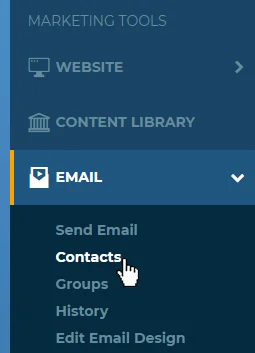
- Under Marketing Tools, select Email > Contacts to open the Contacts page.
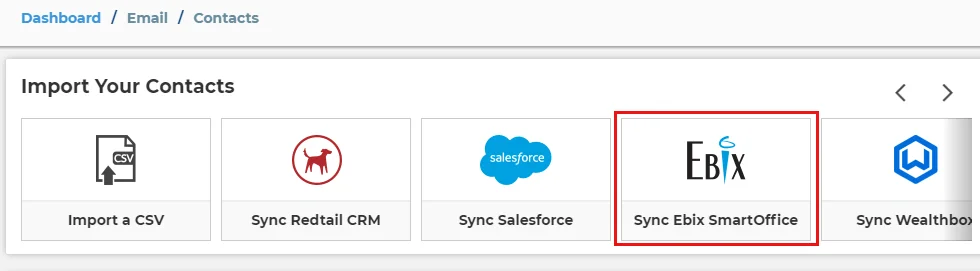
- Under Import Your Contacts, select Sync Ebix SmartOffice.
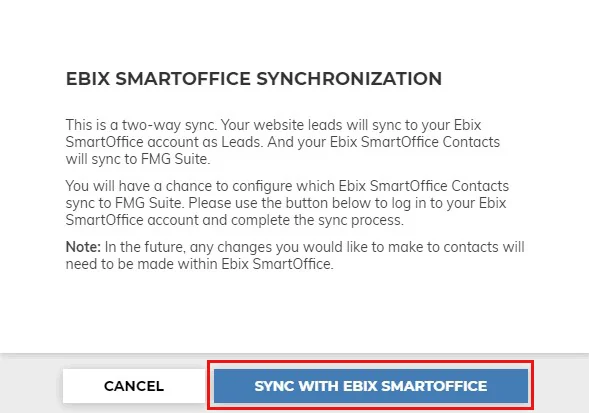
- Read the information about synchronizing with SmartOffice, and then click the Sync with Ebix SmartOffice button.
- When prompted, enter your SmartOffice office name, user name and password, and then click the Submit button to display the sync options.
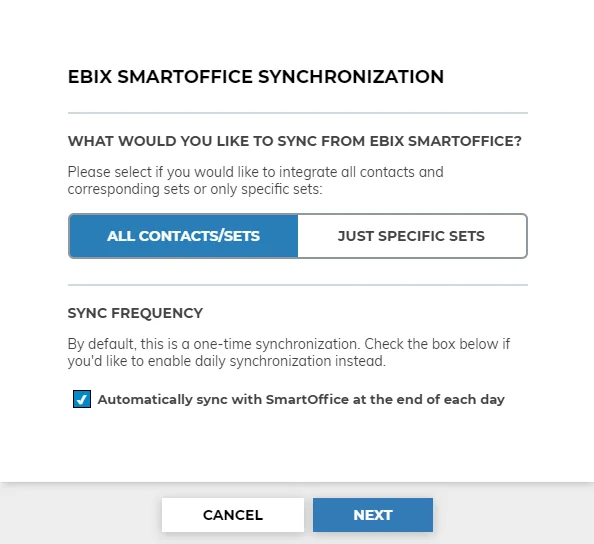
- Select one of the available sync options:
- All Contacts/Sets: This options syncs all of your SmartOffice contacts and sets to FMG Suite.
- Just Specific Sets: This option displays a list of your SmartOffice sets, allowing you to select only those sets you want to sync with FMG Suite.
- Under Sync Frequency, select the Automatically sync with SmartOffice at the end of each day option if you want changes to SmartOffice contacts to be synchronized to FMG Suite automatically. Clear this option if you prefer a one-time sync or you prefer to sync manually.
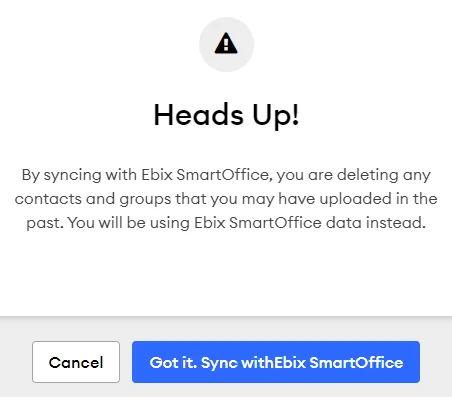
- Click the Next button. A warning message informs you that any existing contacts and groups in FMG Suite will be deleted.
Important: Do not proceed if you have contact/group data in FMG Suite that does not exist in SmartOffice. If you do, the data you have saved in FMG Suite will be lost. Instead, click Cancel to end the sync setup process, and then export your FMG Suite contacts by going to Email > Contacts and selecting Export CSV from the settings menu. You can then import those contacts into SmartOffice and merge any duplicates. Once your FMG Suite data is imported into SmartOffice, you can start the sync setup process again.
- If you are sure you do not have data in FMG Suite that you want to save, click the Got it. Sync with Ebix SmartOffice button.
Contact sync typically take less than 5 minutes, depending on the number of contacts you have in SmartOffice. When sync is complete, the Contacts page in FMG Suite reloads to display your contacts synchronized from SmartOffice.
Note: Once sync setup is complete, you cannot add or edit contacts in FMG Suite. You must make any changes in SmartOffice and then sync those changes.
Sets that you synchronized from SmartOffice appear as groups in FMG Suite and are accessible under Email > Groups.
Using the Integration
Sending Marketing E-mails
Once your SmartOffice contacts are synchronized to FMG Suite, use FMG Suite as you normally would to send marketing content to those contacts.
Working with Website Leads
When leads acquired through your FMG Suite advisor website are created as contacts in SmartOffice, the contacts are automatically added to a SmartOffice set called "FMG Suite Website Form Leads" and are assigned the type Prospect.
Note: If the e-mail address of a website lead is already associated with a contact in SmartOffice, FMG Suite assumes the contact already exists in SmartOffice and does not sync the lead.
To sync your website leads back to FMG Suite as contacts for e-mail marketing purposes, change your sync settings and make sure the "FMG Suite Website Form Leads" is selected as a set you want to sync.
Synchronizing Contacts Manually
If you enabled automatic sync during FMG Suite setup, any changes to contacts in SmartOffice will be synchronized automatically to FMG Suite at the end of each day. If you want to synchronize contacts immediately (or if you did not enable automatic sync), follow these steps to perform a manual sync:
- In FMG Suite, under Marketing Tools, select Email > Contacts to open the Contacts page.
- Click Update Contacts to start the sync process.

Changing Sync Settings
To change your sync settings after the initial FMG Suite setup:
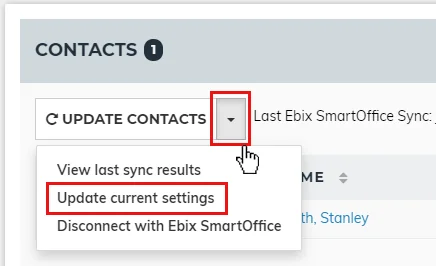
- In FMG Suite, under Marketing Tools, select Email > Contacts to open the Contacts page.
- Click the Update Contacts drop-down list and select Update current settings.
- When the sync options appear, make your changes (for information about sync options, see FMG Suite setup).
Viewing Sync Results
You can view a log of sync results to determine why certain SmartOffice contacts were (or were not) synchronized to FMG suite during the most recent sync.
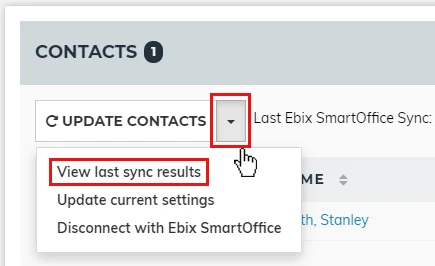
- In FMG Suite, under Marketing Tools, select Email > Contacts to open the Contacts page.
- Click the Update Contacts drop-down list and select View last sync results.
Disconnecting from SmartOffice
To disconnect FMG Suite from SmartOffice and disable the integration, follow these steps:
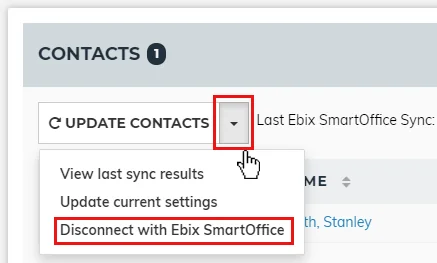
- In FMG Suite, under Marketing Tools, select Email > Contacts to open the Contacts page.
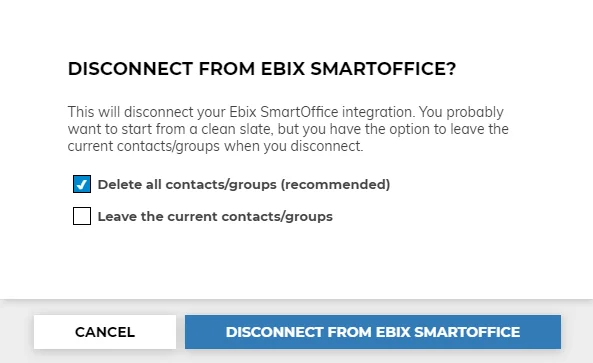
- Click the Update Contacts drop-down list and select Disconnect from Ebix SmartOffice.
- When the disconnection dialog box opens, select whether you want to delete all contacts and groups from FMG Suite.
- Click the Disconnect from Ebix SmartOffice button.
To reconnect FMG Suite to SmartOffice, follow the steps in FMG Suite Setup.
Frequently Asked Questions
Why does FMG Suite sync some of my SmartOffice contacts but not others? When a SmartOffice contact is not synchronizing to FMG Suite, here are a few items to check:
- Does the contact have a preferred e-mail address (see SmartOffice Setup)?
- If you selected specific SmartOffice sets to sync (see FMG Suite Setup), is the contact a member of one of those sets?
- Does the contact share an e-mail address with another contact in SmartOffice? This can happen, for example, when a married couple shares an e-mail address. In these instances, FMG Suite imports only one of the contacts. You cannot have more than one contact with the same e-mail address in FMG Suite.