Last updated: 2025-09-19
Integrations - Profiles
- Overview
- Requirements
- SmartOffice Setup
- User Setup
- Data Setup
- Using the Integration
- Accessing the Integration from SmartOffice
- Creating a Client and Case
- Creating a Case
- Updating an Existing Case
- Opening an Existing Case
- Data Mapping
- Contacts
- Investments
- Policies (Life, Disability, LTC)
Overview
The Profiles integration enables the user to export contact, investment and policy data from SmartOffice to Advicent's web-based Profiles financial planning application.
For more information about Profiles, visit Advicent's Profiles product page. Note: Integration with the Profiles Professional desktop application is covered in another topic. See Integrations - Profiles Professional.
Requirements
- Advicent Profiles subscription
SmartOffice Setup
User Setup
A SmartOffice administrator with the ability to assign licenses must enable the appropriate license for each SmartOffice user who will use the integration.
- Sign in to SmartOffice Pro.
- Do one of the following:
- If you are setting up the integration for the user account your are currently signed in to, click the profile menu in the upper-right corner, and then select Profile & Settings
 .
. - If you are setting up the integration for another user account, select Setup > User Accounts on the SmartOffice side menu, and then search for the user account.
- With the user account record open, click the User Rights content link.
- In the Licenses column, under Integration, select Profiles Professional - Web.
- Select Menu > Save.
Data Setup
In order for SmartOffice to properly export data to Profiles, the data must be entered correctly in SmartOffice. Any inconsistencies in SmartOffice data will cause inconsistencies in how that data displays in Profiles.
Note: Refer to the Data Mapping section for information about the specific data that is transferred to Profiles from SmartOffice.
Contacts
To ensure that client contact information is transferred properly to Profiles:
- Enter demographic, employer, income, life insurance, disability insurance and investment (assets and liabilities) information for each client’s contact record.
- If a household has been created, link it to the contact as the primary household.
- If a client is married, add the spouse to the household with the appropriate role (e.g., Husband, Wife, Domestic Partner, Spouse etc.). Also, enter demographic, employer, income, life insurance, disability insurance and investment information for the spouse.
Investments
Accounts and Assets
To ensure that accounts and assets are transferred properly to Profiles, make sure a selection has been made from either the Account Type drop-down list or the How Held drop-down list on the investment Account Detail content link. This helps Profiles accurately categorize the account type.
If no option is selected from either drop-down list and Profiles cannot determine the account type, the following occurs:
- If the Qualified Account check box is cleared, the account is categorized as an Investment Account.
- If the Qualified Account check box is selected, the account is categorized as Other Retirement Account.
Annuities
To ensure that variable annuities are transferred properly to Profiles, create variable annuities from the contact Investment Accounts tab in SmartOffice and select Variable Annuity from the How Held drop-down list on the Account Detail content link.
If an annuity is created from the contact Policies tab in SmartOffice, it transfers to Profiles as a fixed annuity because subaccounts cannot be entered from the Policies tab.
Liabilities
To transfer a liability to Profiles with current existing loan information, make sure the Calculate option is selected on the liability Detail content link (for more information, see SmartInvestments - Liabilities). If the Calculate option is not selected, the liability transfers to Profiles with originating loan information.
Using the Integration
This section describes how to open Profiles from SmartOffice and how to complete common tasks, such as creating and updating cases.
Accessing the Integration from SmartOffice
The Profiles integration is available from the following SmartOffice areas:
- Household
- Contact
To access the integration:
- Sign in to SmartOffice and search for the appropriate contact or household.
- Select the contact or household in the search results list, or open the contact or household record.
- Select Menu > Integrations > Profiles Professional - Web.
The Search list opens, displaying a list of Profiles clients who match the currently selected SmartOffice contact (or head of household, if a household was selected).
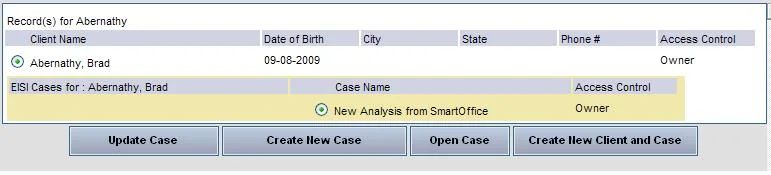
If an exact match exists, only that household and its associated cases are displayed. If no exact match is found, the system displays a list of households with the same last name.
The buttons across the bottom of the Search list — Update Case, Create New Case, Open Case and Create New Client and Case — are used to carry out specific tasks. The following sections describe these tasks.
Creating a Client and Case
If no search results meet requirements, or if no matching results are found in Profiles, create a client and case in Profiles by clicking the Create New Client and Case button. This opens Profiles and creates a new household and case for you.
Creating a Case
If the search returns a matching household but a case must be created for that household in Profiles, follow these steps:
- In the Search list, select the household for which the new case will be created.
- Click the Create New Case button.
This opens Profiles, opens the existing household and creates a case for that household.
Updating an Existing Case
Important: Ensure that the case to be updated in Profiles is not currently open. A case that is open in Profiles cannot be updated from SmartOffice. If the search returns the correct household and the user wants to update an existing case for that household in Profiles, follow these steps:
- Select the household to be updated.
- Select the case to be updated.
- Click the Update Case button.
This opens Profiles, opens the existing household and updates the existing case with data from SmartOffice. Any data that was manually entered into Profiles before the update is not overwritten.
Opening an Existing Case
If the search returns the correct household and the user wants to open (but not update) an existing case for that household in Profiles, follow these steps:
- Select the household to be opened.
- Select the case to be opened.
- Click the Open Case button.
This opens Profiles, opens the existing household and opens the existing case. Note: The household and case are not updated with data from SmartOffice when the Open Case button is clicked.
Data Mapping
This section details the specific data that is exported from SmartOffice to Profiles.
Contacts
The information in the following table pertaining to the client and his/her spouse and dependents (if any) is transferred to Profiles. Note: When the user accesses Profiles from a SmartOffice household record, the data detailed below pertains to the head of household.
| SmartOffice Fields | Profiles Fields | ||
|---|---|---|---|
| Personal Content Link | Client A (Client) | Client B (Spouse) | Dependent |
| First Name | First Name | First Name | First Name |
| Last Name | Last Name | Last Name | Last Name |
| Birth Date | Birth Date | Birth Date | Birth Date |
| Gender | Gender | Gender | N/A |
| Marital Status | Marital Status | Marital Status | N/A |
| Residence Address | Address Info | N/A | N/A |
| Home Phone | Home Phone | N/A | N/A |
| Mobile Phone | Cell Phone | Cell Phone | N/A |
| Fax | Fax | N/A | N/A |
| N/A | N/A | ||
| Company | Employer Name | Employer Name | N/A |
| Business Address | Employer Address | Employer Address | N/A |
| Business Phone | Work Phone | Work Phone | N/A |
| Business Fax | Work Fax | Work Fax | N/A |
| Job Title | Job Title | Job Title | N/A |
Note: The Annual Salary/Total income of the client and spouse are in the Income and Expenses section in Profiles.
Investments
| SmartOffice Fields | Profiles Fields |
|---|---|
| Assets and Annuities | |
| Account Name | Account Name |
| Account Value/Market Value | Holdings Value |
| Loan Balance | Cash Balance |
| Options (e.g., Held Away Account, Qualified Account) | Type of Fund |
| Primary Contact | Owner |
| Holding Symbol | Ticker |
| Product Name | Holding Name |
| Liabilities | |
| Lender/Loan \#/Account Name | Liability Name |
| Primary Contact | Owner |
| Payment Method | Payment Method |
| Loan Balance | Current Balance |
| Balloon Period | Remaining Years |
| Interest Rate | Annual Interest Rate |
| Monthly Payment | Scheduled Monthly Payment |
Note: Only the investment accounts of the head of household and spouse are transferred to Profiles.
Policies (Life, Disability, LTC)
| SmartOffice Fields | Profiles Fields |
|---|---|
| Carrier/Plan Name | Insurance Policy |
| Primary Contact/Spouse | Insured |
| Primary Contact/Spouse/Dependant | Beneficiary |
| Annual Prem (or Annlzd Prem if Annual Prem is empty) | Annual Premium |
| Primary Contact | Owner |
| Basic Face Amount | Death Benefit |
| Elimination Period | Elimination Period |