Last updated: 2025-09-19
Integrations - Morningstar Export Utility
Overview
The Morningstar Export Utility enables SmartInvestments users to export investment account and position data from SmartOffice to an XML file that is readable by Morningstar® Advisor Workstation℠ and Principia® software.
This utility is available from various areas of SmartOffice where investment accounts and positions are accessible (but not from the Advisor/Agency module). The user can export one or more accounts or positions for one or more contacts or households.
Requirements
To use the Morningstar Export Utility, a SmartInvestments user must have Morningstar's Advisor Workstation or Principia software installed.
Setup
User Setup
A SmartOffice administrator with the ability to assign licenses must enable the appropriate license for each SmartOffice user who will use the integration.
- Sign in to SmartOffice Pro.
- Do one of the following:
- If you are setting up the integration for the user account your are currently signed in to, click the profile menu in the upper-right corner, and then select Profile & Settings
 .
. - If you are setting up the integration for another user account, select Setup > User Accounts on the SmartOffice side menu, and then search for the user account.
- With the user account record open, click the User Rights content link.
- In the User Rights column, select Data Export.
- In the Licenses column, select the following licenses:
- Investment Tracking
- Policy Tracking (if exporting variable products)
- Select Menu > Save.
Data Setup
To ensure that data is exported properly, verify the following in SmartOffice:
- Demographic data has been entered as completely as possible for each client's contact record. At minimum, the record should include first and last name, address and phone number information. For more information, see Viewing and Editing Contacts and Businesses.
- Each client's investment account and position information has been entered as completely as possible. At minimum, positions should have account name, symbol, holding type, shares, price and current value information. For more information, see Viewing and Editing Investment Positions.
Exporting Data to Morningstar
When selecting data to export, the user can opt to export entire accounts or specific positions.
- Search for and select one or more investment accounts or investment positions.
- Select Menu > Morningstar Export Utility to open the Morningstar Export Utility dialog box.
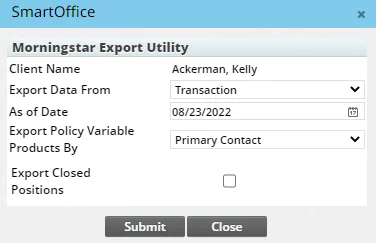
- From the Export Data From drop-down list, select the appropriate option:
- Transaction: Provides the value of the position as of the date specified in the As of Date field. The value is based on the transactions up to a given date.
- Investment Position Detail: Provides only the current value of the position. When this option is selected, the ability to edit the As of Date field is disabled. Regardless of the date specified, the utility brings over the current value of the position. - Investment Position History: Provides a sliding historical value based on the date in the As of Date field.
- If the Transaction or Investment Position History option was selected in the preceding step, enter a date in the As of Date field to specify how far back the utility should look when retrieving data.
- Select an option from the Export Policy Variable Product By drop-down list (this drop-down list is available only to users who have the Policy Tracking license). The option selected determines what variable universal life products are exported based on whether the client is the primary contact, owner or insured on the policy. To prevent the export of variable products altogether, select Skip.
- Select the Export Closed Positions option to include closed positions in the export.
- Click the Submit button.
- When prompted, save the ECPMstarExport.xml file.
- If using Advisor Workstation, log in to that program.
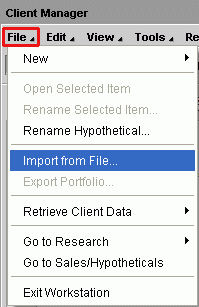
- Select File > Import from File.
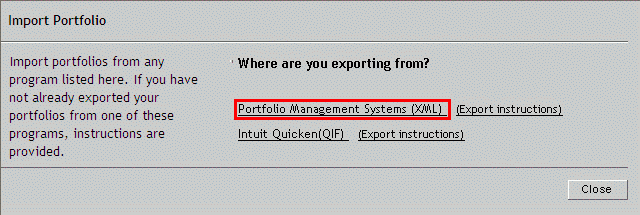
- Select the Portfolio Management Systems (XML) option.
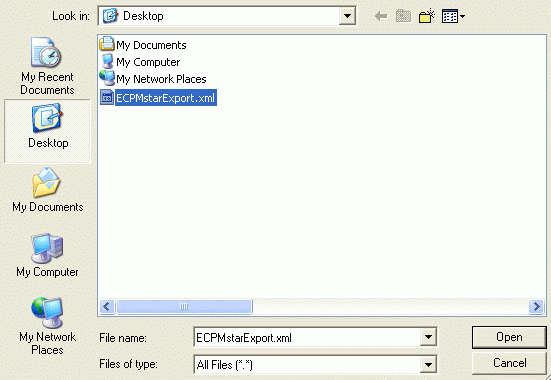
- In the Import: Select File dialog box, click the Browse button.
- Locate and select the ECPMstarExport.xml file, and then click the Open button.
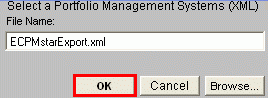
- From the Import: Select File dialog box, click the OK button to open the XML file.
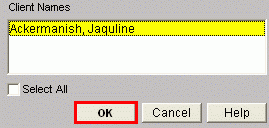
- Select the name of the client and then click the OK button.
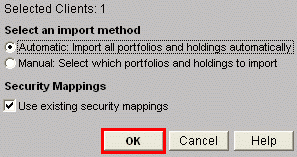
- With the Automatic: Import all portfolios and holdings automatically option selected, click the OK button.
Important: A prompt may display stating that the investments related to the client do not exist. Refer to Morningstar’s Help for further assistance.
- The import of the SmartOffice data is complete.