Last updated: 2025-09-19
User Accounts - User Rights Content Link
- Overview
- User Rights
- Administrator
- Additional Administrator Functions
- List Layout Customization
- Page Layout Customization
- Office Setup Options
- Reporting Options
- Mass Operation
- Contact-Calendar Synchronizations
- Microsoft Add-Ins
- Advanced Contact Management Features
- Advanced Calendar Functions
- Advanced Advisor Management Features
- Licenses
- Packages
- SmartPDA
- SmartLeads/SmartOpportunities
- SmartPolicies
- SmartCase
- Case Status
- SmartInvestments
- DataXchange Online Services
- SmartWholesaler
- SmartCommissions - Advanced
- SmartCommissions - Base
- SmartRecruiting
- Event Management
- Integration
- KYC Template Creation
- SmartLink for Insurance Brokers
- SmartOffice Anywhere
- Smart Widget
- E-mail Automation
Overview
The User Rights content link, accessible from User Accounts, specifies the SmartOffice features and modules that the user is allowed to access.
There are two columns: User Rights and Licences. Access to specific SmartOffice features is configured in the User Rights column, while access to modules is configured in the Licenses column. The user rights and licenses available for selection vary depending on the tier license that the user has been assigned (see Office Settings - Tier Licenses).
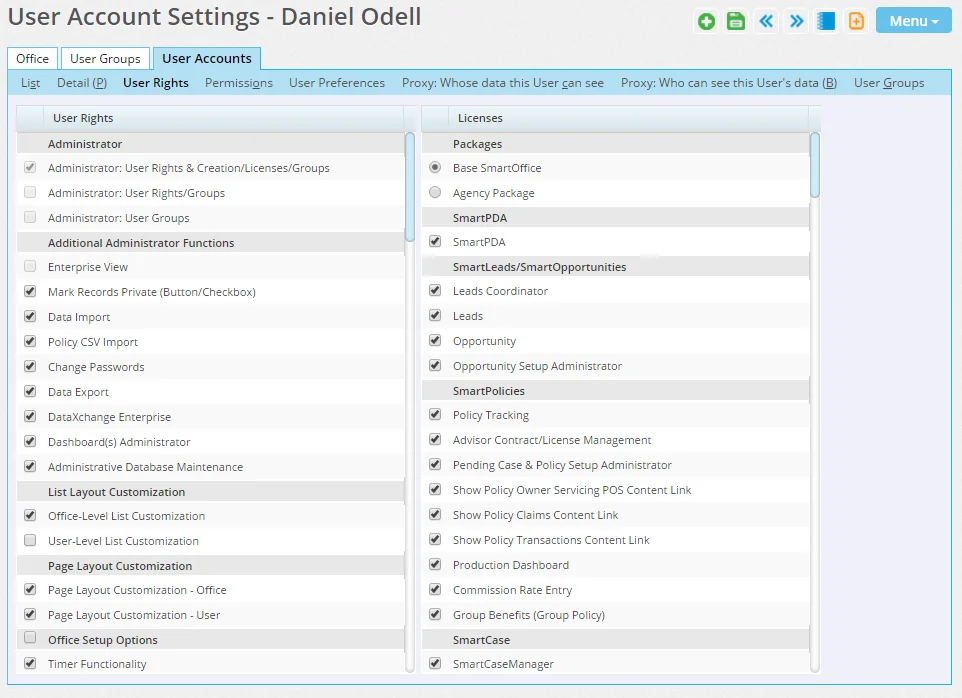
Every user must be assigned user rights and licenses to perform certain functions within an office. Before creating user accounts, become familiar with these rights, and then create user rights templates (i.e., groups of user rights) to make applying user rights and licenses to new users easier.
Note the following when configuring user rights and licenses:
- To make changes in the Licenses column, a user must have the Administrator: User Rights & Creation/Licenses/Groups user right. Otherwise, the entire Licenses column is read-only and cannot be edited.
- If a license or user right is unavailable, the user has not been assigned the appropriate tier license in User Accounts - Detail to access that feature. The tables in the following sections list the tiers for which each license and user right is available. If the office does not have an available tier license of the appropriate type to assign to the user, contact your SmartOffice administrator or your SmartOffice representative for assistance.
- Because users with the Lite tier license can only access SmartOffice Anywhere and not SmartOffice Pro, the user rights and licenses listed for that tier do not necessarily reflect the features available to those users.
User Rights
The following tables list all items in the User Rights column and the tier licenses for which each is available.
Administrator
| User Right | Description | Lite Tier | Standard Tier | Performance Tier | Brokerage Management Tier | Brokerage Management \+ Commissions Tier |
|---|---|---|---|---|---|---|
| Administrator: User Rights & Creation/Licenses/Groups | With this user right, a user can modify office settings; create and modify user accounts; enable/disable user rights; enable/disable user licenses; create, modify and delete user rights templates; and create and modify user groups. | ✔ | ✔ | ✔ | ✔ | ✔ |
| Administrator: User Rights/Groups | With this user right, a user can modify user accounts; enable/disable user rights; create and modify user rights templates; and create and modify user groups. | ✔ | ✔ | ✔ | ✔ | ✔ |
| Administrator: User Groups | With this user right, a user can only create and modify user groups. | ✔ | ✔ | ✔ | ✔ | ✔ |
| Administrator: User Read-Only | With this user right, a user can only view office settings and user accounts but cannot modify them (however, the user can reset user account passwords to a limited degree). The user can also access certain SmartOffice logs. Note that this user right can be assigned only from the System office to users within that office, so it is available only to enterprise customers. | ✔ | ✔ | ✔ | ✔ | ✔ |
Additional Administrator Functions
| User Right | Description | Lite Tier | Standard Tier | Performance Tier | Brokerage Management Tier | Brokerage Management \+ Commissions Tier |
|---|---|---|---|---|---|---|
| Enterprise View | For those organizations that have established an office hierarchy, this user right enables the user to view data in offices below the signed-in office within that hierarchy. This user right is unavailable if the user's office is at the bottom of an office hierarchy. For more information, see Enterprise View. | ✔ | ✔ | ✔ | ✔ | ✔ |
| Mark Records Private (Button/Checkbox) | Enables the user to privatize records such as filters, Dynamic Reports, contacts, SmartPad entries and activities. For more information, see Record Privatization. | ✔ | ✔ | ✔ | ✔ | ✔ |
| Data Import | Enables the user to import contacts and other data into the system using the Data Import Wizard. This user right also controls the ability to import filters and Dynamic Reports. For more information, see Data Import. | ✔ | ✔ | ✔ | ✔ | ✔ |
| Policy CSV Import | Enables the user to import policies from comma-separated values (.csv) files. For more information, see Policy Import. | ✖ | ✖ | ✔ | ✔ | ✔ |
| Change Passwords | Enables the user to change his or her SmartOffice password. For more information, see User Accounts - Passwords. | ✔ | ✔ | ✔ | ✔ | ✔ |
| Data Export | Enables the user to export lists of records from SmartOffice to Excel and other file formats. This user right also controls the ability to export filters and Dynamic Reports. | ✔ | ✔ | ✔ | ✔ | ✔ |
| DataXchange Enterprise | Enables the DataXchange Console and DataXchange Alert Setup options under Utilities in the side menu. These options allow the user to monitor and control processing as well as run reports and resolve processing errors for DataXchange Enterprise. DataXchange Enterprise is a tool for bulk loading large amounts of data— investments, policies, leads, LDAP data—into SmartOffice quickly. This tool is for enterprise customers who are moving to SmartOffice. For more information, enterprise customers can contact their SmartOffice representatives. | ✖ | ✖ | ✖ | ✖ | ✔ |
| Dashboard(s) Administrator | Enables the user to create and manage collections of portlets for home page tabs and to designate tabs for use throughout the office. For more information, see Home Page. | ✖ | ✖ | ✔ | ✔ | ✔ |
| Administrative Database Maintenance | Enables the user to edit some data in SmartOffice that is normally read-only. For example, users with this right can edit the status of a commission batch, the Sys Paid-to field on the policy Basic Information content link, and any commission record at the agency and advisor level. | ✖ | ✖ | ✖ | ✖ | ✔ |
| Compliance View | In enterprise environments, this user right enables a user to view all data in SmartOffice regardless of office security settings (i.e., user assignments, and user proxies), office hierarchy, user rights and record privatization. This capability is intended for users who need to conduct forensic analysis of data to meet legal and compliance requirements. This user right can be assigned only from the System office by a user who has the Administrator: User Rights & Creation/Licenses/Groups user right. | ✖ | ✔ | ✔ | ✔ | ✔ |
List Layout Customization
| User Right | Description | Lite Tier | Standard Tier | Performance Tier | Brokerage Management Tier | Brokerage Management \+ Commissions Tier |
|---|---|---|---|---|---|---|
| Office-Level List Customization | Enables the user to customize list layouts for the entire office. For more information, see List Layout Customization. | ✔ | ✔ | ✔ | ✔ | ✔ |
| User-Level List Customization | Enables the user to customize his/her own list layouts. For more information, see List Layout Customization. | ✔ | ✔ | ✔ | ✔ | ✔ |
Page Layout Customization
| User Right | Description | Lite Tier | Standard Tier | Performance Tier | Brokerage Management Tier | Brokerage Management \+ Commissions Tier |
|---|---|---|---|---|---|---|
| Page Layout Customization - Office | Enables the user to apply custom page layouts for contacts and other records either to his/her own user account or to those of other users in the office. For more information, see Page Layout Customization. | ✔ | ✔ | ✔ | ✔ | ✔ |
| Page Layout Customization - User | Enables the user to apply custom page layouts for contacts and other records only to his/her own user account. For more information, see Page Layout Customization. | ✔ | ✔ | ✔ | ✔ | ✔ |
Office Setup Options
| User Right | Description | Lite Tier | Standard Tier | Performance Tier | Brokerage Management Tier | Brokerage Management \+ Commissions Tier |
|---|---|---|---|---|---|---|
| Timer Functionality | Enables the user to log the amount of time spent on an activity. For more information, see Timer and Time Log. | ✔ | ✔ | ✔ | ✔ | ✔ |
| Alerts | Enables the user to send broadcast alerts and limited broadcast alerts. Users without this user right can still receive alerts, view alerts and send private alerts. For more information, see Alert Center. Note that this user right can be enabled only by a user who has the Administrator: User Rights & Creation/Licenses/Groups user right. | ✔ | ✔ | ✔ | ✔ | ✔ |
| Custom Fields - Field Name Modification | Enables the user to customize the field labels on Custom content links and to create and manage record tags. For more information, see Contacts and Businesses - Custom Content Link and Records Tags. | ✔ | ✔ | ✔ | ✔ | ✔ |
| New (Comprehensive) | Enables the Menu > New (Comprehensive) option from the Contact and Business List/Detail content links, allowing the user to add extensive additional information while creating a contact or business, such as additional contacts and household members. For more information, see Creating and Deleting Contacts and Businesses. | ✔ | ✔ | ✔ | ✔ | ✔ |
| SmartSearch | Enables the SmartSearch option in the Search box, allowing the user to search across multiple record types. | ✔ | ✔ | ✔ | ✔ | ✔ |
| Drop-down Choice Customization | Enables the user to add and modify choices in drop-down lists. For more information, see Customizing Drop-Down Lists. | ✔ | ✔ | ✔ | ✔ | ✔ |
| Template Administration | Enables the user to add, modify and delete form letter, label, envelope, header and footer templates. This user right also allows enterprise customers with System office access to review templates submitted from local offices for compliance. For more information, see Templates. | ✔ | ✔ | ✔ | ✔ | ✔ |
| Call Script Setup | Enables the user to create, modify and delete call scripts. For more information, see Call Scripts. | ✔ | ✔ | ✔ | ✔ | ✔ |
| Key Relations - Relationship Setup | Enables the user to modify key relationship lookups. For more information, see Contacts and Businesses - Key Relations Content Link. | ✔ | ✔ | ✔ | ✔ | ✔ |
| Access to Data Validation | Enables the Menu > Validate Tagged Contacts option from the Contact List. With this option, the user can check the accuracy of information such as date of birth and benefit and investment holding amounts. | ✔ | ✔ | ✔ | ✔ | ✔ |
| User Assignment for Records | Enables the user to assign contacts to other users even if the user is not listed in the User Assignment list for the contact. For more information, see Office Security. | ✔ | ✔ | ✔ | ✔ | ✔ |
| Record Sharing | Enables the user to share records with users in other offices (applies only to Enterprise View users). For more information, see Record Sharing. | ✖ | ✖ | ✔ | ✔ | ✔ |
| Job Queue Agent Setup | Enables the user to add, modify and delete jobs related to printing letters. For more information, see Job Agents | ✖ | ✖ | ✖ | ✖ | ✔ |
| Check Job Status | Enables the user to view the status of existing letter printing jobs in the queue. For more information, see Job Agents. | ✔ | ✔ | ✔ | ✔ | ✔ |
| Marketing Campaigns | Displays the Marketing Campaigns option in the side menu (under Sales & Marketing), which enables the user to design and manage marketing efforts. The campaign management system tracks campaign details and monitors the Leads and Opportunities generated through campaigns to measure their effectiveness. For more information, see SmartCampaigns. | ✖ | ✖ | ✔ | ✔ | ✔ |
| Presale Activity/Proposals | Enables the Presale Activities/Proposals tab for contacts, advisors and other records. For more information, see Advisors/Agencies - Presale Activities/Proposals. | ✔ | ✔ | ✔ | ✔ | ✔ |
| Record Alert Creation | Enables the user to create alerts for contacts, businesses and other records. The alerts notify other users about important information regarding that record. For more information, see Record Alerts. | ✔ | ✔ | ✔ | ✔ | ✔ |
| Mass Area Code Change (Side Menu) | Displays the Area Code Change option under the expanded Utilities menu. For more information, see Additional Contact and Business Features. | ✔ | ✔ | ✔ | ✔ | ✔ |
| User-Level SMTP Setup | Provides the ability to configure an outgoing e-mail (SMTP) server specifically for the user. For more information, see User Accounts - Detail Content Link. | ✔ | ✔ | ✔ | ✔ | ✔ |
| Extra Field Staging Access | Enables the user to create fields for storing extra data in contact and business records beyond the data stored in regular fields and custom fields. See Extra Fields. | ✖ | ✖ | ✔ | ✔ | ✔ |
Reporting Options
| User Right | Description | Lite Tier | Standard Tier | Performance Tier | Brokerage Management Tier | Brokerage Management \+ Commissions Tier |
|---|---|---|---|---|---|---|
| Mass PDF Report (Button) | Enables the user to provide clients with documents more quickly and efficiently by "bunching" multiple PDF reports, documents and opportunity-related correspondence. For more information, see Bunch Reports. | ✔ | ✔ | ✔ | ✔ | ✔ |
| Adobe PDF Reports (Button) | Enables the user to run already-defined PDF Reports. For more information, see PDF Reports. | ✔ | ✔ | ✔ | ✔ | ✔ |
| Dynamic Reports | Enables the user to add, modify and delete Dynamic Report definitions. For more information, see Dynamic Reports. | ✔ | ✔ | ✔ | ✔ | ✔ |
| Filter Setup | Enables the user to add, modify and delete filters. For more information, see Filters. | ✖ | ✖ | ✔ | ✔ | ✔ |
| Excel Template Setup | Enables the user to add, modify and delete Excel templates. For more information, see Analytic (Excel) Reports. | ✖ | ✖ | ✔ | ✔ | ✔ |
| Reporting on Multiple Users' Data | Enables the user to select multiple users for reporting. If not selected, the user can run reports for only one user at a time. | ✔ | ✔ | ✔ | ✔ | ✔ |
| Crystal Reports | Enables the user to run already-defined Crystal Reports. | ✔ | ✔ | ✔ | ✔ | ✔ |
| Run Dynamic Reports with Excel Templates | Enables the user to export the results of a Dynamic Report to an Excel template. For more information, see Analytic (Excel) Reports. This user right is available only when the Data Export user right is enabled. | ✔ | ✔ | ✔ | ✔ | ✔ |
| Crystal/PDF Report Administrator | Enables rights to add custom PDF or Crystal Reports and set up custom settings for existing packaged PDF and Crystal Reports. For more information, see PDF Reports. | ✔ | ✔ | ✔ | ✔ | ✔ |
| Marketing Options - Button on Lists | Makes the Marketing Options button available on contact lists, including contact-related Dynamic Reports. The button lets the user invite contacts to an event or add contacts to a marketing campaign and/or opportunity. For more information, see Marketing Options. | ✔ | ✔ | ✔ | ✔ | ✔ |
| Calculated Columns Setup | Enables the user to create columns whose values are calculated based on the values of existing columns. For more information, see List Layout Customization. | ✖ | ✖ | ✔ | ✔ | ✔ |
Mass Operation
| User Right | Description | Lite Tier | Standard Tier | Performance Tier | Brokerage Management Tier | Brokerage Management \+ Commissions Tier |
|---|---|---|---|---|---|---|
| Mass Deletion | Enables the user to delete multiple records (e.g., contacts, advisors) at the same time. Without this right, the user must delete records one at a time. This option does not apply to policy/pending case requirements or commission records. For more information, see Creating and Deleting Contacts and Businesses. | ✔ | ✔ | ✔ | ✔ | ✔ |
| Mass Modification | Enables the user to modify multiple contacts, advisors or other records at the same time (for example, to change the gender of two or more contacts to Female). For more information, see Lists - Mass Modify. | ✔ | ✔ | ✔ | ✔ | ✔ |
| Mass Correspondence | Enables the user to send correspondence to all contacts, contacts that meet certain filtering criteria or contacts within specific sets. For more information, see Correspondence. | ✔ | ✔ | ✔ | ✔ | ✔ |
| Mass Activity Creation | Enables the user to create activities for more than one user at the same time. For more information, see Mass Task Creation. | ✔ | ✔ | ✔ | ✔ | ✔ |
| Mass Assignments | Enables the user to assign multiple contacts to one or more users in the office. The contacts can be selected manually or by filter or set. For more information, see Office Security - User Assignment. | ✔ | ✔ | ✔ | ✔ | ✔ |
| Mass Deletion Requirements | Enables the user to mass delete policy/pending case requirements. Without this right, the user must delete requirements one at a time. | ✖ | ✖ | ✖ | ✔ | ✔ |
| Mass Deletion Commission Records | Enables the user to mass delete commission records. Without this right, the user must delete commission records one at a time. | ✔ | ✔ | ✔ | ✔ | ✔ |
Contact-Calendar Synchronizations
| User Right | Description | Lite Tier | Standard Tier | Performance Tier | Brokerage Management Tier | Brokerage Management \+ Commissions Tier |
|---|---|---|---|---|---|---|
| SmartOffice Sync & E-mail Posting for Microsoft Exchange | Enables the user to sync SmartOffice contacts, calendar and e-mail directly with a Microsoft Exchange server. For U.S. customers, this user right applies only to enterprise customers; for SmartOffice online customers, a different Exchange sync solution is available. | ✔ | ✔ | ✔ | ✔ | ✔ |
| SmartOffice Sync & E-mail Posting for Google | Enables the user to sync SmartOffice contacts, calendar and e-mail directly with a Google Workspace account. For more information, see Integrations - Google Contacts, Calendar and Gmail. | ✔ | ✔ | ✔ | ✔ | ✔ |
Microsoft Add-Ins
| User Right | Description | Lite Tier | Standard Tier | Performance Tier | Brokerage Management Tier | Brokerage Management \+ Commissions Tier |
|---|---|---|---|---|---|---|
| Outlook | Enables the user to access SmartOffice data directly from within Microsoft Outlook using an appropriate plug-in or add-in. When this user right is disabled, any attempt by the user to access SmartOffice data in Outlook results in a message stating that the user does not have access to that feature. Note that disabling this user right does not remove the plug-in or add-in from Outlook. For information about accessing SmartOffice data through Outlook, see Microsoft Plug-in for SmartOffice Help and SmartOffice for Microsoft 365 Help. | ✔ | ✔ | ✔ | ✔ | ✔ |
| Excel | Enables the user to access SmartOffice data directly from within Microsoft Excel using an appropriate add-in. When this user right is disabled, any attempt by the user to access SmartOffice data in Excel results in a message stating that the user does not have access to that feature. Note that disabling this user right does not remove the add-in from Excel. For information about accessing SmartOffice data through Excel, see SmartOffice for Microsoft 365 Help. (Note that this user right does not affect access to SmartOffice data in Excel using the Microsoft Plug-in for SmartOffice.) | ✔ | ✔ | ✔ | ✔ | ✔ |
Advanced Contact Management Features
| User Right | Description | Lite Tier | Standard Tier | Performance Tier | Brokerage Management Tier | Brokerage Management \+ Commissions Tier |
|---|---|---|---|---|---|---|
| Export contacts to another office - Button | Enables the user to copy contacts from one office to another. For more information, see Exporting Contacts to Another Office. | ✔ | ✔ | ✔ | ✔ | ✔ |
| SmartView for Clients - Buttons | Enables the SmartView for Clients Setup option in the expanded Setup menu. For more information, see SmartView for Clients. | ✖ | ✖ | ✔ | ✔ | ✔ |
| Convert Contact Type - Button | Enables the user to convert among the different contact types (i.e., contacts, businesses, advisors and agencies). For more information, see Contacts and Businesses - Record Conversion. | ✔ | ✔ | ✔ | ✔ | ✔ |
| Contact Copy - Button | Enables the user to quickly create a duplicate of a contact, business, advisor or agency. For more information, see Creating and Deleting Contacts and Businesses. | ✔ | ✔ | ✔ | ✔ | ✔ |
| Expenses | Enables the Expenses content link for contacts. This feature tracks costs incurred for a contact, such as gifts, food and transportation. For more information, see Contacts and Businesses - Expenses Content Link. | ✔ | ✔ | ✔ | ✔ | ✔ |
| Show Business Hierarchy - Button | Enables the viewer to display a tree view of the hierarchy of contacts within a business. For more information about business hierarchies, see Contacts and Businesses - Key Relations Content Link. | ✔ | ✔ | ✔ | ✔ | ✔ |
| Household-Key Relations Sync - Button | Displays the Household – Key Relations Sync option in the expanded Menu list at the household level, enabling the user to choose whether to synchronize household members to key relations or vice versa. For more information about key relations sync, see Contacts and Businesses - Key Relations Content Link. | ✔ | ✔ | ✔ | ✔ | ✔ |
| Merge Contacts - Button | Displays the Merge Contacts option on the expanded Menu list at the contact level. This button enables the user to transfer information from one contact (the "source") to another (the "target") and resolve any conflicts. For more information, see Record Merge. | ✔ | ✔ | ✔ | ✔ | ✔ |
| Activity Outcome - Button | Displays the Menu > Activity Options > Activity Outcome option for a contact, enabling the user to link the outcome with a new or existing activity. For more information, see Activity Outcome Wizard. | ✔ | ✔ | ✔ | ✔ | ✔ |
| Find Contacts with Matching Profile - Button | Enables the user to find contacts with a matching profile based on employer, ZIP Code and other information. For more information, see Finding Contacts with Matching Profile. | ✔ | ✔ | ✔ | ✔ | ✔ |
| Customer Referral Value - Button | Enables the user to view all contacts referred by another contact, plus the amount of business transacted with those contacts. For more information, see Customer Referral Value. | ✔ | ✔ | ✔ | ✔ | ✔ |
| SmartPad | Enables the user to view, create and manage notes in SmartOffice using the SmartPad. For more information, see Contacts and Businesses - SmartPad. | ✔ | ✔ | ✔ | ✔ | ✔ |
| Households | Enables the Household menu item on the side menu (under People & Companies), as well as the Household content link for contacts. This allows the user to viewing demographic, policy, investment and other data for a single family in one place. For more information, see Contacts and Businesses - Households. | ✔ | ✔ | ✔ | ✔ | ✔ |
| Letters/ Documents Content Link | Enables the Letters/Documents content link throughout SmartOffice. This enables the user to view letters and file attachments associated with a contact. | ✔ | ✔ | ✔ | ✔ | ✔ |
| Sets | Enables the Sets menu item on the side menu (under People & Companies). This allows the user to group contacts into sets. | ✔ | ✔ | ✔ | ✔ | ✔ |
| Duplicate Records Report - Side Menu | Enables the user to view contacts, advisors, agencies or businesses that might be duplicates in SmartOffice. For more information, see Duplicate Records. | ✔ | ✔ | ✔ | ✔ | ✔ |
| Global Search | Enables the user to search for multiple record types with a single search query. For more information, see Global Search. | ✔ | ✔ | ✔ | ✔ | ✔ |
Advanced Calendar Functions
| User Right | Description | Lite Tier | Standard Tier | Performance Tier | Brokerage Management Tier | Brokerage Management \+ Commissions Tier |
|---|---|---|---|---|---|---|
| Overdue Projects - Side Menu | The Overdue Projects option in the side menu (under Calendar) displays all of the tracked, Project-type activities that were scheduled for completion before the current date but have not been marked as Done. For more information, see Overdue Projects. | ✔ | ✔ | ✔ | ✔ | ✔ |
| Unfinished Activities - Side Menu | The Unfinished Activities option in the side menu (under Calendar) displays all tracked past activities that have not yet been marked as Done or Cancelled. For more information, see Unfinished Activities. | ✔ | ✔ | ✔ | ✔ | ✔ |
| Add Important Dates in Side Menu | This option enables the Add Important Dates to the Calendar option in the side menu (under Utilities). This feature extracts important dates related to contacts or businesses (e.g., birthday, policy renewal, investment maturity) and creates corresponding activities. For more information, see Add Important Dates to the Calendar. | ✔ | ✔ | ✔ | ✔ | ✔ |
| Calendar Reports - Side Menu | The Calendar Reports option in the side menu (under Reports) enables the user to set up and print the activities or task that have been scheduled on the calendar for any day, week or month. For more information, see Calendar Reports. | ✔ | ✔ | ✔ | ✔ | ✔ |
| Activity Statistics Report - Side Menu | This option enables the Activity Statistics option in the side menu (under Reports). This feature displays a statistical snapshot of a user's activities. A user can see his or her effectiveness for a particular period of time in terms of percentage of marketing activities that resulted in a sale made, or in terms of a dollar amount for each activity (based on total commissions for sales made in that time period). For more information, see Activity Statistics Report. | ✔ | ✔ | ✔ | ✔ | ✔ |
| Search Activity - Side Menu | This option displays the Search Activities option in the side menu (under Calendar). This feature enables the user to look for activities based on type, priority or status within a specified date range. For more information, see Searching Activities. | ✔ | ✔ | ✔ | ✔ | ✔ |
Advanced Advisor Management Features
| User Right | Description | Lite Tier | Standard Tier | Performance Tier | Brokerage Management Tier | Brokerage Management \+ Commissions Tier |
|---|---|---|---|---|---|---|
| Broker Dealer - Button | Enables the Menu > Broker Dealer option on the advisor Detail content link. This option identifies the broker dealer and the series licenses that a producer holds to do security-based business. For more information, see Viewing an Advisor's Broker-Dealer/FINRA Information. | ✔ | ✔ | ✔ | ✔ | ✔ |
| Advisor/Contract Hierarchy - Buttons | Enables the Menu > Advisor Hierarchy and Menu > Contract Hierarchy options on the Advisor List. The Advisor Hierarchy option opens a dialog box displaying a hierarchical view of an Advisor in relation to any associated advisors. The Contract Hierarchy option opens a dialog box displaying the list of contracts for an advisor and a hierarchical view of those contracts, enabling easy navigation to other contracts within the hierarchy. These dialog boxes remain open while the user navigates to other areas of SmartOffice. For mor information, see SmartCommissions - House, Supervisor and Advisor Setup for the Commission Hierarchy. | ✖ | ✖ | ✔ | ✔ | ✔ |
| Product Marketing - Button | Enables the Menu > Product Marketing option from the advisor Personal content link. Product Marketing enables the user to manually track the percentage of a certain line of business that an advisor would sell. The user can then market specific products to that advisor based on those percentages. For more information, see Advisors/Agencies - Other Advisor and Agency Management Features. | ✔ | ✔ | ✔ | ✔ | ✔ |
| Advisor Policy Statistics - Button | Enables the Menu > Advisor Policy Statistics option on the advisor Personal content link. This feature lists the individual and group policies associated with the advisor, as well as premium and benefit information for each policy. For more information, see Displaying Advisor Policy Statistics. | ✔ | ✔ | ✔ | ✔ | ✔ |
| Advisor Reassignment - Button | Enables the Menu > Advanced Options > Advisor Reassignment option on the Advisor List. This feature lists all of the contacts and holdings assigned to an advisor, making it possible to reassign those contacts and holdings to one or more other advisors. For more information, see Reassigning Contacts from One Advisor to Another. | ✔ | ✔ | ✔ | ✔ | ✔ |
| Advisors & Agencies | Enables the Advisors/Agencies menu item from the side menu (under People & Companies) and provides access to advisor and agency information. | ✔ | ✔ | ✔ | ✔ | ✔ |
| Advisor Merge - Button | Enables the Menu > Advanced Options > Advisor/Agency Merge option on the advisor Personal content link and the Advisor List. This option enables the user to transfer information from one Advisor or Agency (the "source") to another (the "target") and to resolve any conflicts. For more information, see Record Merge. | ✔ | ✔ | ✔ | ✔ | ✔ |
| SmartView for Advisors - Button | Displays the Menu > SmartView for Advisor User Accounts option on the Advisor List. This feature enables the user to create a special user name and password that the selected advisor can use to view (but not edit) contact, calendar and other information in SmartOffice on the Web, 24 hours a day. For more information, see SmartView for Advisors. | ✔ | ✔ | ✔ | ✔ | ✔ |
| Show Production Content Link | Enables the Production content link for advisor records. This feature calculates an advisor's production figures for written and inforce business over a specified time period, based on criteria such as carrier, line of business and plan name. | ✔ | ✔ | ✔ | ✔ | ✔ |
| Show Commissions Content Link to non-CTM users | Enables the Commission content link on advisor records even for users who do not have a license for the SmartCommissions commission tracking module. | ✔ | ✔ | ✔ | ✔ | ✔ |
| Show Commissions Smart Check Tab to non-CTM users | Displays the commission Smart Checks content link to SmartView for Advisors users. This user right can be useful if the advisor does not need to see the more complex information provided on the Commissions content link. | ✔ | ✔ | ✔ | ✔ | ✔ |
| SmartView for Advisors - Setup Administrator | Enables the user to configure SmartView for Advisors, which allows an agency to give its advisors limited access to SmartOffice to check pending case status and other information. For more information, see SmartView for Advisors. | ✔ | ✔ | ✔ | ✔ | ✔ |
Licenses
The following table lists all items in the Licenses column and the user tier licenses for which each is available.
Packages
| License | Description | Lite Tier | Standard Tier | Performance Tier | Brokerage Management Tier | Brokerage Management \+ Commissions Tier |
|---|---|---|---|---|---|---|
| Base SmartOffice | This is the standard license package that is appropriate for most SmartOffice user accounts. It provides administrators with complete control over which licenses are enabled for the user. | ✔ | ✔ | ✔ | ✔ | ✔ |
| Agency Package | This is a special license package that enables the user to view, create, modify and delete policies and pending cases, regardless of whether the Policy Tracking license and any of the SmartCase licenses are enabled for the user account. This package ensures that the user can access critical agency management features regardless of the licenses selected. | ✔ | ✔ | ✔ | ✔ | ✔ |
SmartPDA
| License | Description | Lite Tier | Standard Tier | Performance Tier | Brokerage Management Tier | Brokerage Management \+ Commissions Tier |
|---|---|---|---|---|---|---|
| SmartPDA | Enables the user to view SmartOffice data using a Web-enabled mobile device. (Note: This is a legacy product that has been replaced by SmartOffice Anywhere.) For more information, see SmartPDA. | ✔ | ✔ | ✔ | ✔ | ✔ |
SmartLeads/SmartOpportunities
| License | Description | Lite Tier | Standard Tier | Performance Tier | Brokerage Management Tier | Brokerage Management \+ Commissions Tier |
|---|---|---|---|---|---|---|
| Leads Coordinator | Enables the user to assign, reject and revoke leads, and to run statistic reports for advisors. See SmartLeads - Creating Leads Users. | ✖ | ✖ | ✔ | ✔ | ✔ |
| Leads | Enables the SmartLeads module for the user. | ✔ | ✔ | ✔ | ✔ | ✔ |
| Opportunity | Enables the SmartOpportunities module for the user. | ✔ | ✔ | ✔ | ✔ | ✔ |
| Opportunity Setup Administrator | Enables the Opportunities Setup option in the side menu (under Setup), which enables the user to view, modify, and delete stages, stage actions, and more. See Opportunity Setup. | ✖ | ✖ | ✔ | ✔ | ✔ |
SmartPolicies
| License | Description | Lite Tier | Standard Tier | Performance Tier | Brokerage Management Tier | Brokerage Management \+ Commissions Tier |
|---|---|---|---|---|---|---|
| Policy Tracking | Enables access to the SmartPolicies module. | ✔ | ✔ | ✔ | ✔ | ✔ |
| Track ACH | Displays the advisor ACH content link, enabling the user to track bank account information used to send electronic payments to advisors. | ✔ | ✔ | ✔ | ✔ | ✔ |
| Advisor Contract/License Management | Enables access to the licensing, compliance, contracting and appointment sections of the advisor module, as well as the Setup section in which this information is managed. For more information, see Advisors/Agencies - Cont./Appt. Content Link and Advisors/Agencies - License/Compliance Content Link. | ✖ | ✖ | ✔ | ✔ | ✔ |
| Pending Case & Policy Setup Administrator | Enables the user to modify the Master Requirement List, Setup Requirement Follow-up Days, Status Exclusion, Pending Case Workflow and SmartView for Advisor Privacy defaults. This license also enables the Policy/Case Setup option (under Setup in the side menu). The Policy/Case Setup option opens the Master Setup List, which includes the DataXchange Setup menu and Initial Requirement Load for System Office users. DataXchange Setup enables the creation of DataXchange Registration, GA IDs for GA ID Validation and Auto-Update Exceptions. Access to the HO Pending Case menu is enabled with DX Registration information. | ✖ | ✖ | ✔ | ✔ | ✔ |
| Show Policy Owner Servicing POS Content Link | Enables access to the POS content link while viewing a policy. | ✔ | ✔ | ✔ | ✔ | ✔ |
| Show Policy Claims Content Link | Enables access to the claims related to the selected policy. | ✔ | ✔ | ✔ | ✔ | ✔ |
| Show Policy Transactions Content Link | Enables access to the Policy Transactions content link while viewing a policy. This content link lists transactions such as address and beneficiary changes, premium payments and partial and total surrender. | ✔ | ✔ | ✔ | ✔ | ✔ |
| Production Dashboard | Enables the reporting of production values for an agent, firm, product, etc., for a selected period of time. See Production Dashboard. | ✔ | ✔ | ✔ | ✔ | ✔ |
| Commission Rate Entry | Enables the user to create commission rate records in the system. | ✖ | ✖ | ✔ | ✔ | ✔ |
| Group Benefits (Group Policy) | Enables access to the SmartBenefits module. | ✔ | ✔ | ✔ | ✔ | ✔ |
| Show Riders & Reinsurance to SVA users | Enables SmartView for Advisors users to see the Riders/Reinsurance content link on pending case records. This license is visible only for SmartView for Advisors user accounts. | N/A | N/A | N/A | N/A | ✔ |
| Track Credit Card Information | Enables the Credit Card section in attending physician's statement (APS) pending case requirements. For more information, see Pending Cases - Requirements Content Link. | ✖ | ✖ | ✖ | ✔ | ✔ |
| Show Additional Info. Content Link to SVA users | Enables SmartView for Advisors users to see the Additional Info. content link on policy and pending case records. This license is visible only for SmartView for Advisors user accounts. | N/A | N/A | N/A | N/A | ✔ |
SmartCase
| License | Description | Lite Tier | Standard Tier | Performance Tier | Brokerage Management Tier | Brokerage Management \+ Commissions Tier |
|---|---|---|---|---|---|---|
| SmartCaseManager | Enables access to the pending cases module, including the ability to add, modify and delete pending cases. | ✖ | ✖ | ✖ | ✔ | ✔ |
| SmartCase Viewer | Enables the user to search and view pending cases. | ✔ | ✔ | ✔ | ✔ | ✔ |
Case Status
| License | Description | Lite Tier | Standard Tier | Performance Tier | Brokerage Management Tier | Brokerage Management \+ Commissions Tier |
|---|---|---|---|---|---|---|
| Side menu case status (mass send) | Enables the Case Status command under Insurance in the side menu, which allows a user to send pending case status reports to all advisors at once. Enabling this license automatically enables the Button case status (selective send) user right as well. For more information, see Advisors/Agencies - Case Status. | ✖ | ✖ | ✖ | ✔ | ✔ |
| Button case status (selective send) | Enables the Case Status command in the Menu button on advisor, agency, policy, group policy and pending case lists. For more information, see Advisors/Agencies - Case Status. | ✖ | ✖ | ✖ | ✔ | ✔ |
SmartInvestments
| License | Description | Lite Tier | Standard Tier | Performance Tier | Brokerage Management Tier | Brokerage Management \+ Commissions Tier |
|---|---|---|---|---|---|---|
| Investment Tracking | Enables access to the SmartInvestments module. | ✔ | ✔ | ✔ | ✔ | ✔ |
| Asset Allocation | Enables the Asset Allocation options in the side menu (under Investments) and the Asset Allocation content link in the Investment Accounts tab. The content link tracks the allocation of the client's assets and informs the advisor where the actual allocation deviates from the target allocation by a given variance based on the model allocation. For more information, see SmartInvestments - Asset Allocation. | ✖ | ✖ | ✔ | ✔ | ✔ |
| Performance Calculations | Enables the Investment Performance Validation option under the Investment side menu. This license also shows the Performance Calculations button in the Investment Account List and enables the Account Performance content link in the Investment Account List and Investment Position List. For more information, see SmartInvestments - Performance Calculations. | ✖ | ✖ | ✖ | ✖ | ✔ |
| Show Liability Screens | Enables the Liabilities option under Investments in the side menu. This option also enables the Account Liabilities content link for investment accounts; the Position Liabilities content link for positions; and the Liabilities tab for contacts, businesses and households. For more information, see Liabilities. | ✔ | ✔ | ✔ | ✔ | ✔ |
| Show Link Accounts side menu | Enables the Link Account to Contact option under Investments in the side menu. For more information, see Other Investment Account Management Features. | ✔ | ✔ | ✔ | ✔ | ✔ |
| Show Investment Transactions | Enables the Account Transactions content link in the Investment Account List and Investment Position List. | ✖ | ✖ | ✔ | ✔ | ✔ |
| Show Investment Position History | Enables the Account Positions tab in the Investment Account List and the Position History content link in the Investment Position List. | ✔ | ✔ | ✔ | ✔ | ✔ |
| Additional Annuity | Enables the Additional Information content link on variable and fixed annuity positions, which includes fields for entering premium information, remarks and other data. | ✔ | ✔ | ✔ | ✔ | ✔ |
DataXchange Online Services
| License | Description | Lite Tier | Standard Tier | Performance Tier | Brokerage Management Tier | Brokerage Management \+ Commissions Tier |
|---|---|---|---|---|---|---|
| Process HO Pending Case Status Information | Enables access to the HO Pending Cases menu item in the side menu (under Insurance), which the user can click to search for pending case updates downloaded from carriers through SmartOffice. For more information, see Pending Case Download - Working with HO Pending Cases. | ✖ | ✖ | ✖ | ✔ | ✔ |
| Import Log | Enables access to the Import Log menu item in the side menu (under Utilities), which displays a record of pending case downloads that have occurred. For more information, see Pending Case Download - Reports and Logs. | ✖ | ✖ | ✖ | ✔ | ✔ |
| On-Demand HO Pending Case Download | Enables the user to upload ACORD files into Pending Case Download. For more information, see Pending Case Download - Working with HO Pending Cases. | ✖ | ✖ | ✖ | ✔ | ✔ |
| Edit HO Case Carrier Data | Enables the user to modify erroneous pending case data sent by the carrier so that the case can be reprocessed. For more information, see Pending Case Download - Working with HO Pending Cases. | ✖ | ✖ | ✖ | ✔ | ✔ |
SmartWholesaler
| License | Description | Lite Tier | Standard Tier | Performance Tier | Brokerage Management Tier | Brokerage Management \+ Commissions Tier |
|---|---|---|---|---|---|---|
| Wholesaler Setup Administrator | Enables the user to access Wholesaler Setup to configure the system with company-specific settings, which identify sales reps, territories and sales channels. For more information, see Wholesaler Setup. | ✖ | ✖ | ✔ | ✔ | ✔ |
| Wholesaler | Enables the user to access the SmartWholesaler module but not to configure the system with company-specific settings, which identify sales reps, territories and sales channels. | ✖ | ✖ | ✔ | ✔ | ✔ |
SmartCommissions - Advanced
| License | Description | Lite Tier | Standard Tier | Performance Tier | Brokerage Management Tier | Brokerage Management \+ Commissions Tier |
|---|---|---|---|---|---|---|
| CTM Administrator | Enables access to all functions of the commission tracking system. This license includes carrier postings of commission checks, validation of what was received, what was expected and all reporting functionality and special utilities that are used to mass modify commission records. | ✖ | ✖ | ✖ | ✖ | ✔ |
| CTM House View | Enables full viewing of all payment levels in the hierarchy chain. | ✖ | ✖ | ✔ | ✔ | ✔ |
| CTM Supervisor View | This option is similar to the CTM Advisor View license, except that it enables access to commission records for the advisor and supervisor levels. | ✖ | ✖ | ✔ | ✔ | ✔ |
| CTM Advisor View | This license restricts how much commission data a user in the office can view over and above the access to specific advisors the user may already have in SmartOffice. SmartCommissions allows for a variety of levels of payment. The hierarchy begins at the advisor and rolls through all supervisors up to the house level. The CTM Advisor View option enables the viewing of commission records at the advisor level only. Supervisor and house transactions are not available for viewing. | ✔ | ✔ | ✔ | ✔ | ✔ |
| CTM Processing | Enables access to all commission processing functions except Mass Projection and Setup. This includes carrier postings of commission checks, expected vs. received reconciliation and all reporting functionality and special utilities used to mass modify commission records. | ✖ | ✖ | ✖ | ✖ | ✔ |
| SmartCommissions - Advisor | Enables access to the SmartCommissions for Advisors module, a simplified set of commission tracking features for tracking advisor commissions only. | ✖ | ✖ | ✔ | ✔ | ✔ |
SmartCommissions - Base
| License | Description | Lite Tier | Standard Tier | Performance Tier | Brokerage Management Tier | Brokerage Management \+ Commissions Tier |
|---|---|---|---|---|---|---|
| SmartCommissions - Carrier Interface | Enables access to contract and rate setup and provides the ability to import commission data from insurance carriers for the purpose of reporting on the data only. | ✔ | ✔ | ✔ | ✔ | ✔ |
| CTM - Advisor Payment Import | Enables the user to import any type of additional commission data to be paid to advisors and to integrate that data into a commission check run. | ✖ | ✖ | ✖ | ✖ | ✔ |
| Advisor Rep ID Maintenance | Enables the user to modify advisor rep data, which is necessary for advisor payment import to function. | ✖ | ✖ | ✖ | ✔ | ✔ |
SmartRecruiting
| License | Description | Lite Tier | Standard Tier | Performance Tier | Brokerage Management Tier | Brokerage Management \+ Commissions Tier |
|---|---|---|---|---|---|---|
| Recruiter Setup Administrator | Enables everything that the Recruiter license enables, plus access to the Recruiting Setup menu item (under the Setup menu). See SmartRecruiting. | ✖ | ✖ | ✔ | ✔ | ✔ |
| Recruiter | Adds the Candidates option to the side menu (under People & Companies). This enables access to the Candidate/Recruit List and the Recruiting Status Reports. See SmartRecruiting. | ✖ | ✖ | ✔ | ✔ | ✔ |
Event Management
| License | Description | Lite Tier | Standard Tier | Performance Tier | Brokerage Management Tier | Brokerage Management \+ Commissions Tier |
|---|---|---|---|---|---|---|
| Event Management Administrator | Enables the SmartEvents module, used to schedule seminars and similar events. | ✔ | ✔ | ✔ | ✔ | ✔ |
| Event Management User | Enables the user to track participation in events using the SmartEvents module. | ✔ | ✔ | ✔ | ✔ | ✔ |
Integration
| License | Description | Lite Tier | Standard Tier | Performance Tier | Brokerage Management Tier | Brokerage Management \+ Commissions Tier |
|---|---|---|---|---|---|---|
| Osaic Wealth | Enables Osaic Wealth advisors to access SmartOffice using single sign-on (SSO) from Osaic Wealth's advisor portal. | ✖ | ✔ | ✔ | ✔ | ✔ |
| AdvisoryWorld | Enables users to export contact and investment account data from SmartOffice into AdvisoryWorld's SCANalytics application. For more information, see Integrations - AdvisoryWorld. | ✖ | ✔ | ✔ | ✔ | ✔ |
| Albridge Applink | Enables users to navigate seamlessly between SmartOffice and the Albridge® Wealth Reporting™ application. For more information, see Integrations - Albridge Applink. | ✖ | ✔ | ✔ | ✔ | ✔ |
| Albridge Setup | Enables configuration of Albridge investment data downloads into SmartOffice. For more information, see Investment Data Downloads - Importing Data. | ✖ | ✔ | ✔ | ✔ | ✔ |
| Broadridge Import | Enables configuration of Broadridge investment data downloads into SmartOffice. For more information, see Investment Data Downloads - Data Provider Information. | ✖ | ✔ | ✔ | ✔ | ✔ |
| Charles Schwab | Enables configuration of Charles Schwab investment data downloads into SmartOffice. For more information, see Investment Data Downloads - Data Provider Information. | ✖ | ✔ | ✔ | ✔ | ✔ |
| Copytalk | Enables users to dictate notes to the Copytalk secure voice transcription service and have those notes automatically appear as SmartPad entries in SmartOffice. For more information, see Integrations - Copytalk. | ✖ | ✔ | ✔ | ✔ | ✔ |
| dbCAMS | Enables user to import investment data into SmartOffice using the standard dbCAMS file format supported by many custodians. For more information, contact your SmartOffice account representative. | ✖ | ✔ | ✔ | ✔ | ✔ |
| FOLIOfn | Enables configuration of Folio Investments data downloads into SmartOffice. For more information, see Investment Data Downloads - Data Provider Information. | ✖ | ✔ | ✔ | ✔ | ✔ |
| LPL | This license enables a legacy LPL investment data download service that is being phased out but is still in use by some customers. LPL currently offers downloads through Albridge. For more information, see Investment Data Downloads - Data Provider Information. | ✖ | ✔ | ✔ | ✔ | ✔ |
| TDAmeritrade | Note: This data feed has been discontinued. Enables the user to manually upload TD Ameritrade data into SmartOffice when troubleshooting issues with the automated download. For more information, contact SmartOffice Technical Support. | ✖ | ✔ | ✔ | ✔ | ✔ |
| Trust Company of America | Enables configuration of Trust Company of America investment data downloads into SmartOffice. For more information, see Investment Data Downloads - Data Provider Information. | ✖ | ✔ | ✔ | ✔ | ✔ |
| DAZL | Enables configuration of DAZL investment data downloads into SmartOffice. For more information, see Investment Data Downloads - Data Provider Information. | ✖ | ✔ | ✔ | ✔ | ✔ |
| Docupace Client Folder | Enables the user to access clients' Docupace folders directly from SmartOffice. For more information, see Integrations - Docupace. | ✖ | ✔ | ✔ | ✔ | ✔ |
| Docupace ePACS Connect | Enables the user to export SmartOffice contact data to Docupace Quick Start (formerly Docupace Starting Point) for form filling. For more information, see Integrations - Docupace. | ✖ | ✔ | ✔ | ✔ | ✔ |
| DoveTailSoftware | Enables the user to automatically import leads from the Deft Sales lead processing application into SmartOffice as contact records. For more information, see Integrations - Deft Sales. | ✖ | ✔ | ✔ | ✔ | ✔ |
| DST | Enables configuration of DST investment data downloads into SmartOffice. For more information, see Investment Data Downloads - Data Provider Information. | ✖ | ✔ | ✔ | ✔ | ✔ |
| DTCC Import | Enables automatic updates of inforce life, long-term care and annuity policies in SmartOffice with the latest data from the Depository Trust & Clearing Corporation (DTCC). For more information, see Integrations - DTCC. | ✖ | ✔ | ✔ | ✔ | ✔ |
| eMoney | Enables the user to import contact, policy and investment data from SmartOffice into the eMoney financial planning application. For more information, see Integrations - eMoney. | ✖ | ✔ | ✔ | ✔ | ✔ |
| FCSSync | Enables Exchange Sync, which provides contact/calendar sync and e-mail posting between SmartOffice and Microsoft Exchange. For more information, see Integrations - Microsoft Exchange. | ✖ | ✔ | ✔ | ✔ | ✔ |
| FinanceLogix | Enables the user to import SmartOffice household investments into the Finance Logix financial planning application. For more information, see Integrations - Finance Logix. | ✖ | ✔ | ✔ | ✔ | ✔ |
| Financial Media Exchange | Enables advisors to send personalized, branded, compliant marketing communications directly to clients from SmartOffice using the Financial Media Exchange (FMeX) platform. For more information, see Integrations - Financial Media Exchange. | ✖ | ✔ | ✔ | ✔ | ✔ |
| FMG Suite | Enables SmartOffice contact sync and lead creation using the FMG Suite advisor marketing platform. For more information, see Integrations - FMG Suite. | ✖ | ✔ | ✔ | ✔ | ✔ |
| Get Licensing | Enables downloading of advisor licensing data from NIPR into SmartOffice. For more information, see Integrations - National Insurance Producer Registry (NIPR). | ✖ | ✔ | ✔ | ✔ | ✔ |
| Get Licensing/Appointment | Enables downloading of advisor licensing and appointment data from NIPR into SmartOffice. For more information, see Integrations - National Insurance Producer Registry (NIPR). | ✖ | ✔ | ✔ | ✔ | ✔ |
| GetNPN | Enables downloading of advisor national producer number data from NIPR into SmartOffice. For more information, see Integrations - National Insurance Producer Registry (NIPR). | ✖ | ✔ | ✔ | ✔ | ✔ |
| InfoDirect | Enables configuration of Pershing Sterling/InfoDirect investment data downloads into SmartOffice. For more information, see Investment Data Downloads - Data Provider Information. | ✖ | ✔ | ✔ | ✔ | ✔ |
| Inforce Policy Upload | Enables manual uploading of inforce policy data to SmartOffice for troubleshooting purposes. For more information, contact SmartOffice Technical Support. | ✖ | ✔ | ✔ | ✔ | ✔ |
| Intellisys | Enables users to view a SmartOffice contact’s existing documents on the Intellisys (ExamOne) website. For more information, see Integrations - Intellisys. | ✖ | ✔ | ✔ | ✔ | ✔ |
| John Hancock Inforce Policy Import | Enables the user's office to receive inforce policy downloads directly from John Hancock. For more information, see Inforce Policy Import. | ✖ | ✔ | ✔ | ✔ | ✔ |
| Laser App | Enables users to import data from SmartOffice into the Laser App desktop form-filling application. For more information, see Integrations - Laser App. | ✖ | ✔ | ✔ | ✔ | ✔ |
| Laser App Anywhere | Enables the user to import contact data from SmartOffice into Laser App Anywhere, the web-based version of Laser App's form-filling software. For more information, see Integrations - Laser App Anywhere. | ✖ | ✔ | ✔ | ✔ | ✔ |
| Laserfiche Interface | Enables users to open the Laserfiche document management system directly from SmartOffice and view a client's documents. For more information, see Laserfiche's SmartOffice Integration User Guide (PDF). | ✖ | ✔ | ✔ | ✔ | ✔ |
| MarketingLibrary | Enables the user to export and sync contacts and sets into MarketingPro to create marketing campaigns. Also enables the user to push marketing content from MarketingLibrary.net into SmartOffice for delivery to SmartOffice contacts. For more information, see Integrations - MarketingPro and Integrations - MarketingLibrary.net. | ✖ | ✔ | ✔ | ✔ | ✔ |
| Mass Mutual | Enables advisors whose broker-dealer is MassMutual to import inforce policy and contact data stored in MassMutual's PAAR data format into SmartOffice. For more information, see Integrations - MassMutual PAAR. | ✖ | ✔ | ✔ | ✔ | ✔ |
| Mobile Assistant | Enables the user to dictate notes to the Mobile Assistant secure voice transcription service and have those notes automatically appear as SmartPad entries in SmartOffice. For more information, see Integrations - Mobile Assistant. | ✖ | ✔ | ✔ | ✔ | ✔ |
| MoneyGuidePro | Enables the user to export data from SmartOffice into the MoneyGuidePro™ financial planning application. For more information, see Integrations - MoneyGuidePro. | ✖ | ✔ | ✔ | ✔ | ✔ |
| MyNameFlow | Enables advisors who use the MyNameFlow automated advisor marketing platform to import contact data from SmartOffice into MyNameFlow. For more information, see Integrations - MyNameFlow. | ✖ | ✔ | ✔ | ✔ | ✔ |
| MyRepChat | Enables advisors to have compliant SMS text conversations with clients from within SmartOffice using the MyRepChat platform. For more information, see Integrations - MyRepChat. | ✖ | ✔ | ✔ | ✔ | ✔ |
| National Life Inforce Import | Enables the user's office to receive inforce policy downloads directly from National Life. For more information, see Inforce Policy Import. | ✖ | ✔ | ✔ | ✔ | ✔ |
| NetX360 | Enables investment advisors to quickly prefill new-account forms in Pershing's NetX360® Client Onboarding solution using client data stored in SmartOffice. For more information, see Integrations - Pershing NetX360. | ✖ | ✔ | ✔ | ✔ | ✔ |
| New York Life Import | Enables the user's office to receive inforce policy downloads directly from New York Life. For more information, see Inforce Policy Import. | ✖ | ✔ | ✔ | ✔ | ✔ |
| NFS Import | Enables configuration of Fidelity Clearing and Custody Solutions investment data downloads into SmartOffice. For more information, see Investment Data Downloads - Data Provider Information. | ✖ | ✔ | ✔ | ✔ | ✔ |
| Orion Import | Enables configuration of Orion investment data downloads into SmartOffice. For more information, see Investment Data Downloads - Data Provider Information. | ✖ | ✔ | ✔ | ✔ | ✔ |
| Orion SSO | Enables the user to establish single sign-on (SSO) access from SmartOffice to Orion Advisor Services’ web-based advisor platform. For more information, see Integrations - Orion. | ✖ | ✔ | ✔ | ✔ | ✔ |
| Pac Life Inforce Policy Import | Enables the user's office to receive inforce policy downloads directly from Pac Life. For more information, see Inforce Policy Import. | ✖ | ✔ | ✔ | ✔ | ✔ |
| PaperClip Open4 | Enables users to open client folders in PaperClip's vcf4Life document management system directly from SmartOffice. For more information, see Integrations - PaperClip vcf4Life. | ✖ | ✔ | ✔ | ✔ | ✔ |
| PaperClip SSO | This license is available to a limited number of SmartOffice customers to enable single sign-on access from SmartOffice to PaperClip. | ✖ | ✔ | ✔ | ✔ | ✔ |
| PlanFacts SSO | Enables the user to create cases in the PlanFacts financial planning suite using data from SmartOffice. For more information, see Integrations - PlanFacts. | ✖ | ✔ | ✔ | ✔ | ✔ |
| Portfolio Pathway | Enables the user to access the Portfolio Pathway portfolio management application directly from SmartOffice without having to sign in to Portfolio Pathway. For more information, see Integrations - Portfolio Pathway. | ✖ | ✔ | ✔ | ✔ | ✔ |
| PreciseFP | Enables the user to push client data from the PreciseFP financial planning application into SmartOffice and pull contact data from SmartOffice into PreciseFP. For more information, see Integrations - PreciseFP. | ✖ | ✔ | ✔ | ✔ | ✔ |
| Profiles Professional - Desktop | Enables the user to export contact, investment and policy data from SmartOffice into the Advicent Profiles Professional desktop financial planning application. For more information, see Integrations - Profiles Professional. | ✖ | ✔ | ✔ | ✔ | ✔ |
| Profiles Professional - Web | Enables the user to export contact, investment and policy data from SmartOffice to Advicent's web-based Profiles financial planning application. For more information, see Integrations - Profiles. | ✖ | ✔ | ✔ | ✔ | ✔ |
| Prudential Inforce Policy Import | Enables the user's office to receive inforce policy downloads directly from Prudential. For more information, see Inforce Policy Import. | ✖ | ✔ | ✔ | ✔ | ✔ |
| PSG eApp | Enables users to fill out life insurance application forms quickly by pushing SmartOffice contact data into the Paperless Solutions Group (PSG) electronic application form system. For more information, see Integrations - Paperless Solutions Group. | ✖ | ✔ | ✔ | ✔ | ✔ |
| Quik Forms | Enables the user to export SmartOffice data to the Quik! Forms Library form-filling software. For more information, see Integrations - Quik! Forms Library. | ✖ | ✔ | ✔ | ✔ | ✔ |
| Raymond James On Demand | Enables configuration of Raymond James investment data downloads into SmartOffice. For more information, see Investment Data Downloads - Data Provider Information. | ✖ | ✔ | ✔ | ✔ | ✔ |
| ReadyDoc Capture | Enables users to upload documents from SmartOffice into the ReadyDoc document management system. For more information, see Integrations - ReadyDoc. | ✖ | ✔ | ✔ | ✔ | ✔ |
| ReadyDoc Search | Enables users to access documents stored in the ReadyDoc document management system directly from SmartOffice. For more information, see Integrations - ReadyDoc. | ✖ | ✔ | ✔ | ✔ | ✔ |
| Riskalyze | Enables the user to access Nitrogen's Riskalyze risk analysis application from SmartOffice. The user can also export client data from SmartOffice into Riskalyze to calculate each client's individual Risk Number. For more information, see Integrations - Riskalyze. | ✖ | ✔ | ✔ | ✔ | ✔ |
| SEI SSO | Enabled users to access SEI's advisor website from SmartOffice using single sign-on. For more information, see Integrations - SEI. | ✖ | ✔ | ✔ | ✔ | ✔ |
| SEI Wealth Platform | Enables configuration of SEI investment data downloads into SmartOffice. For more information, see Investment Data Downloads - Data Provider Information. | ✖ | ✔ | ✔ | ✔ | ✔ |
| Sterling | Enables configuration of Pershing Sterling/InfoDirect investment data downloads into SmartOffice. For more information, see Investment Data Downloads - Data Provider Information. | ✖ | ✔ | ✔ | ✔ | ✔ |
| Veo SSO Setup | Enables the user to access Veo®, the TD Ameritrade Institutional account management and trading platform, from SmartOffice and vice versa with a single login. For more information, see Integrations - Veo. | ✖ | ✔ | ✔ | ✔ | ✔ |
| Webex Integration | Enables the user to track Cisco Webex meetings in the SmartOffice calendar and save Cisco Webex audio recordings in the SmartOffice SmartPad. For more information, see Integrations - Cisco Webex. | ✖ | ✔ | ✔ | ✔ | ✔ |
| Zoom Integration | Enables the user to track Zoom meetings in the SmartOffice calendar and save Zoom transcripts in the SmartOffice SmartPad. For more information, see Integrations - Zoom. | ✖ | ✔ | ✔ | ✔ | ✔ |
| Zurich Inforce Import | Enables the user's office to receive inforce policy downloads directly from Zurich. For more information, see Inforce Policy Import. | ✖ | ✔ | ✔ | ✔ | ✔ |
KYC Template Creation
| License | Description | Lite Tier | Standard Tier | Performance Tier | Brokerage Management Tier | Brokerage Management \+ Commissions Tier |
|---|---|---|---|---|---|---|
| KYC Template Creation | Enables the user to create Know Your Client templates for use in contact, business and investment account records. For more information, see Contacts and Businesses - KYC Content Link. | ✔ | ✔ | ✔ | ✔ | ✔ |
| KYC View | Displays the KYC content link in contact, business and investment account records. | ✔ | ✔ | ✔ | ✔ | ✔ |
SmartLink for Insurance Brokers
| License | Description | Lite Tier | Standard Tier | Performance Tier | Brokerage Management Tier | Brokerage Management \+ Commissions Tier |
|---|---|---|---|---|---|---|
| Insurance Sync Consumer | Enables an advisor to receive updates about underwriting activity and pending case status from an agency through the Insurance Sync feature. | ✔ | ✔ | ✔ | ✔ | ✔ |
SmartOffice Anywhere
| License | Description | Lite Tier | Standard Tier | Performance Tier | Brokerage Management Tier | Brokerage Management \+ Commissions Tier |
|---|---|---|---|---|---|---|
| SmartOffice Anywhere | Enables the user to access a lighter version of SmartOffice optimized for mobile devices but also compatible with desktop browsers. For Lite tier users, this license is always enabled. For more information, see SmartOffice Anywhere Help. | ✔ | ✔ | ✔ | ✔ | ✔ |
Smart Widget
| License | Description | Lite Tier | Standard Tier | Performance Tier | Brokerage Management Tier | Brokerage Management \+ Commissions Tier |
|---|---|---|---|---|---|---|
| Widget Setup Administrator | Enables the user create and manage custom widgets for use in SmartOffice page layouts and home page tabs. Enabling this license automatically enables the Widget User license. This license can be enabled only by an administrator with access to the System office. Customers without access to the System office can contact their SmartOffice account representative for more information. | ✖ | ✖ | ✔ | ✔ | ✔ |
| Widget User | Enables the user to add custom widgets to SmartOffice page layouts and home page tabs. | ✔ | ✔ | ✔ | ✔ | ✔ |
E-mail Automation
| License | Description | Lite Tier | Standard Tier | Performance Tier | Brokerage Management Tier | Brokerage Management \+ Commissions Tier |
|---|---|---|---|---|---|---|
| E-mail Automation | Enables the user to specify e-mail templates that will be used to send messages on a recurring schedule to contacts and other recipients (e.g., on birthdays, review dates and more). For more information, see E-mail Automation. | ✔ | ✔ | ✔ | ✔ | ✔ |